

© CIT

VPN

Service: Some of Münster University's services are accessible within the university network only due to legal reasons (e.g. software, journals, databases, network drives); others cannot be accessed from the Internet for security reasons. To access these services off-campus, you need a VPN connection.

Compilation of frequently asked questions:
FAQ: VPN | Personal Remote Desktop | Central Remote Desktop

Target Group: students, employees

Note: To use VPN access, a one-time password (OTP) is required in addition to the network access password.

Installation and application instructions: OTP
Compilation of frequently asked questions: FaQ OTP

Usage Costs: free of charge

Contact: Hotline


  • Manuals for Cisco Secure Client (Cisco AnyConnect)

    To set up a VPN access, you need the free Cisco Secure Client. Download and installation instructions:

    Windows
    MacOS
    Linux
    Linux OpenConnect (OpenSource)
    iOS
    Android

    To use VPN access, a one-time password (OTP) is required in addition to the network access password.
    Installation and application instructions: OTP
    Compilation of frequently asked questions: FaQ OTP

  • Setting up the VPN for administrative staff (Cisco AnyConnect)

    1. Start Cisco Secure Client

    Starte the Cisco Secure Client (AnyConnect-VPN).
    For that type "Cisco Secure Client" into the windows search bar or click the icon on the desktop.

    1. Start Cisco Secure Client
    © CIT

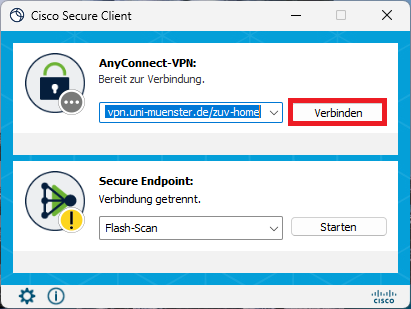
    2. Entering the VPN-Address

    Type in the following adress into the adress bar of the VPN-window: 
    vpn.uni-muenster.de/zuv-home

    Click on Connect.

    2. Entering the VPN-Address
    © CIT

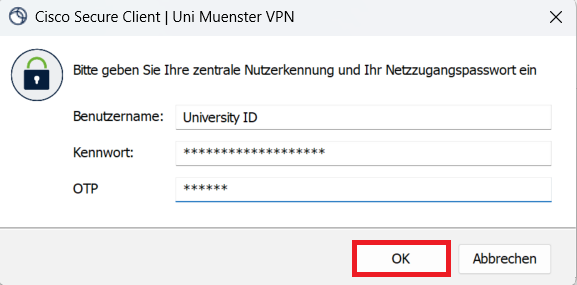
    3. Entering Your User Data

    Click on "Connect" and enter your login details:

    • Username: Your University ID
    • Password: Your Network Access Password
    • OTP/ Second Password: Your One Time Password 
    Click on okay.

    3. Entering Your User Data
    © CIT

    In Case of Connection Issues

    Should the connection not worke as intended:

    • Check the Internet or Wi-Fi connection of your device.
    • Restart your device
    If the problem remains, please submit a ticket via the Self Service Ticket System: https://uvtop.uni-muenster.de/tas/public/login/form