

Setting up a VPN Connection with Linux
Requirement: You have set your network access password in the IT Portal and added a One-Time-Password (OTP)-Programm in the IT-Portal.
Note: As an alternative to the Cisco AnyConnect VPN Client, you can also use the OpenConnect software, which you can find in the package manager of the current distributions. This is especially relevant for you, if you don't use Ubuntu or Cisco doesn't work.
Detailed Instructions
1. Install OpenConnect
Please open the terminal or the Package Manager of your linux system and install the package "OpenConnect" (or in a more detailed way the coresponding packages named in the example below).
On Ubuntu for example you can use the following command: XYZ@XYZPC:/home/XYZPC/# sudo apt-get install network-manager-openvpn-gnome openconnect network-manager-openconnect network-manager-openconnect-gnome2. Open the system settings
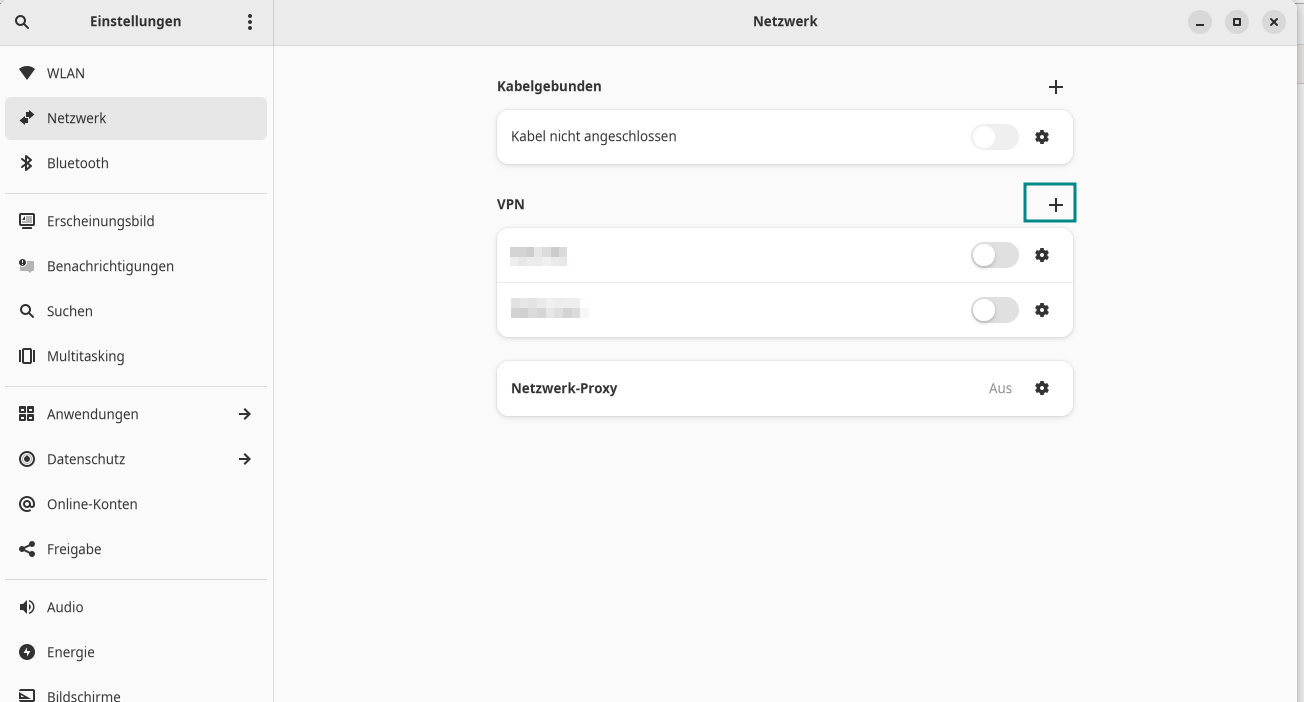
Open the system settings, navigate to "network" and then klick on the "+".
© Uni MS IT 3. Choose OpenConnect
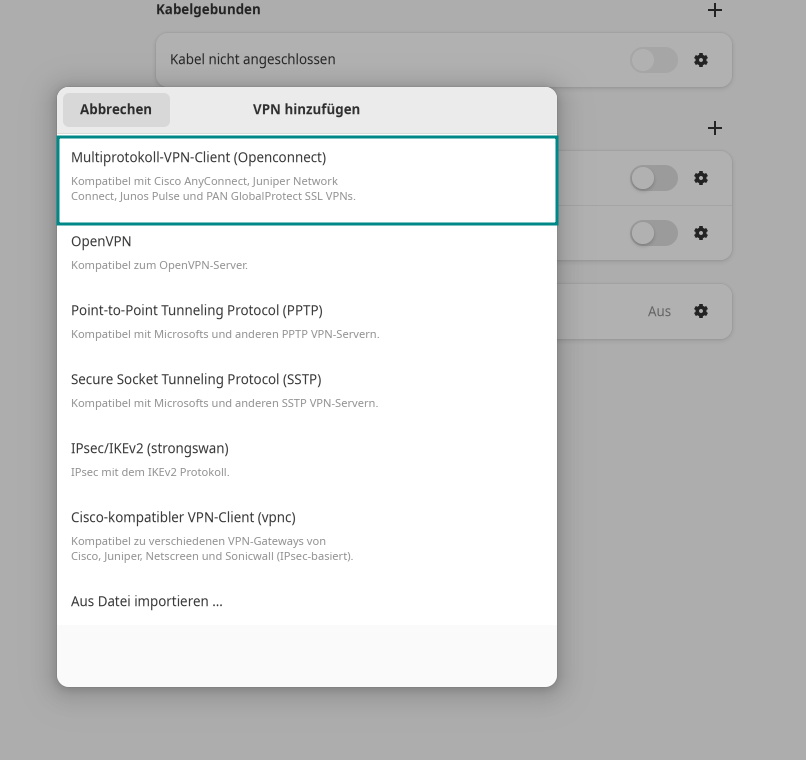
Please choose OpenConnect.
© Uni MS IT 4. Enter configuration
Please enter your login data here:
Name: A name of your choice (to distinguish it from other VPN connections)
Gateway: vpn.uni-muenster.de
Token mode: TOTP
Finally, click on the blue button "Add" to confirm the entered data.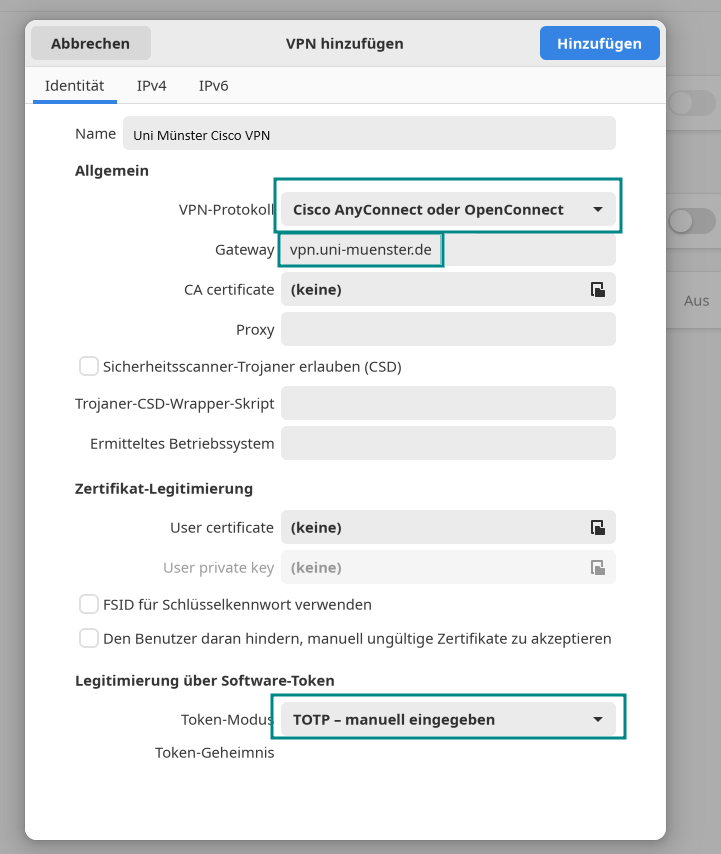
© CIT 5. Start the connection
Connect to the VPN-network by turning the switch on.
(When you don't need the VPN any more, you can disconect it by switching the connection off.)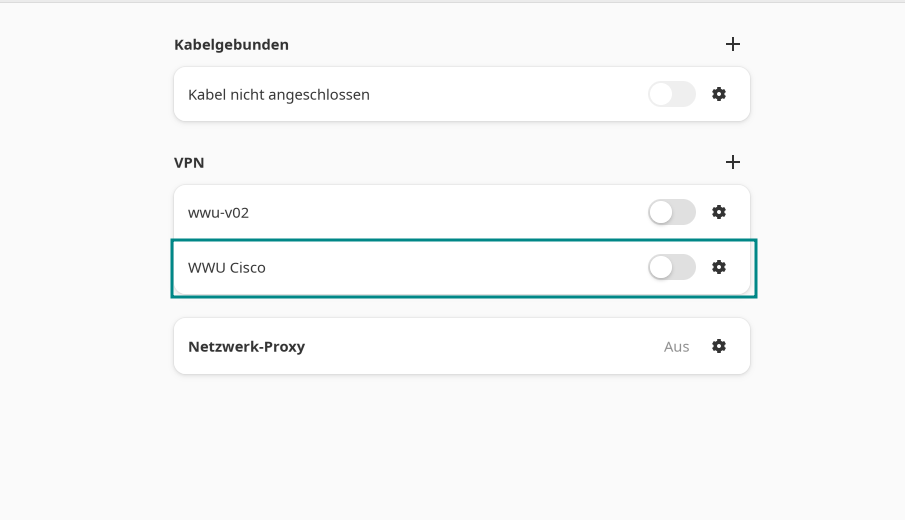
© Uni MS IT 6. Enter both passwords
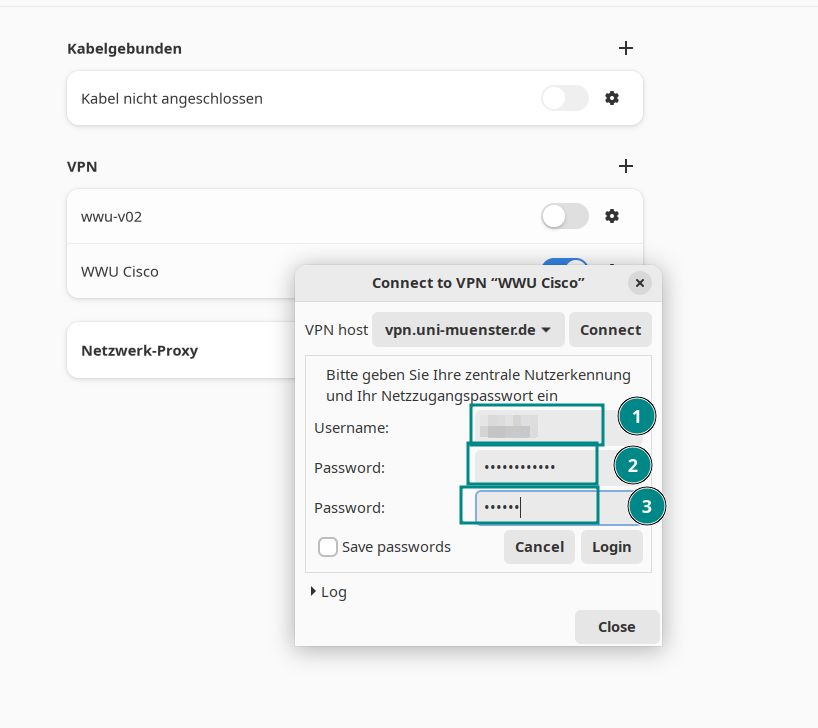
Num you need to enter your login details:
1. your university ID (e.g. m_must01).
2. your network access password (not your university password. You can test or reset this in the IT portal).
3. your OTP password (6-digit pin from your OTP app).
Finally, you can click on login and connect with the VPN.
© Uni MS IT (Optional) easily connect and isconnect the connection
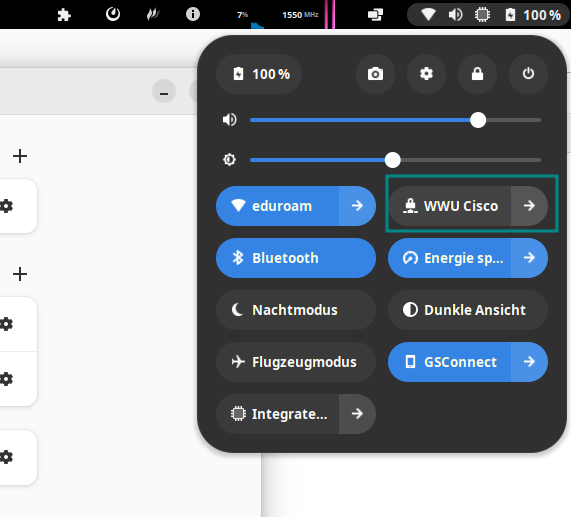
You can also simply connect or disconnect via the easy access menu. To do this, click on the connection. (Blue means "on".)
© Uni MS IT
Special VPN-Profile for Exchange and OWA
To use Exchange on personal devices, you need the following dedicated VPN connection. This connection only manages Exchange traffic and does not have access to your other data traffic. On work devices, you can use the "Standard" connection listed above.
1. Enter Server
Enter the following server address in the field:
https://vpn.uni-muenster.de/exchange
Click "Connect".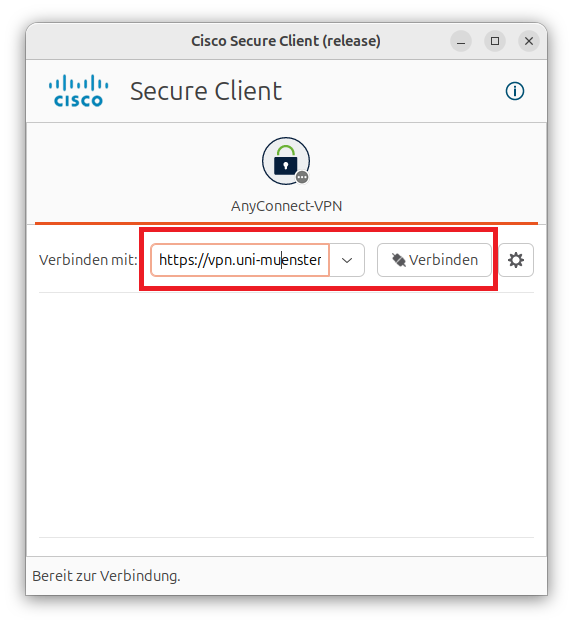
© CIT 2. Login
Log in using your university ID, your net-access password and your one-time-password.
Click "Connect".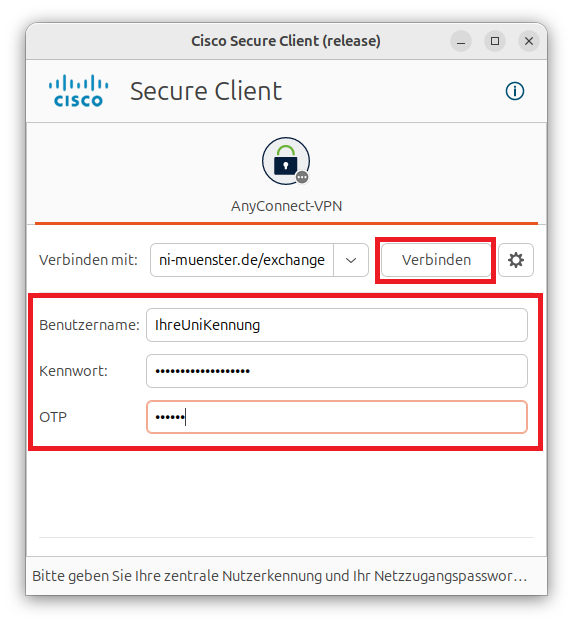
© CIT