

Setting up a VPN Connection with Linux (Ubuntu)
Requirement:
- You have set your network access password in the IT Portal.
- You have registered an one-time password. OTP
Download the installation file
1) Download path
Go to the Linux section in the download directory (if you have an ARM64 processor, go to the LinuxARM64 section).
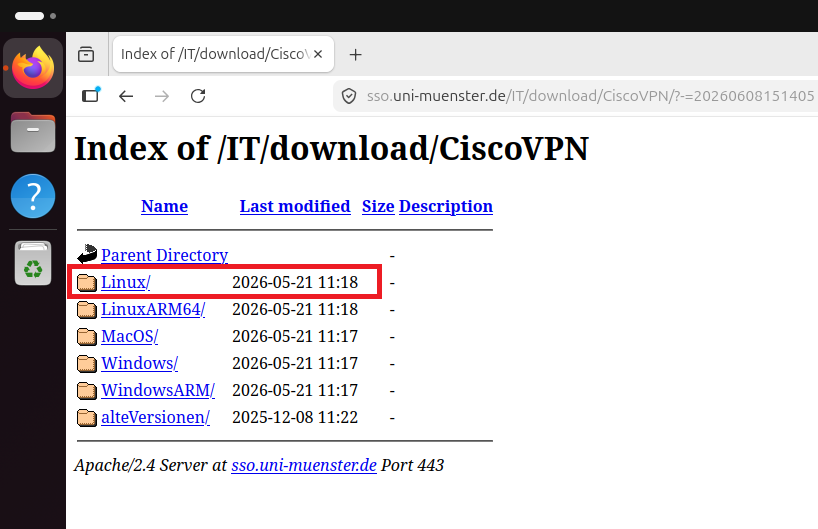
© CIT 2) Download the .deb file
Download the latest cisco-secure-client-linux64-“version”-predeploy-deb-k9.tgz file from the download directory.
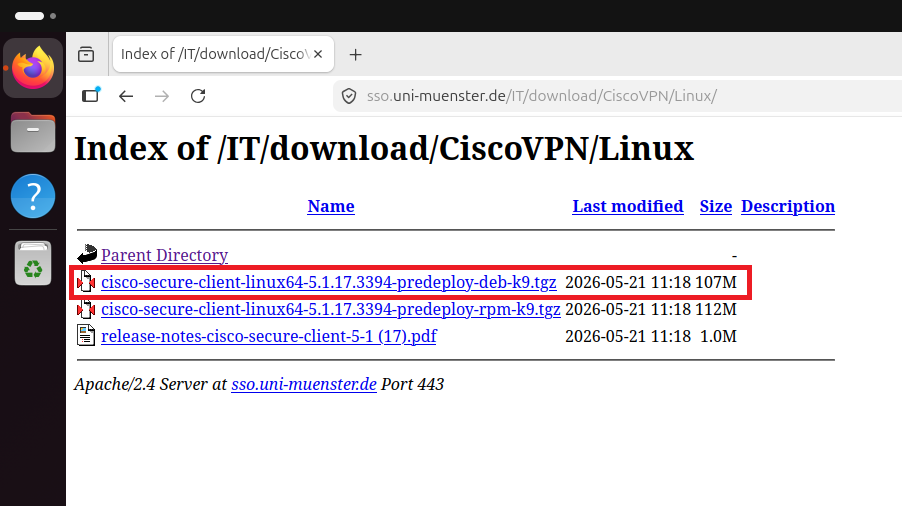
© CIT 3) Ordner Entpacken
Go to your local Downloads folder and extrac the downloaded file by right-clicking on it and selecting “Extract” from the menu that appears.
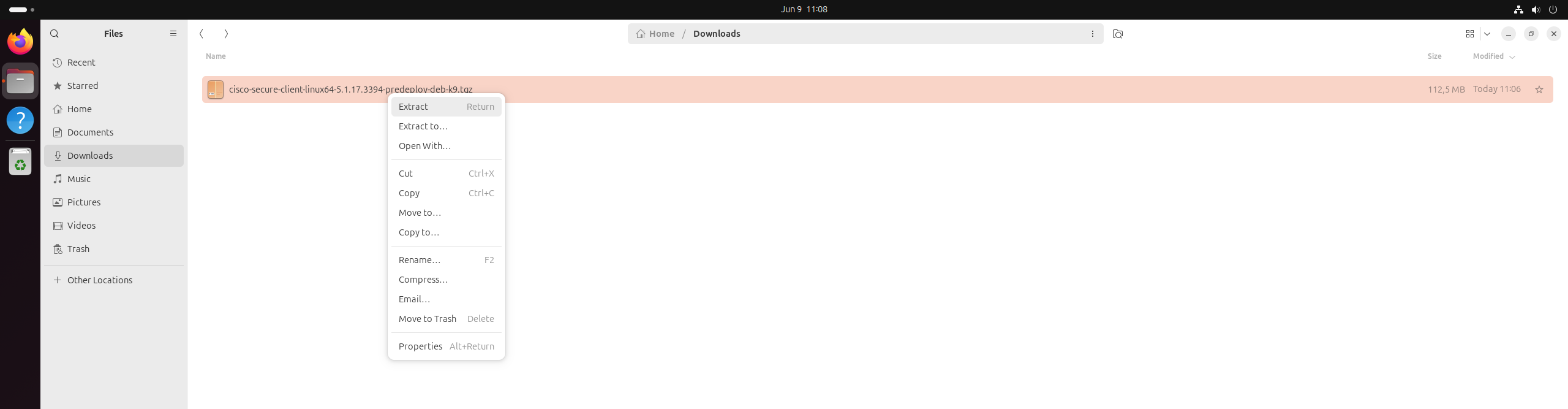
© CIT Installation via the terminal
1) Open Terminal
Open a terminal window in the extracted folder. To do this, right-click in the empty area of the folder and select “Open in Terminal” from the context menu that appears.
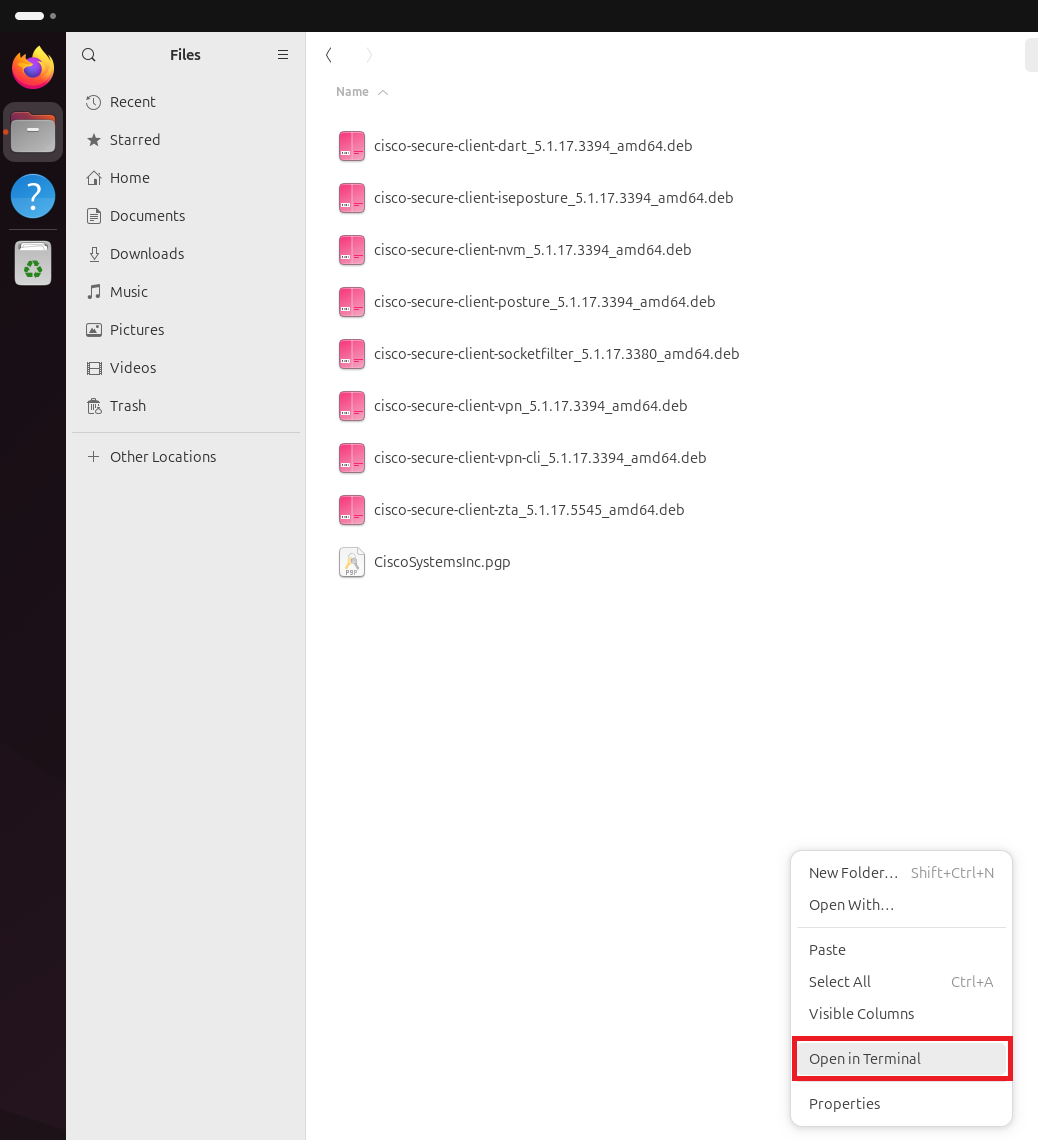
© CIT 2) Install
In the terminal, enter the following command: sudo apt install ./cisco-secure-client-vpn_“version number”_amd64.deb.
You will now be prompted to enter your user password (Note: your password will not be displayed as you type).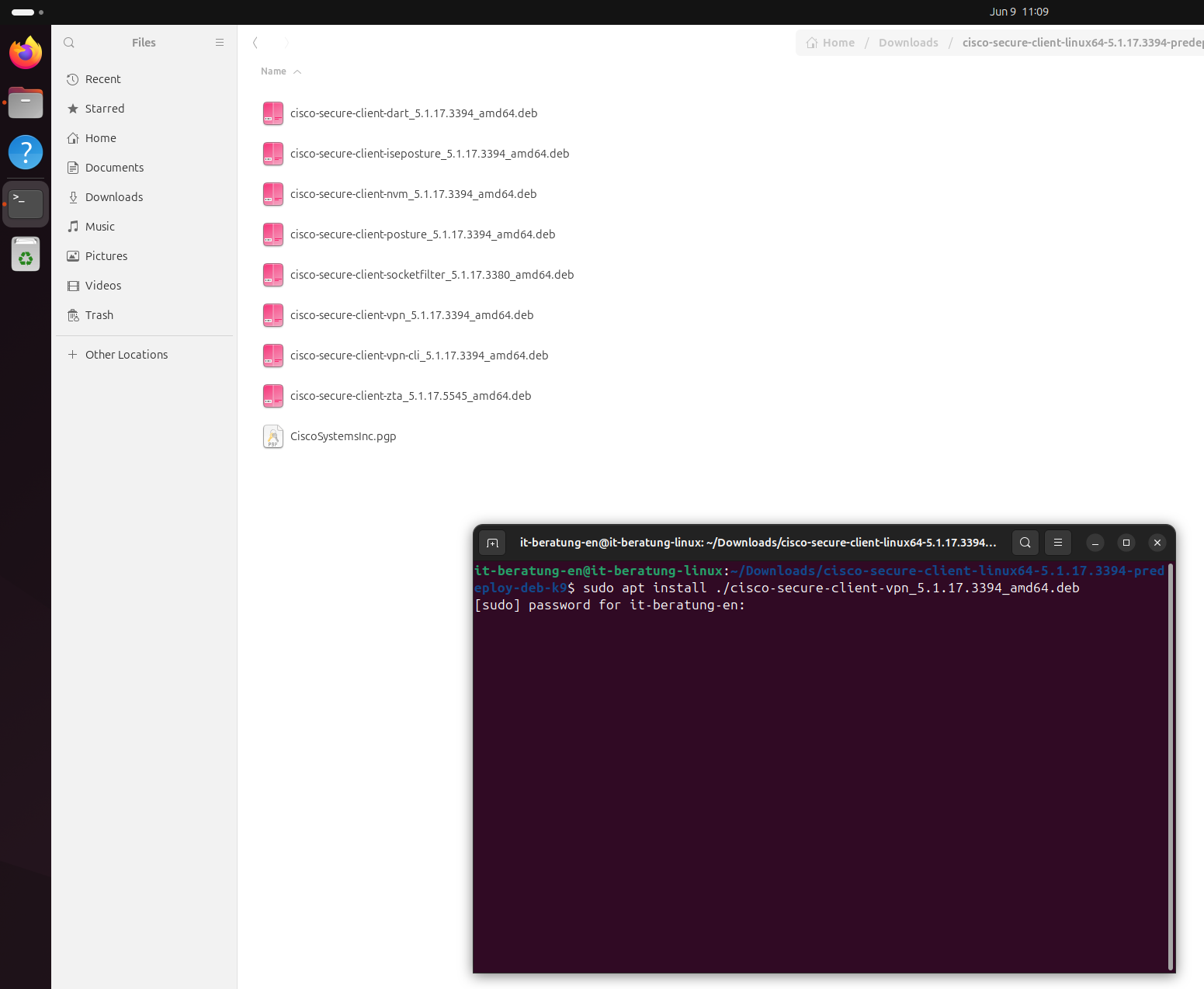
© CIT 3) Finish the installation
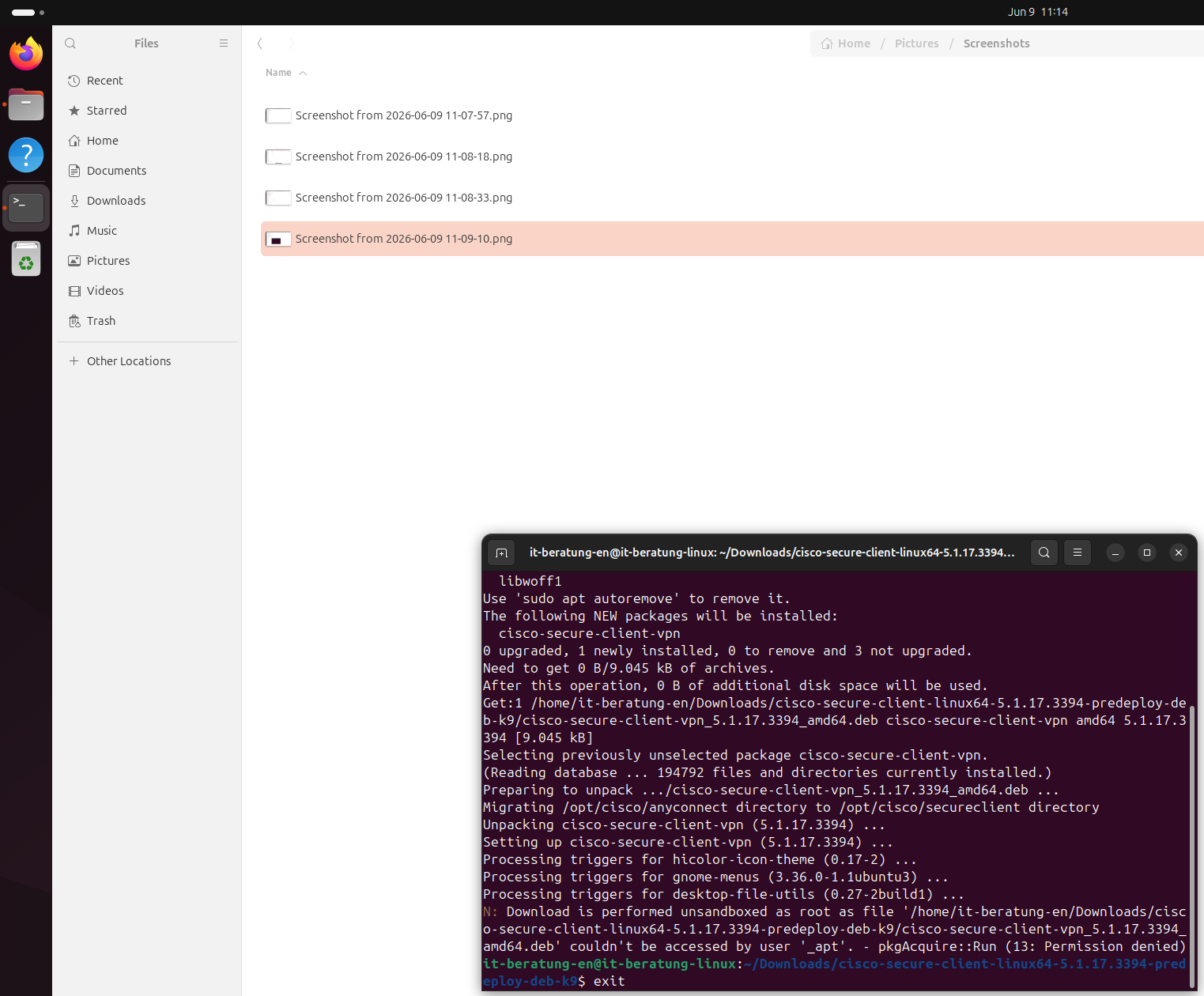
After a short wait, the installation is complete and you can close the terminal.
© CIT Graphic installation
1) Open Software Installation
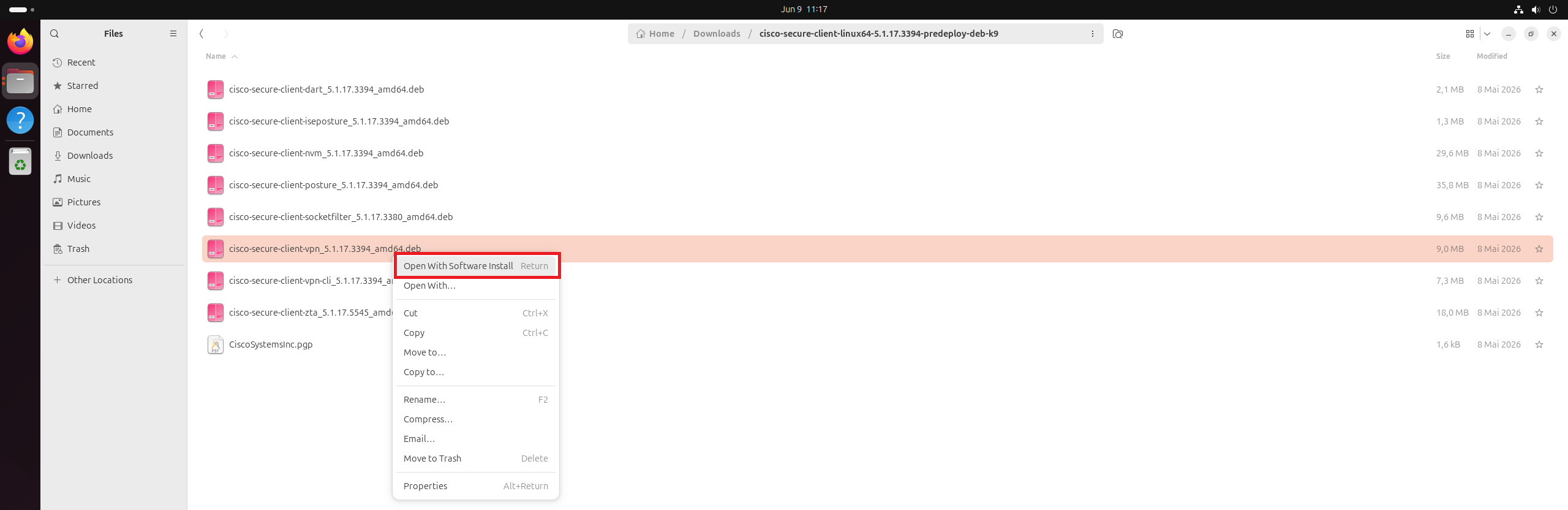
Right-click the “cisco-secure-client-vpn_version_number_amd64.deb” file and select “Open with Software Installer” from the context menu that appears.
© CIT 2) Install software
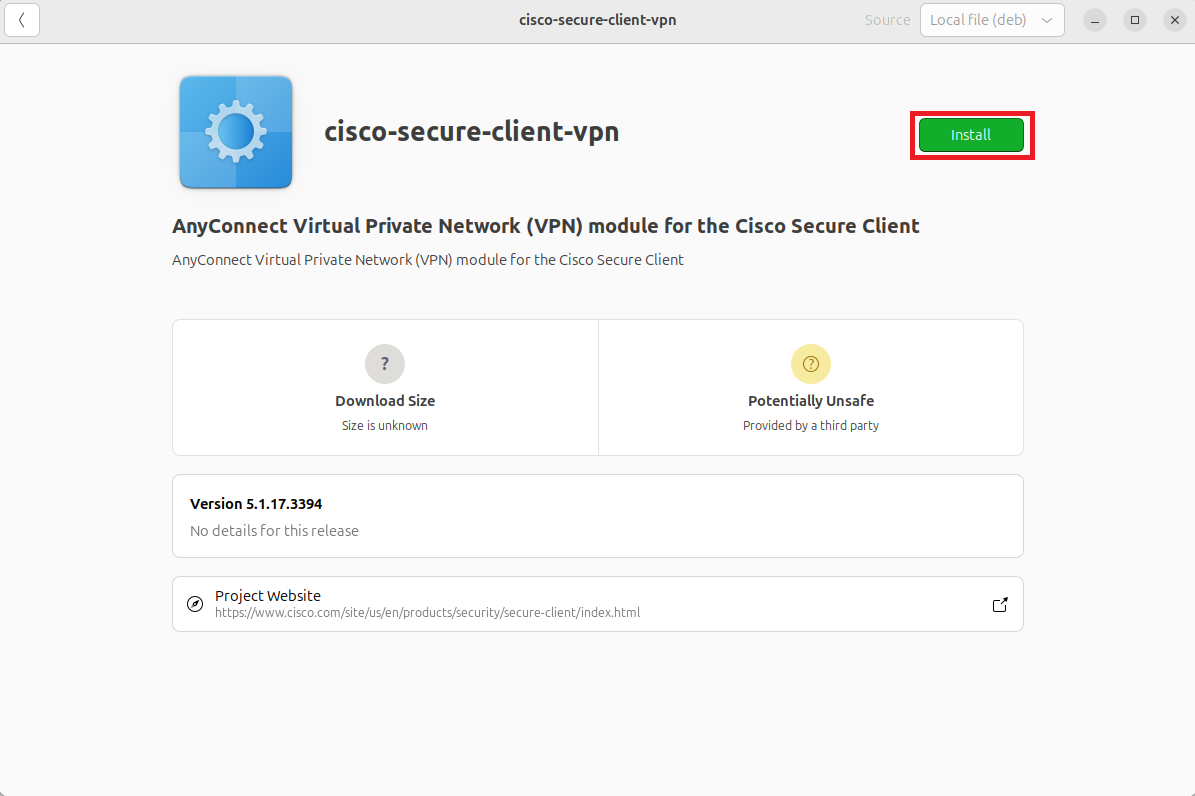
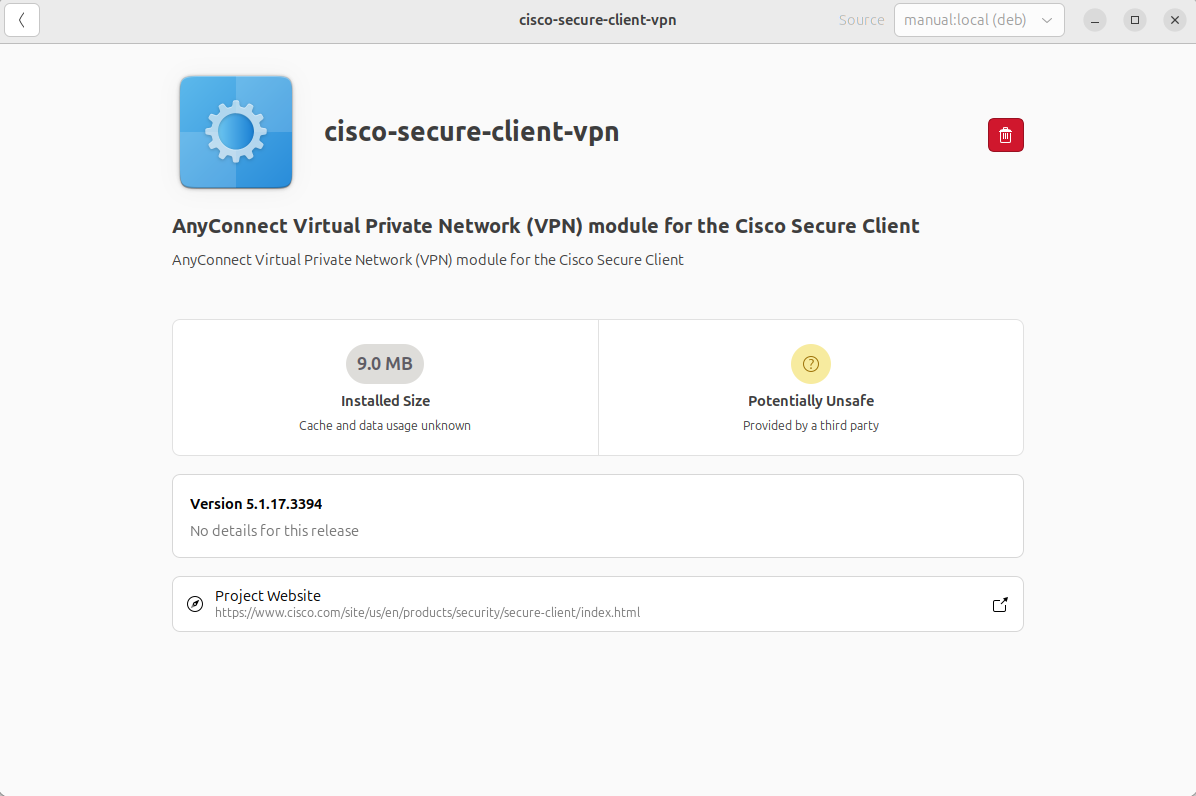
In the window that opens, click “Install.”
© CIT 3) Verify
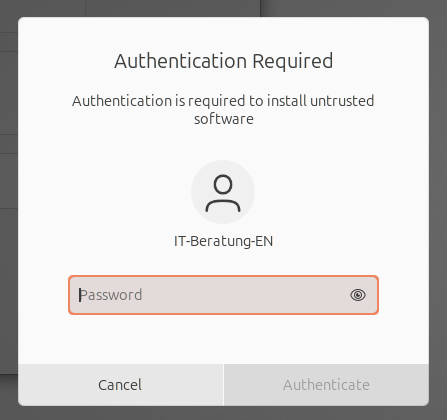
Enter the device's password to verify your identity.
© CIT 4) Finish the installation
After a short wait, the installation will be complete and you can close the window.
© CIT Connect
1) Opening the Cisco Secure Client
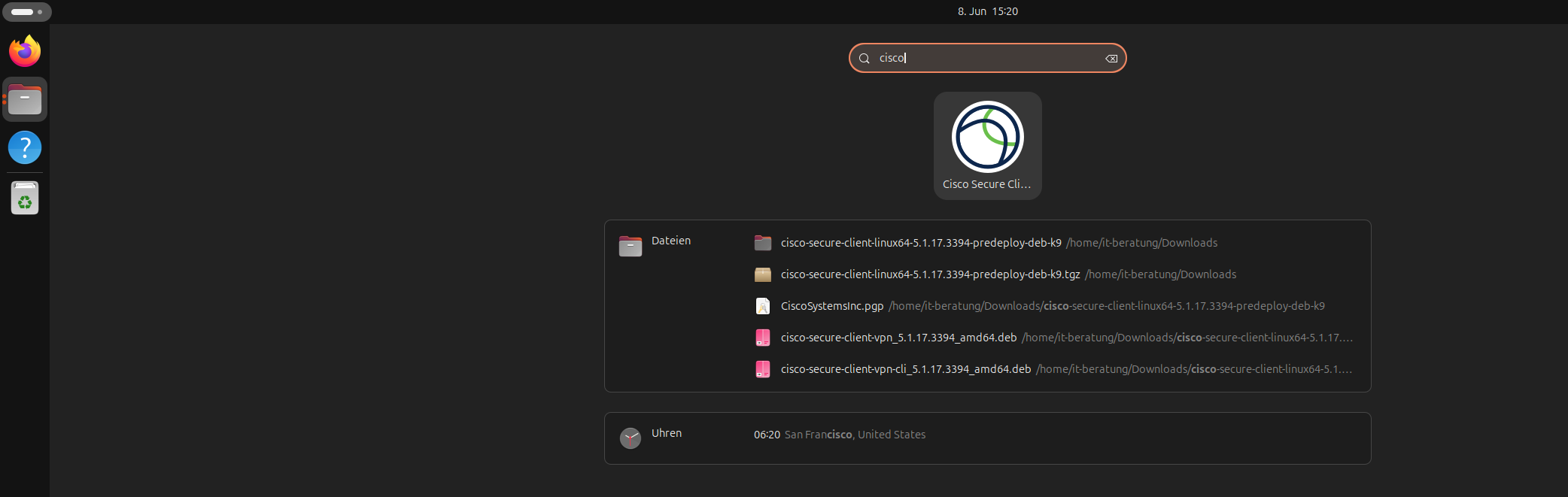
Open the Cisco Secure Client.
© CIT 2) VPN address
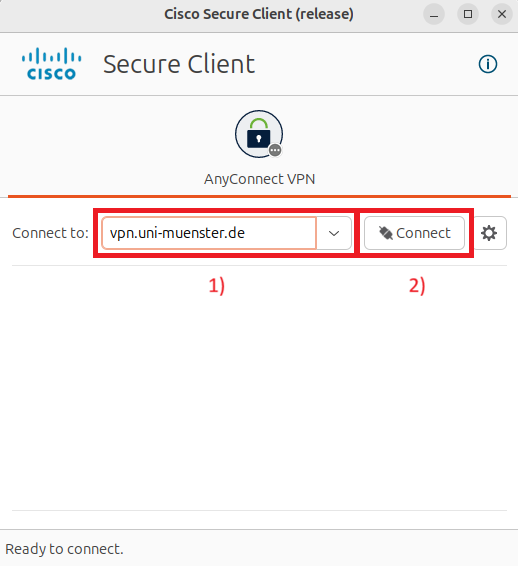
In the address field (1), enter “vpn.uni-muenster.de” and click “Connect” (2).
© CIT 3) Sign in
Log in using your university credentials:
Username = University-ID
Password = Net access password
OTP = OTP/two-factor authentication
and then click “Connect” again.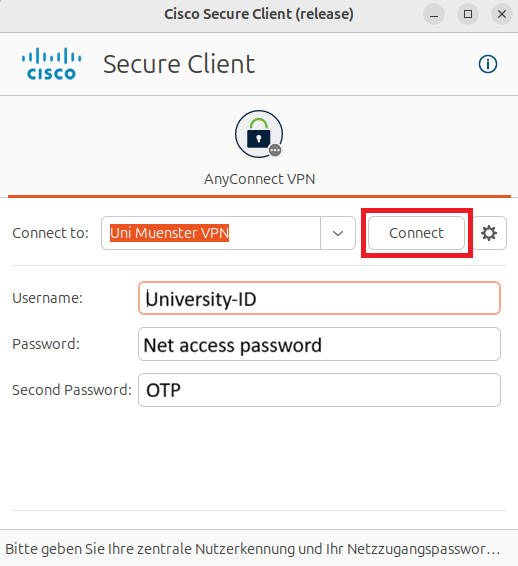
© CIT


