
Setting up WLAN under iOS
Requirements:
- You have installed the latest version of iOS.
- You know your university ID and your network access password.
- You are near the "uni-ms" / "eduroam" Wi-Fi networks.
- If you have already used the network of Münster University, you have to delete the previous settings. Depending on whether you have set up the WLAN manually or via profile, follow the corresponding instructions for deleting.
Note:
- To download the profile, you can use our guest Wi-Fi GuestOnCampus (or "UKM Gast" at UKM).
- You can find a collection of frequently asked questions about setup here.
Setting up uni-ms and eduroam with CAT
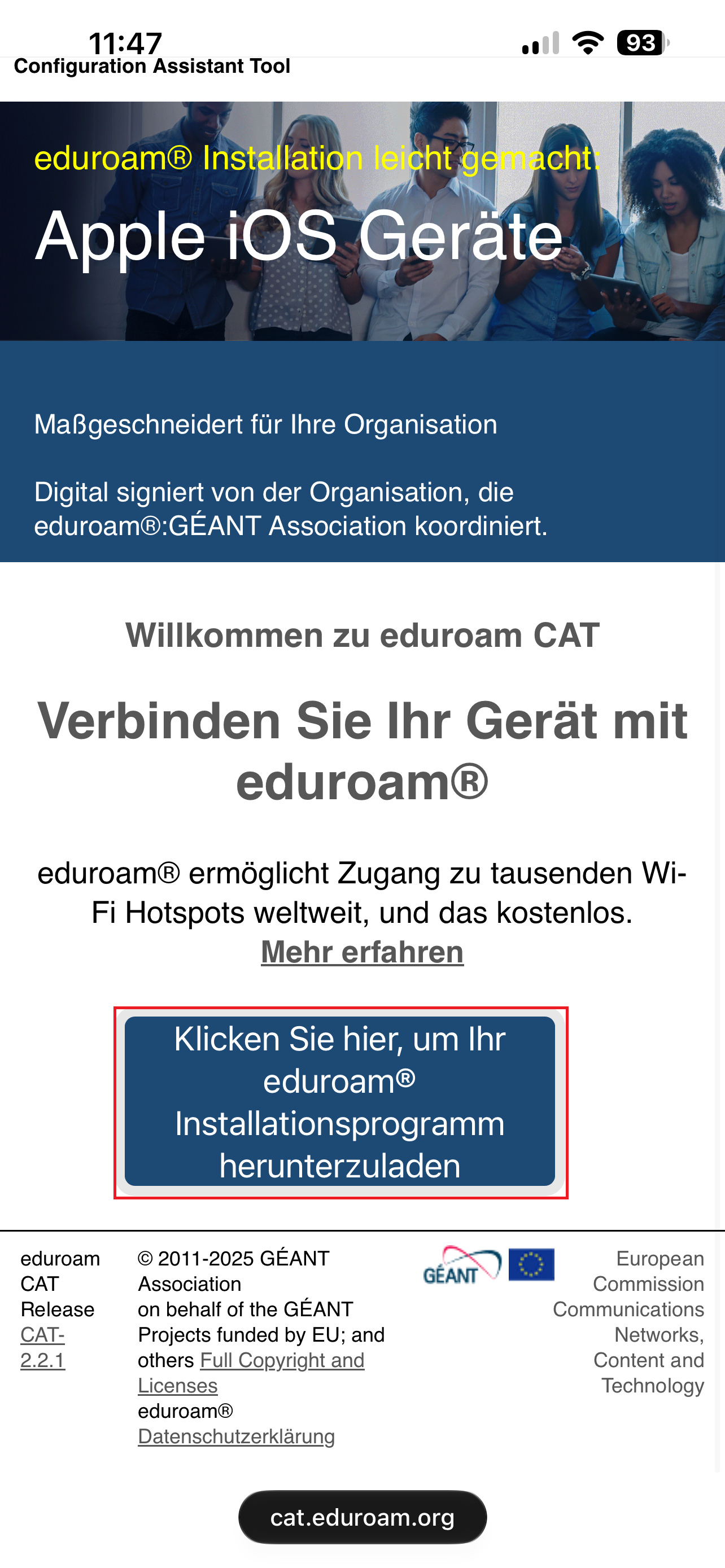
1. Open Website
Visit the following website to install the certificate via this link. Please note that you should only use Safari for the installation and NO other browser.
© CIT 2. Select Organisation
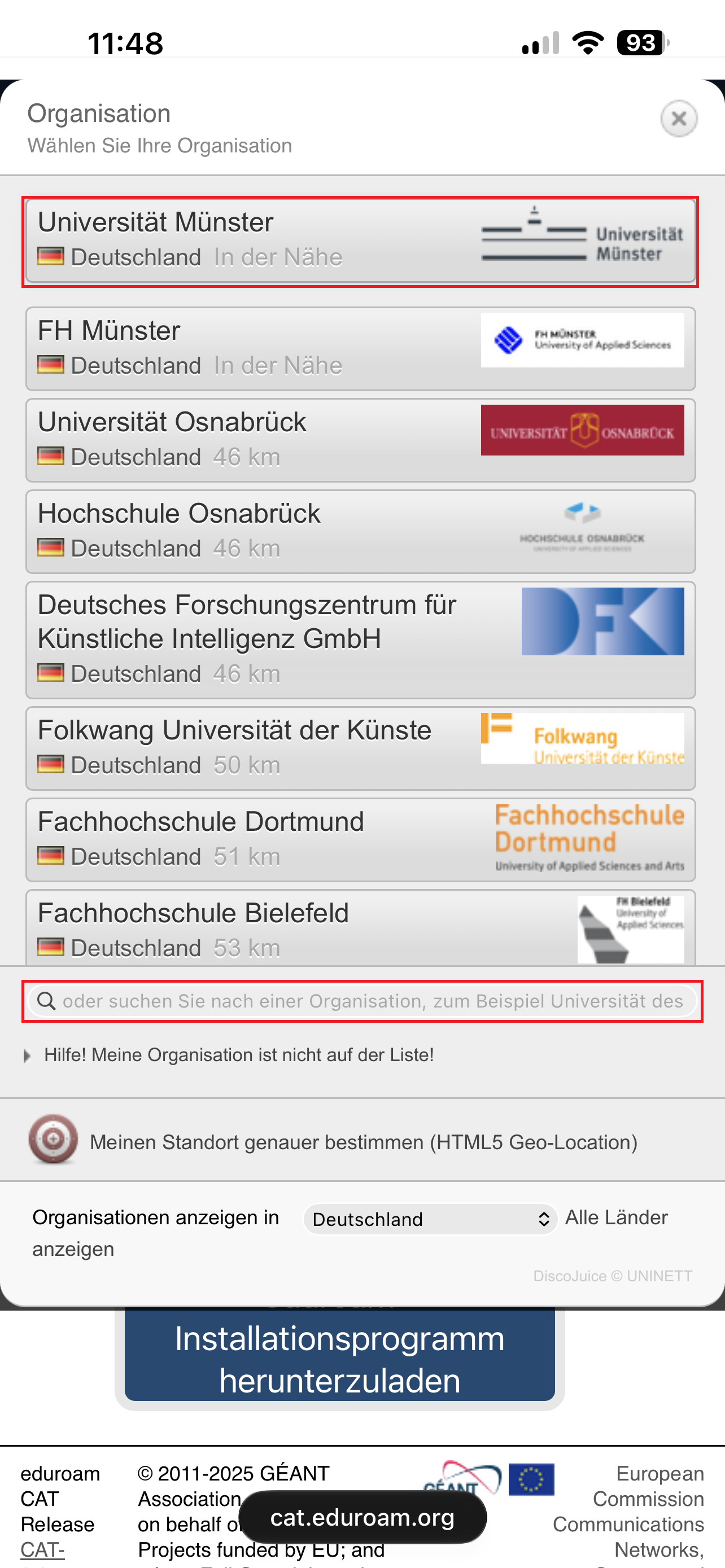
Select "Universität Münster" from the list of institutions. If the University of Münster does not appear directly in the list, you may need to search for it in the search field below.
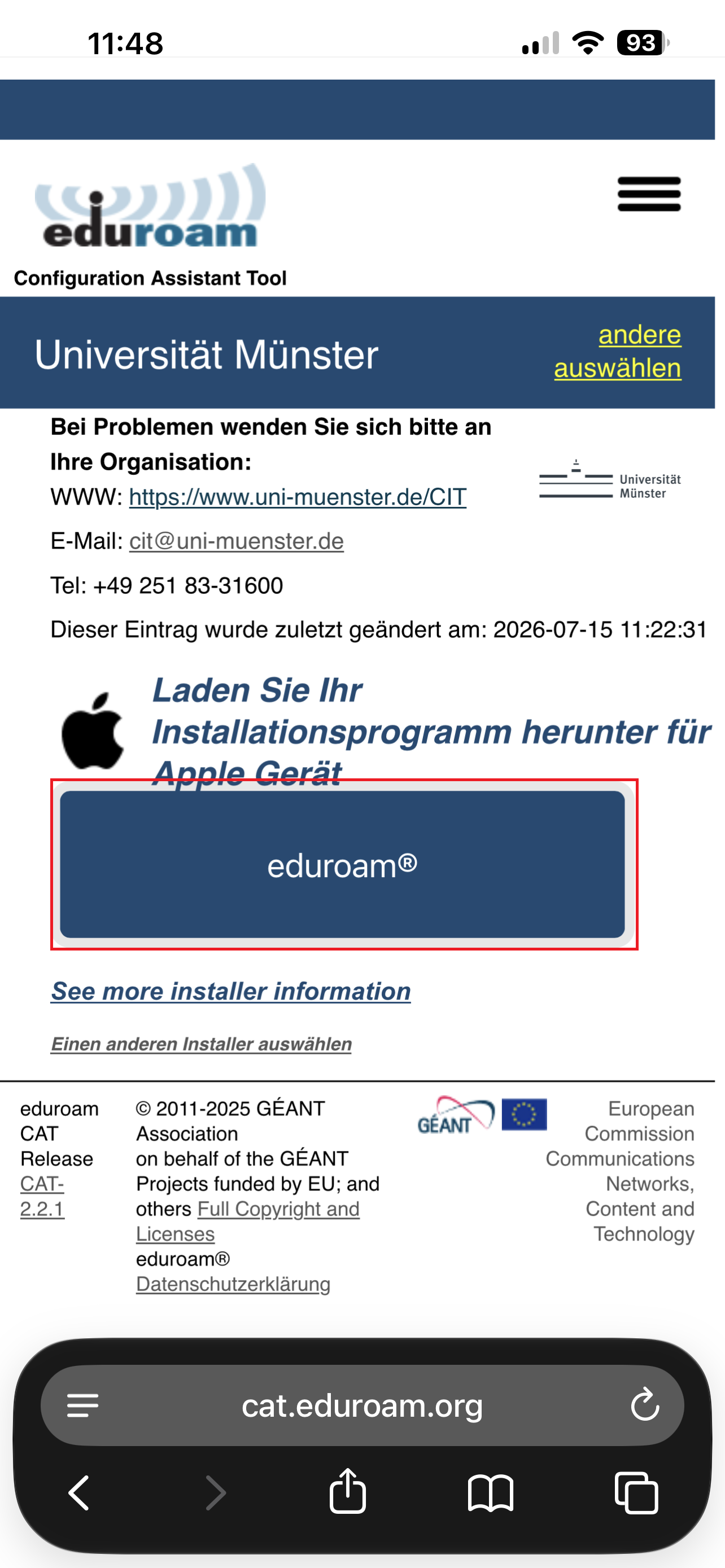
© CIT 3. Select Eduroam
Tap the "eduroam" button. In this step, in addition to the eduroam certificate, the uni-ms certificate is also downloaded automatically.
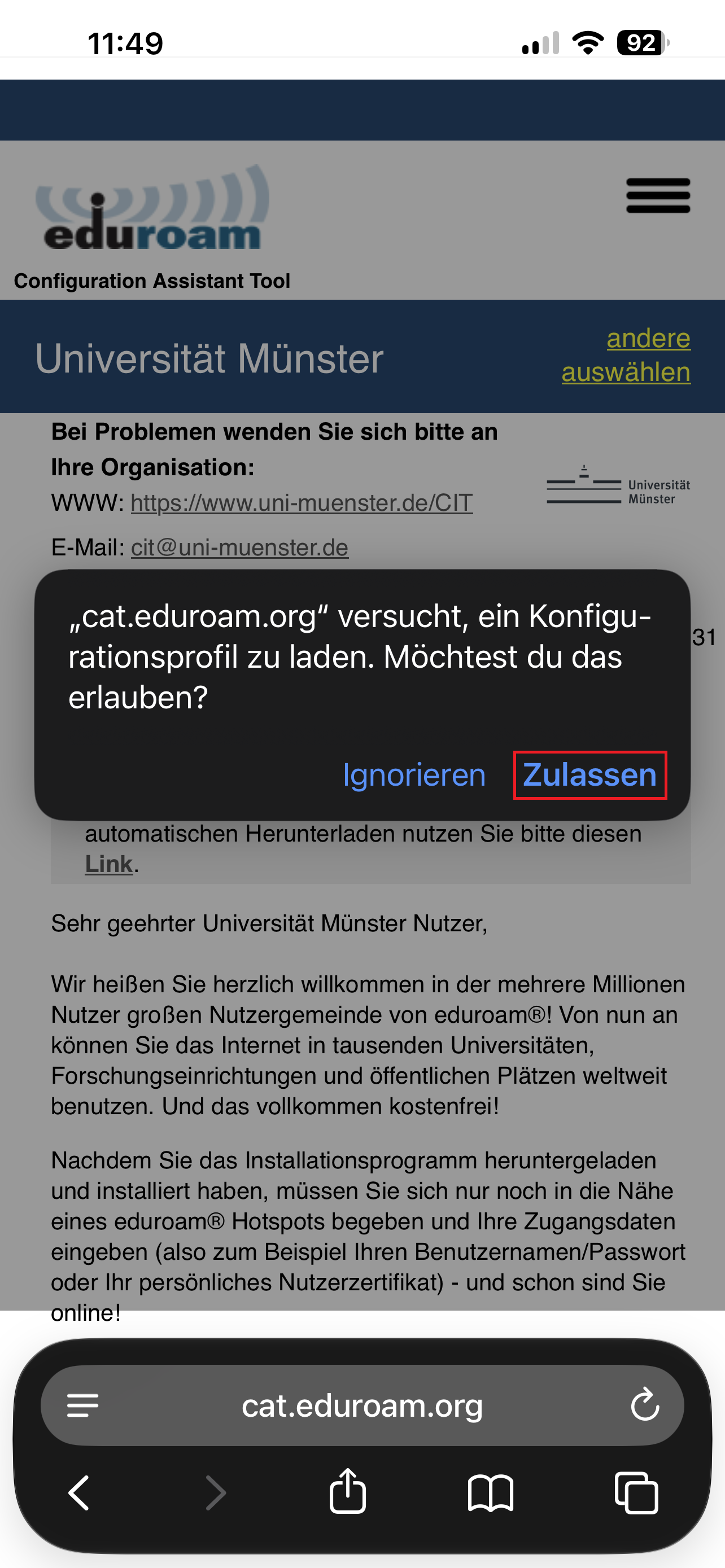
© CIT 4. Allow Download
Safari will now ask you whether you want to allow the download. You must confirm this by tapping "Allow".
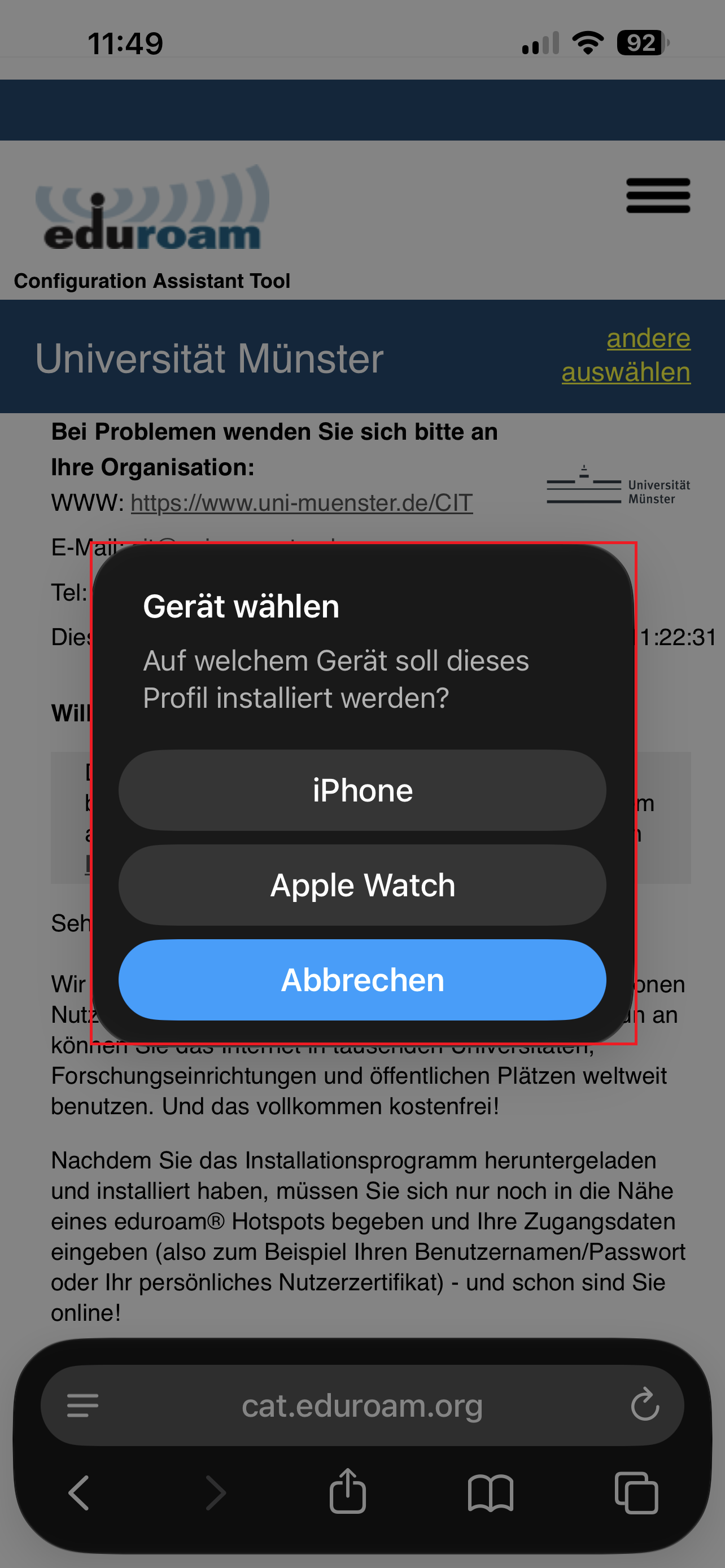
© CIT OPTIONAL Select Device
If, in addition to your iPhone, you own another device such as an Apple Watch, you can select in this step which device you want to install the certificate on. Select the device relevant to you for the installation.
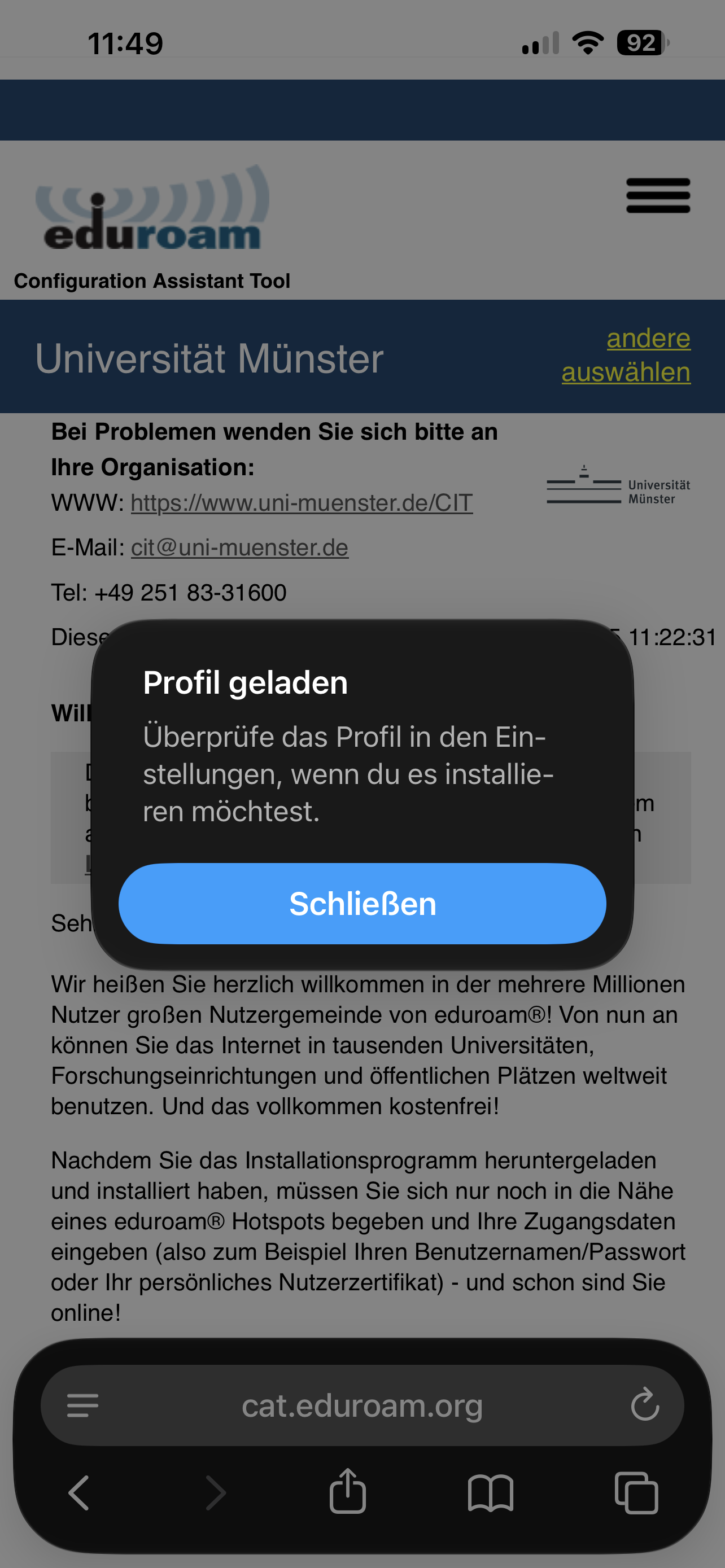
© CIT 5. Profile loaded successfully
Safari now informs you that the profile has been loaded successfully. You can simply close the notice. From here, switch from Safari to the settings of your iPhone.
© CIT 6. Configure profile
Once in the settings, you should find the "Profile loaded" tab at the very top. Please select it.
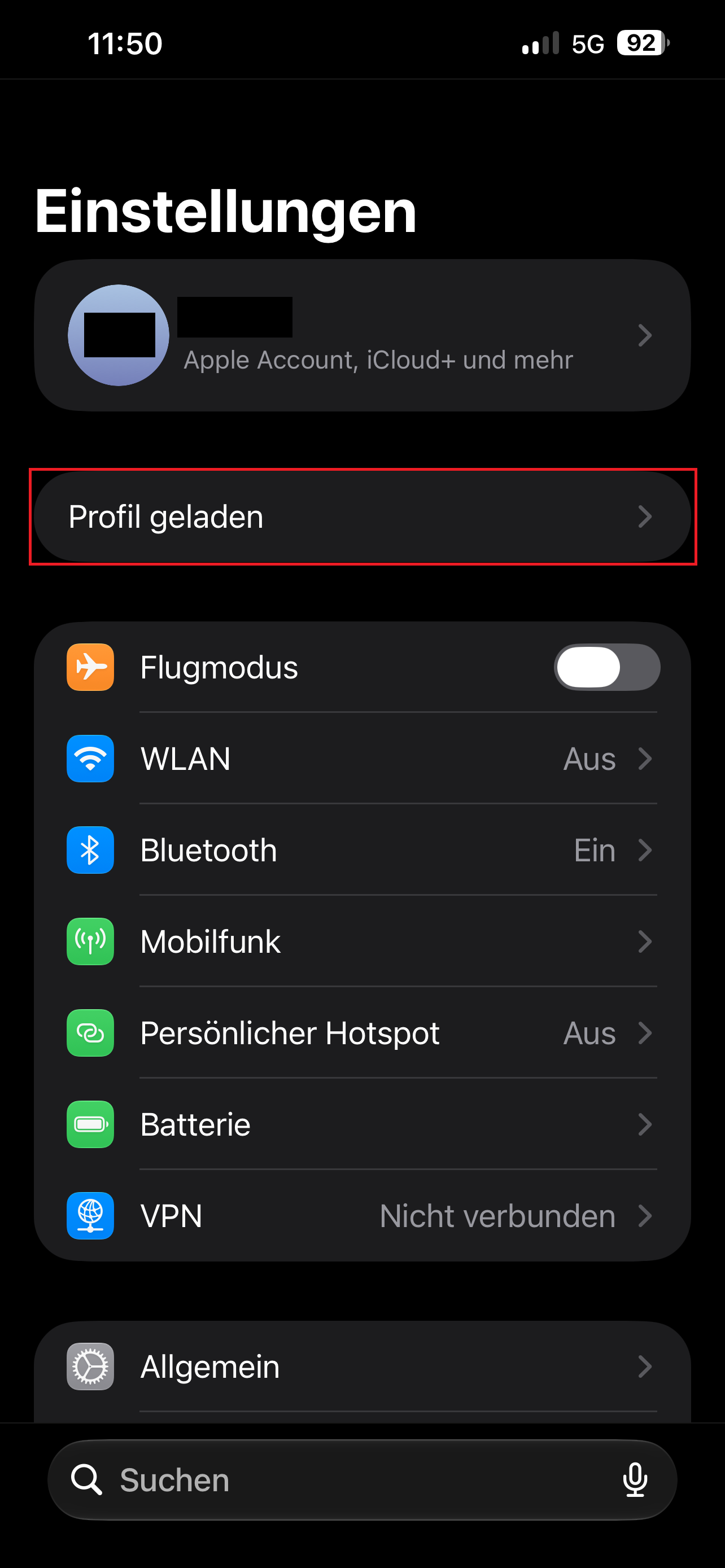
© CIT 7. Install Profile
Tap "Install" in the top right corner.
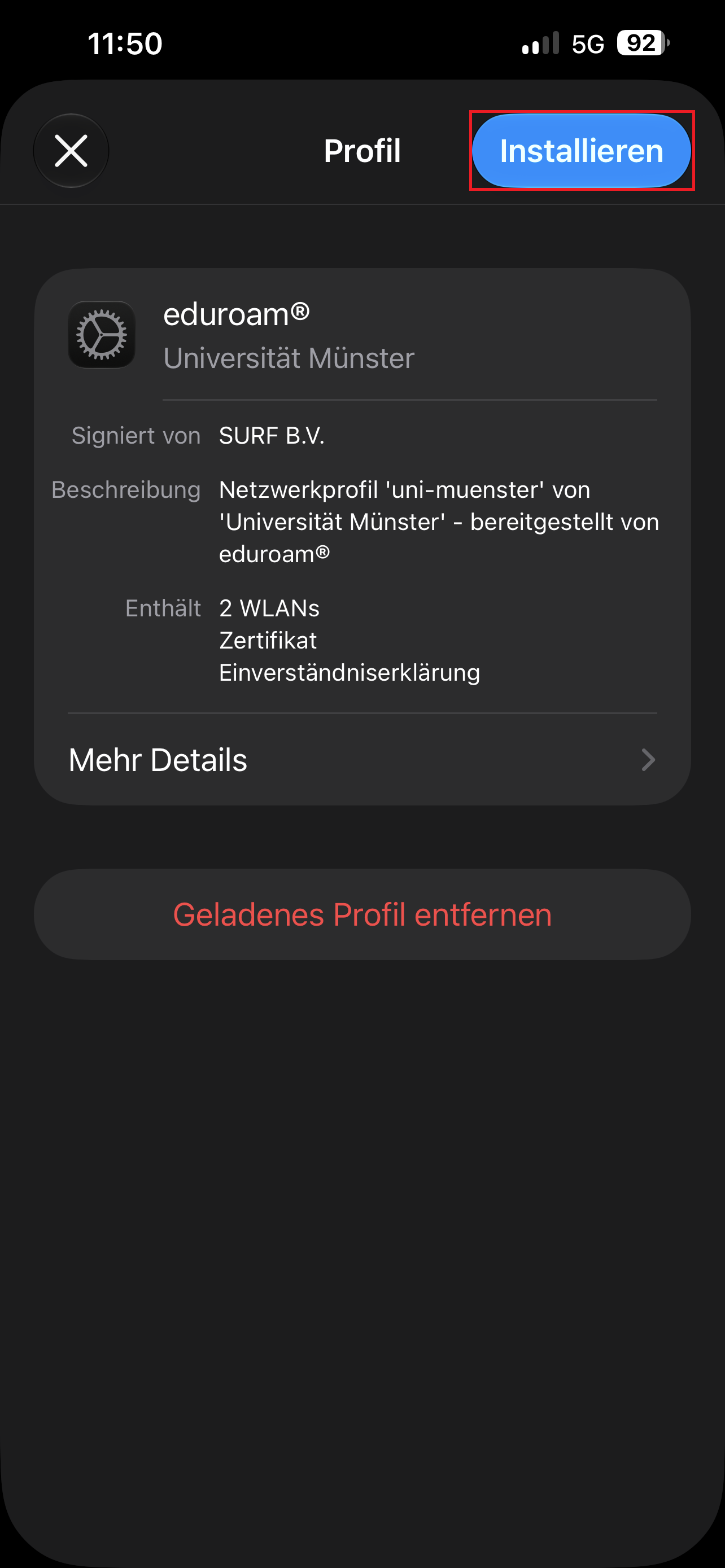
© CIT 8. Agree
Agree to the notice by tapping "Next".
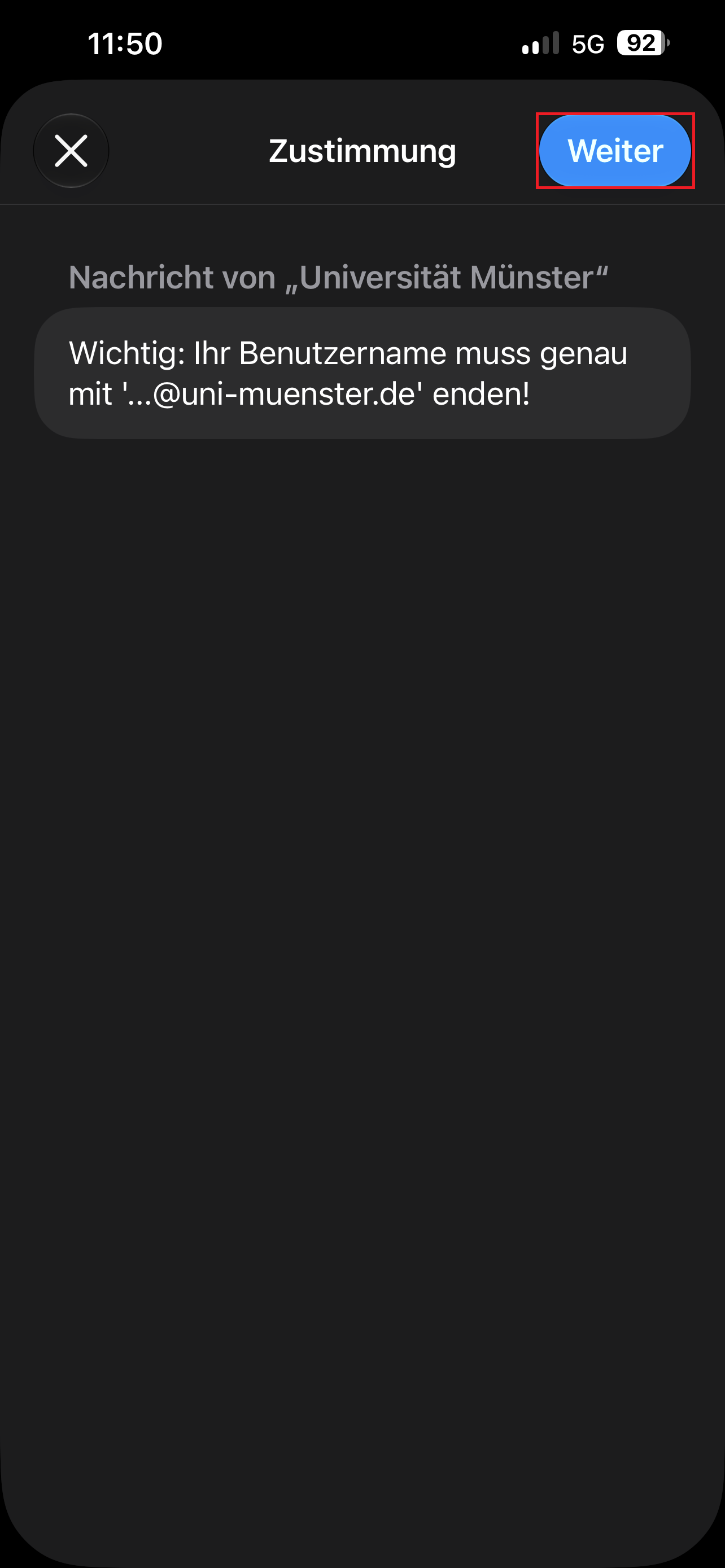
© CIT 9. Accept Warnings
Note the warnings. You must also accept these if you wish to use eduroam and/or uni-ms.
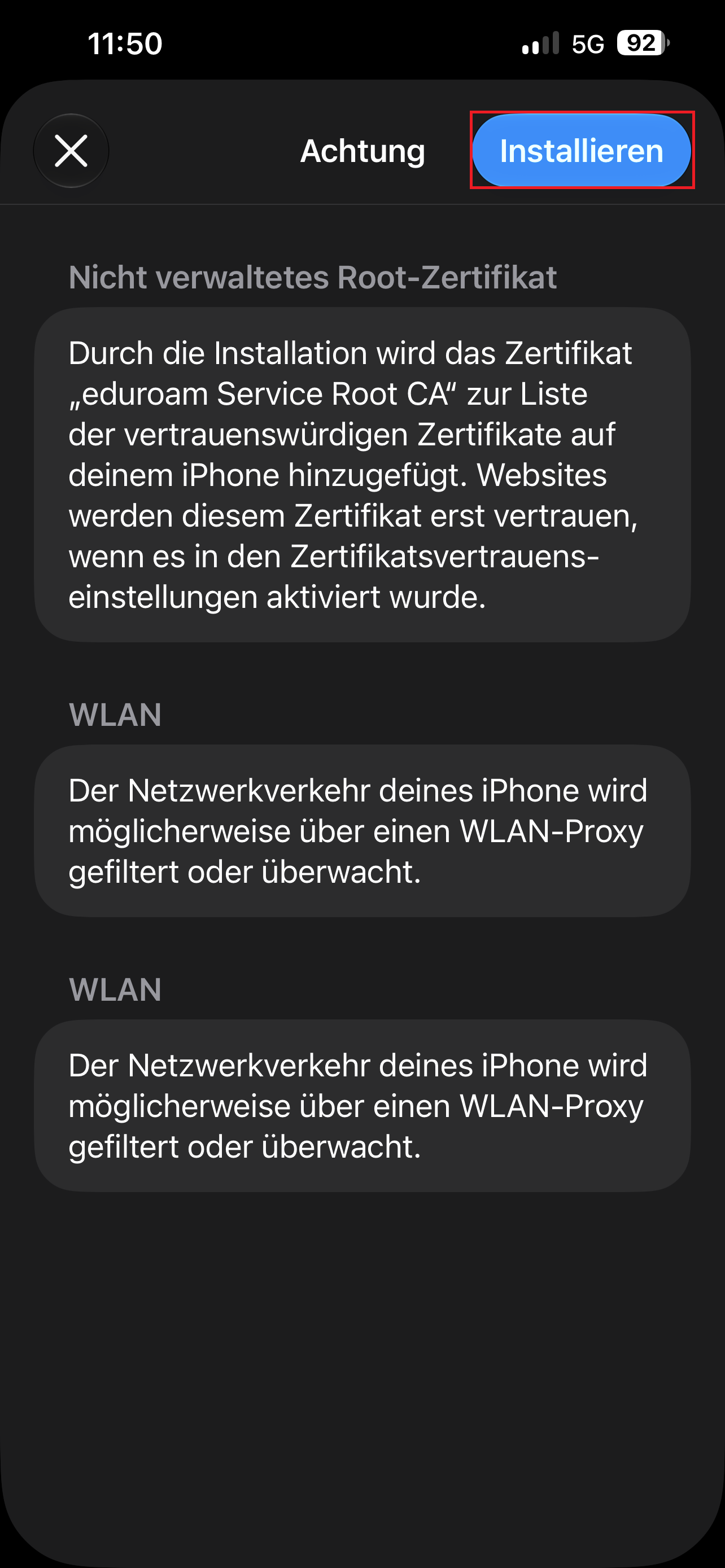
© CIT 10. Confirm iPhone Changes
Confirm that the profile should be installed by tapping "Install".
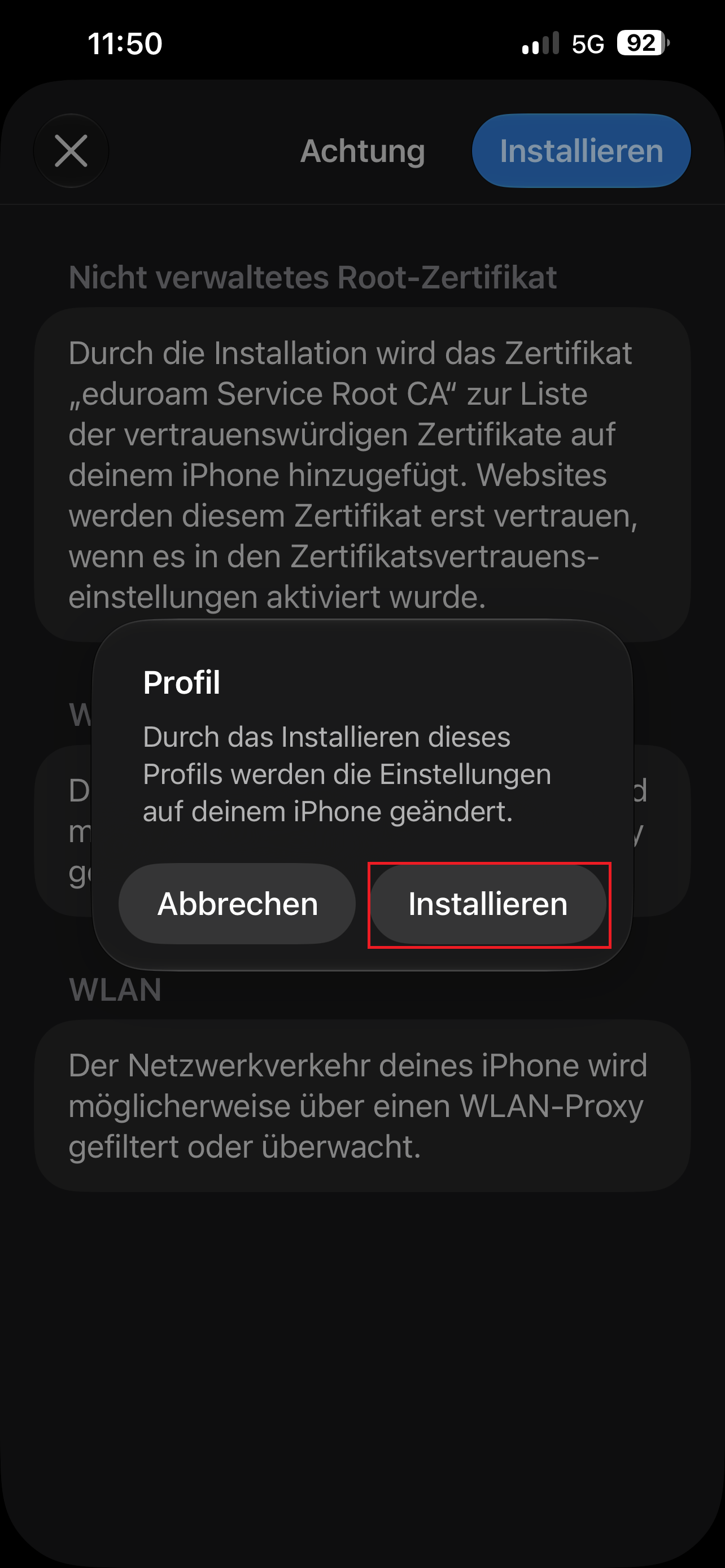
© CIT 11. Enter Username for eduroam
In the next steps you enter your user information first for "eduroam" and then for "uni-ms". Be sure to enter this information correctly - the CAT tool itself does not verify user data!
Username: YourUser-ID@uni-muenster.de (NOTE: DO NOT use the email name you created yourself)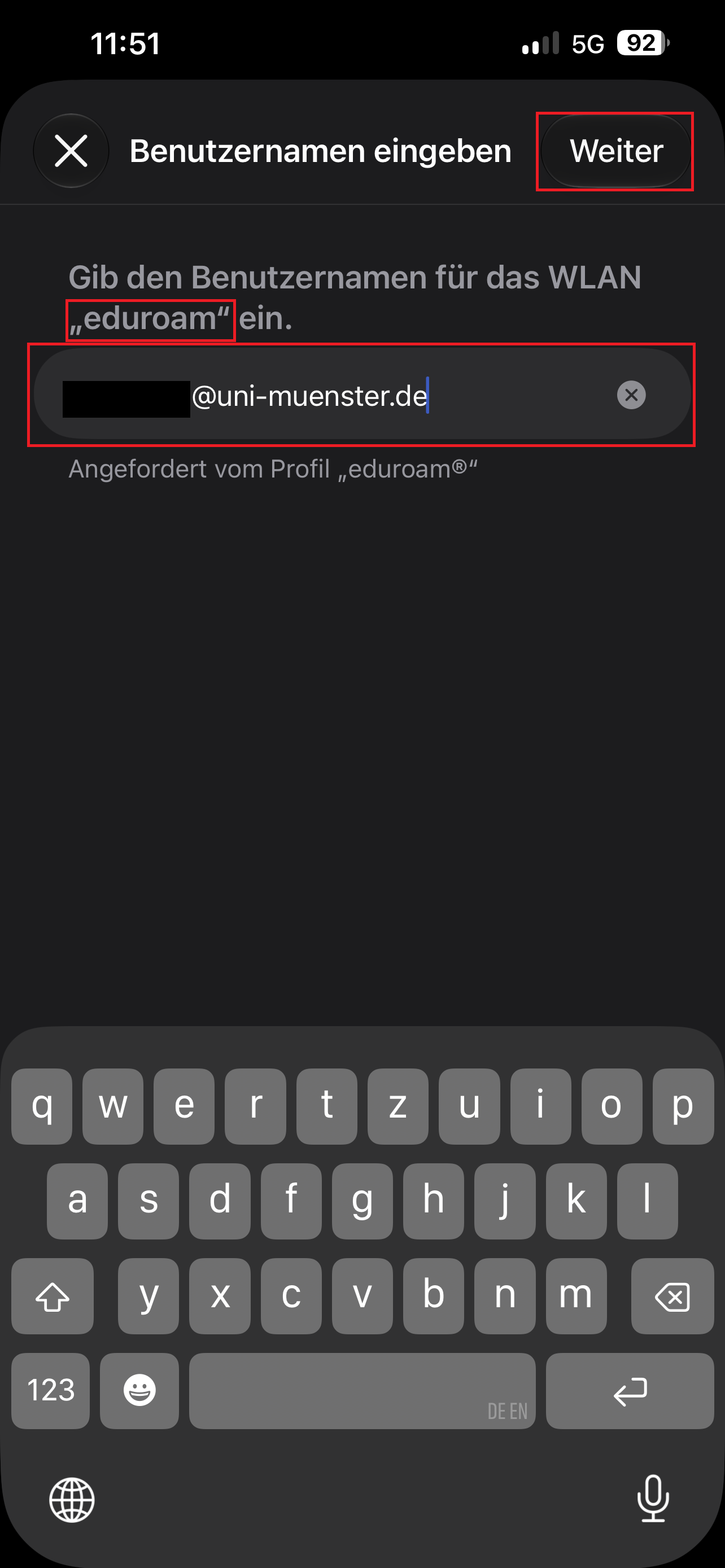
© CIT 12. Enter Password for eduroam
Password: Your network access password (NOTE: NOT your university password!)
Make sure you enter the information correctly, and then tap "Next".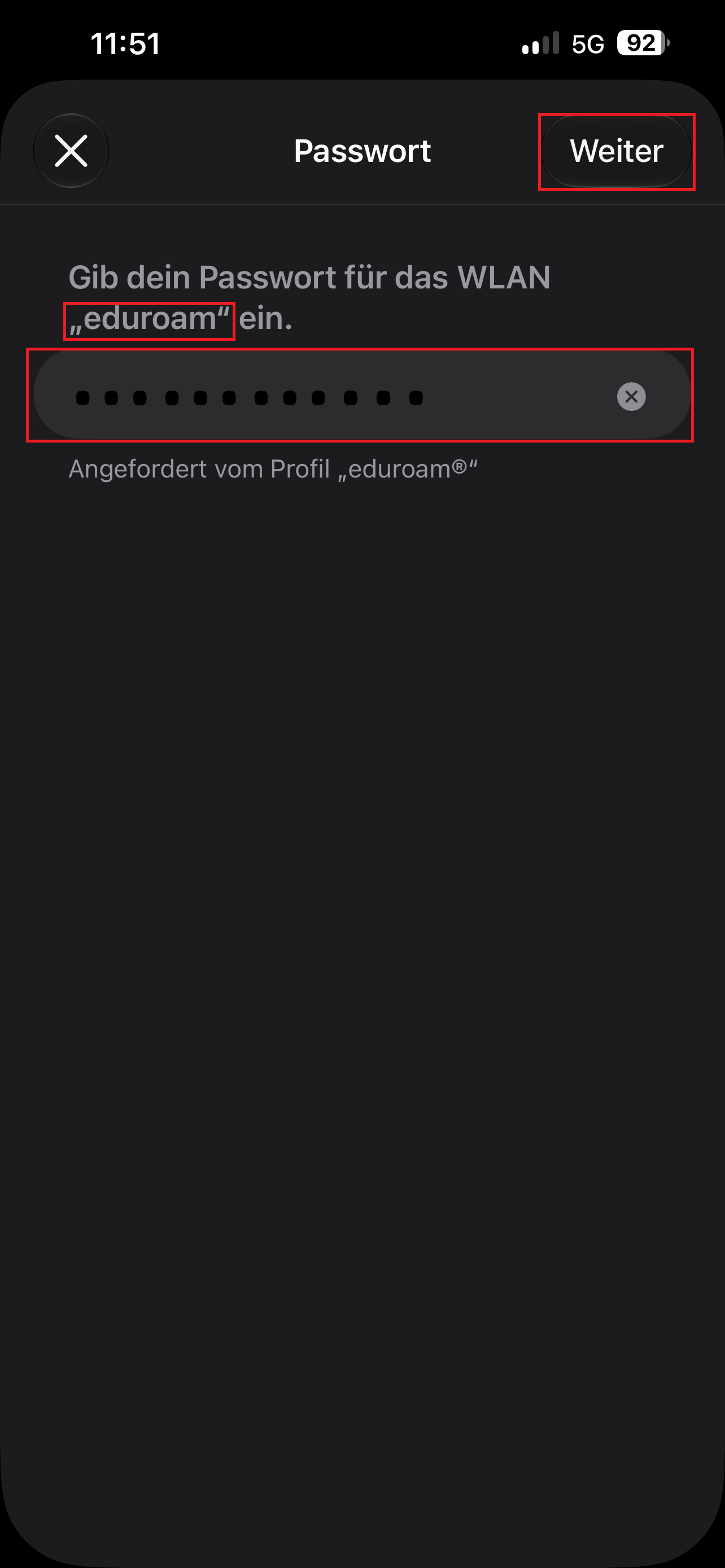
© CIT 13. Enter Username for uni-ms
Username: YourUser-ID@uni-muenster.de (NOTE: DO NOT use the email name you created yourself)
Make sure you enter the information correctly, and then tap "Next".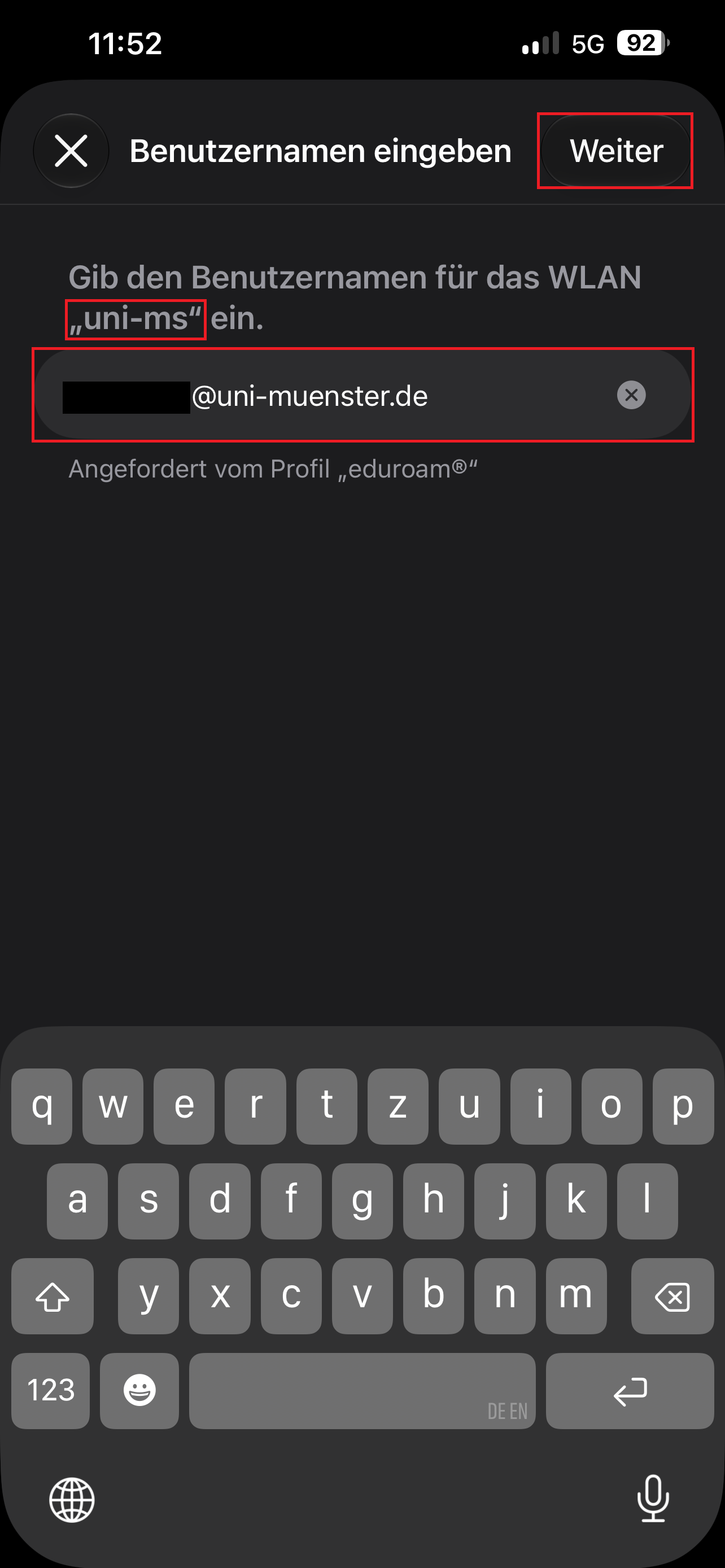
© CIT 14. Enter Password for uni-ms
Password: Your network access password (NOTE: NOT your university password!)
Make sure you enter the information correctly, and then tap "Next".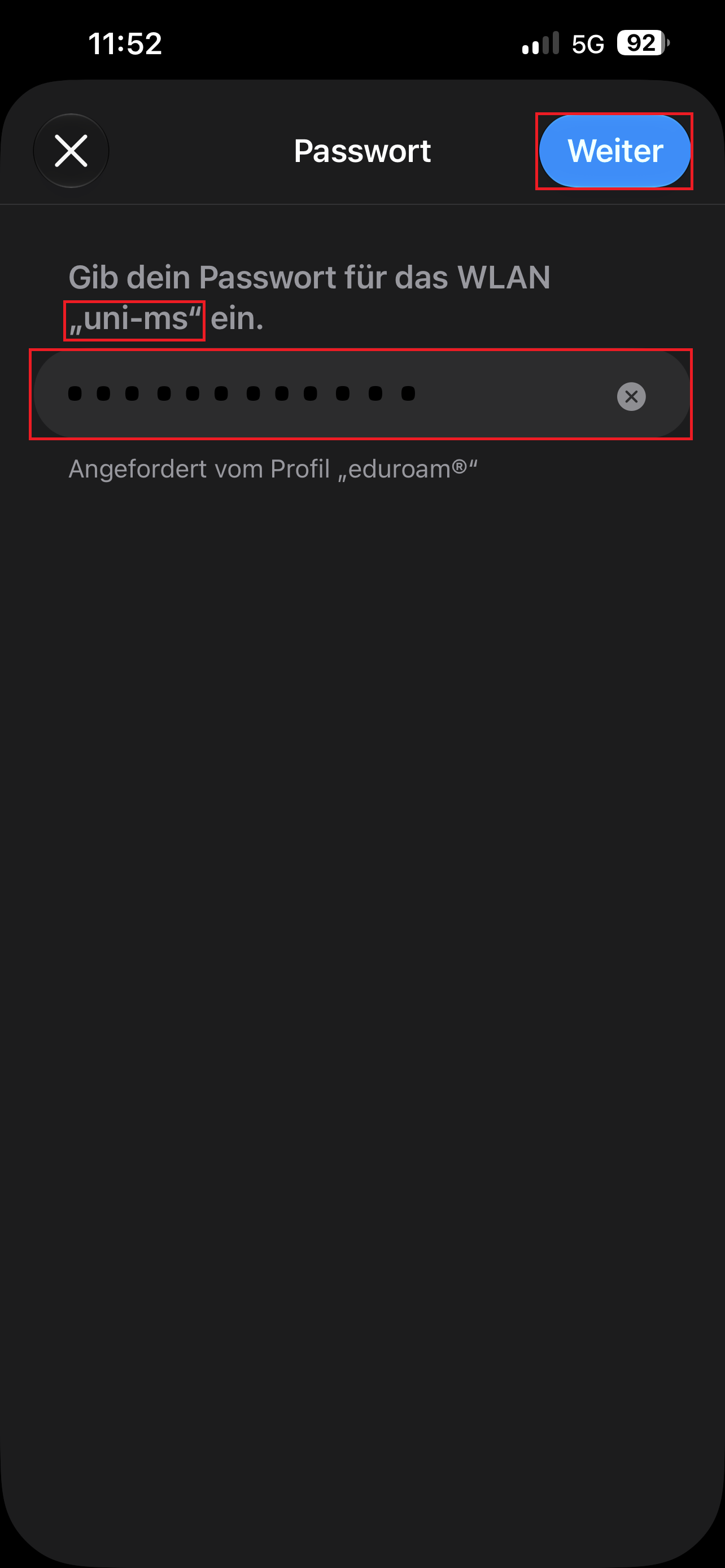
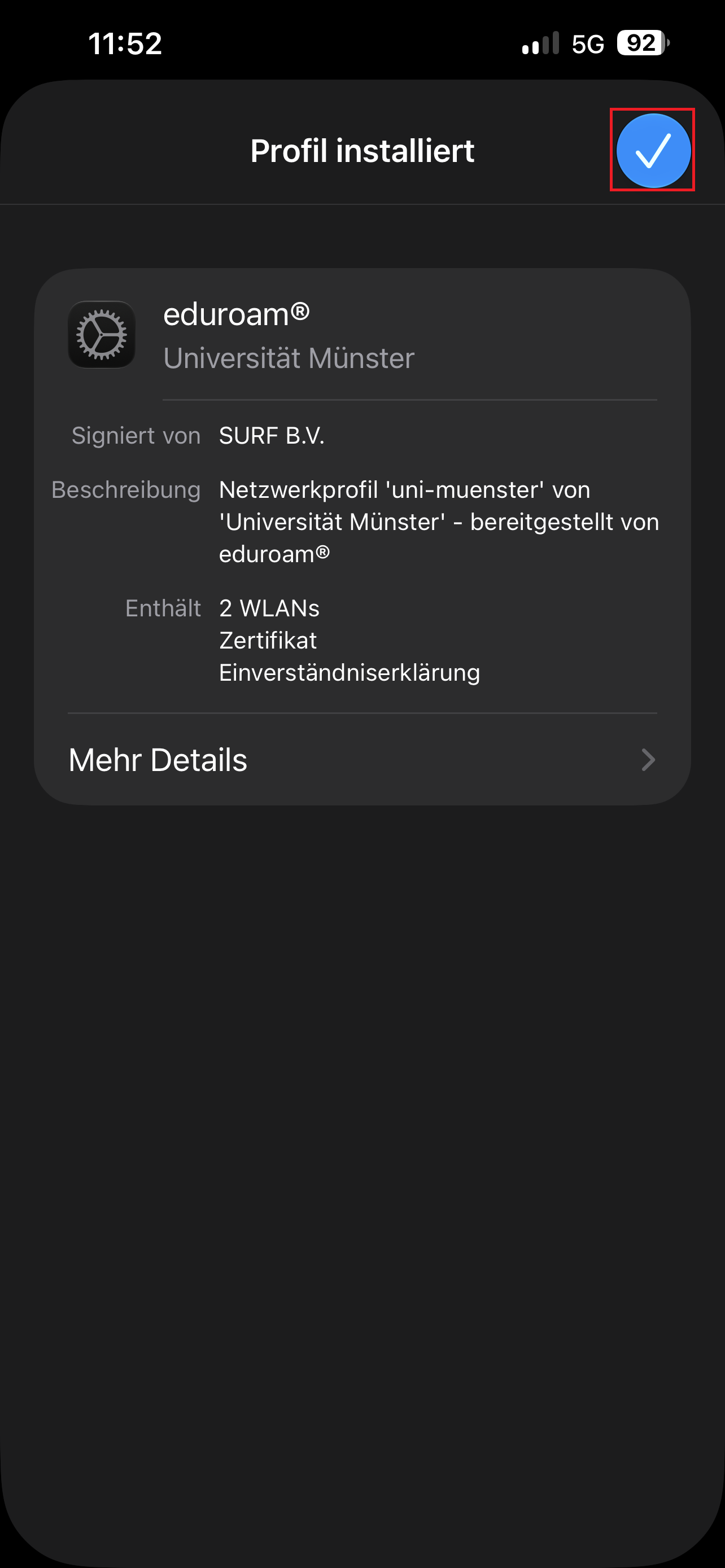
© CIT 15. Profile successfully installed
In the final step, your iPhone should notify you that the profile has been installed successfully. Confirm this by tapping the checkmark in the top right. From now on, your iPhone can connect to both uni-ms and eduroam. If a connection error occurs, remove the profile (see below) and repeat the steps again.
© CIT If Necessary: Remove Manually Configured WiFi
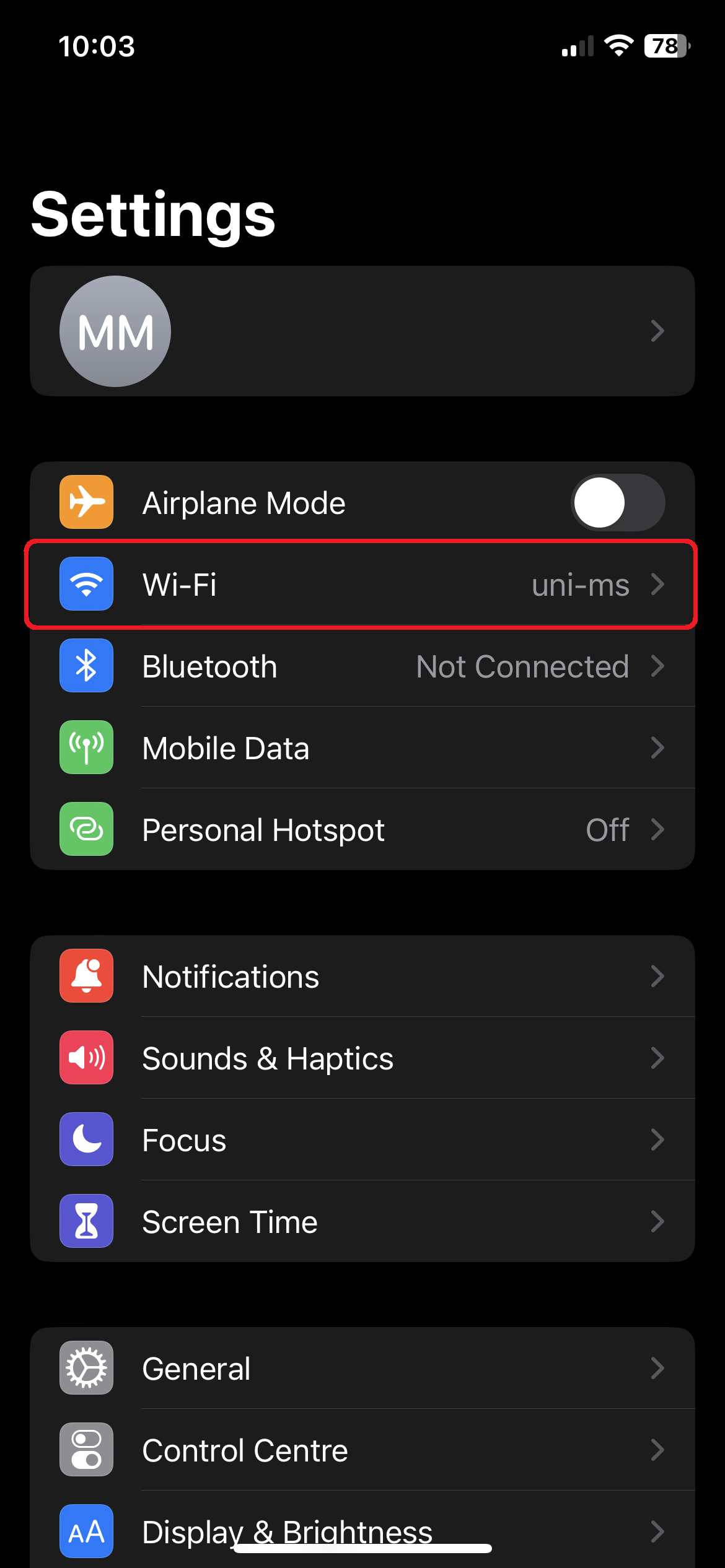
Open the WiFi Settings
Open the settings and tap "WiFi".
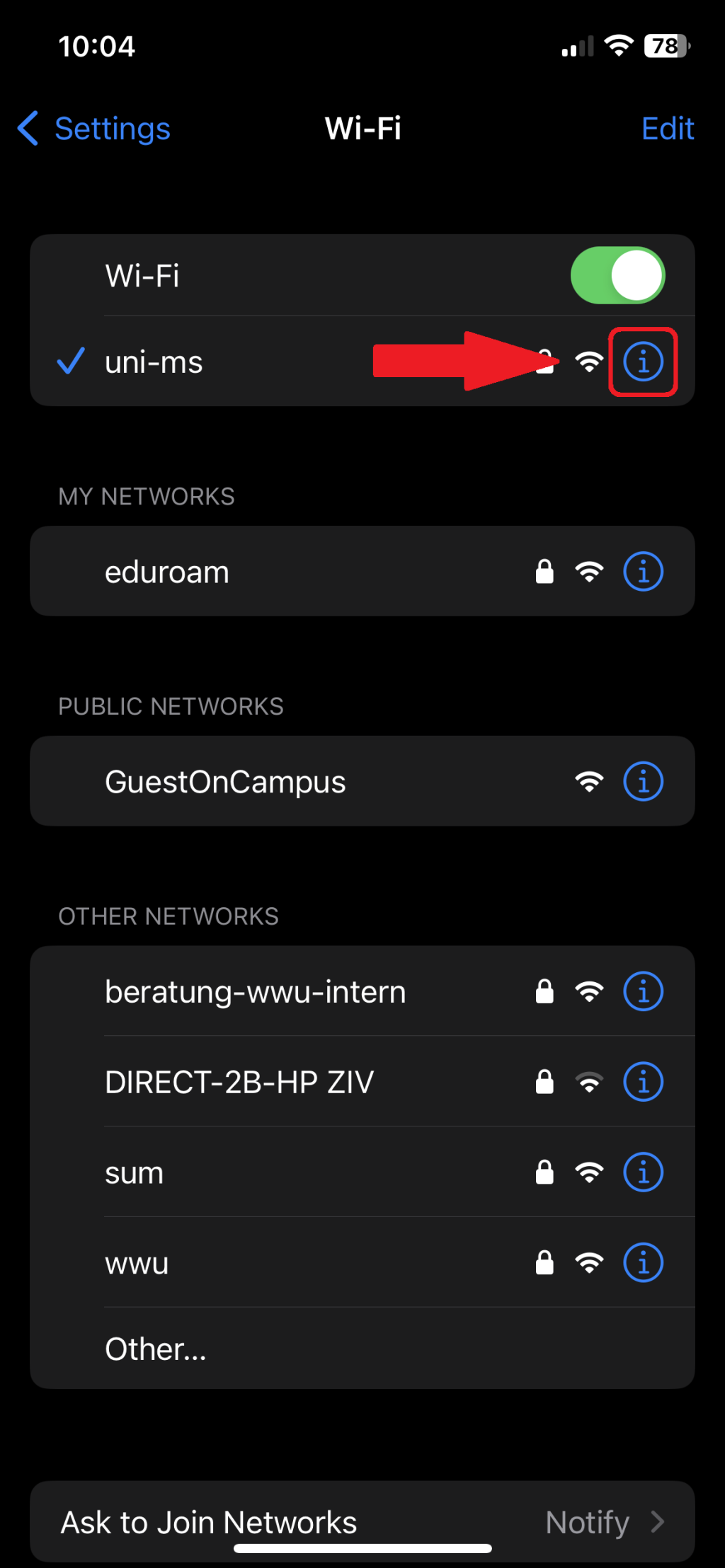
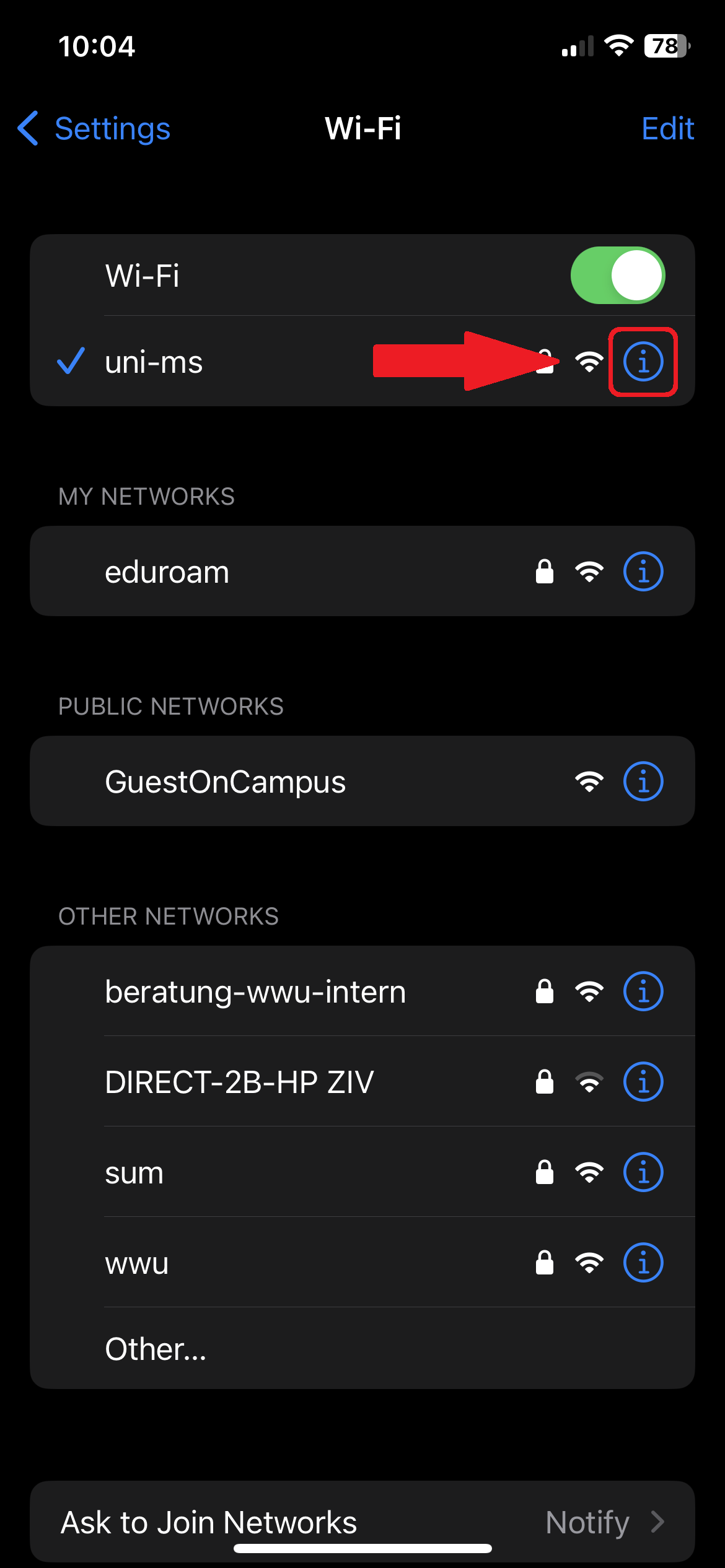
© CIT 2. Select Network
Tap the "(i)" behind the network "uni-ms" (or "eduroam").
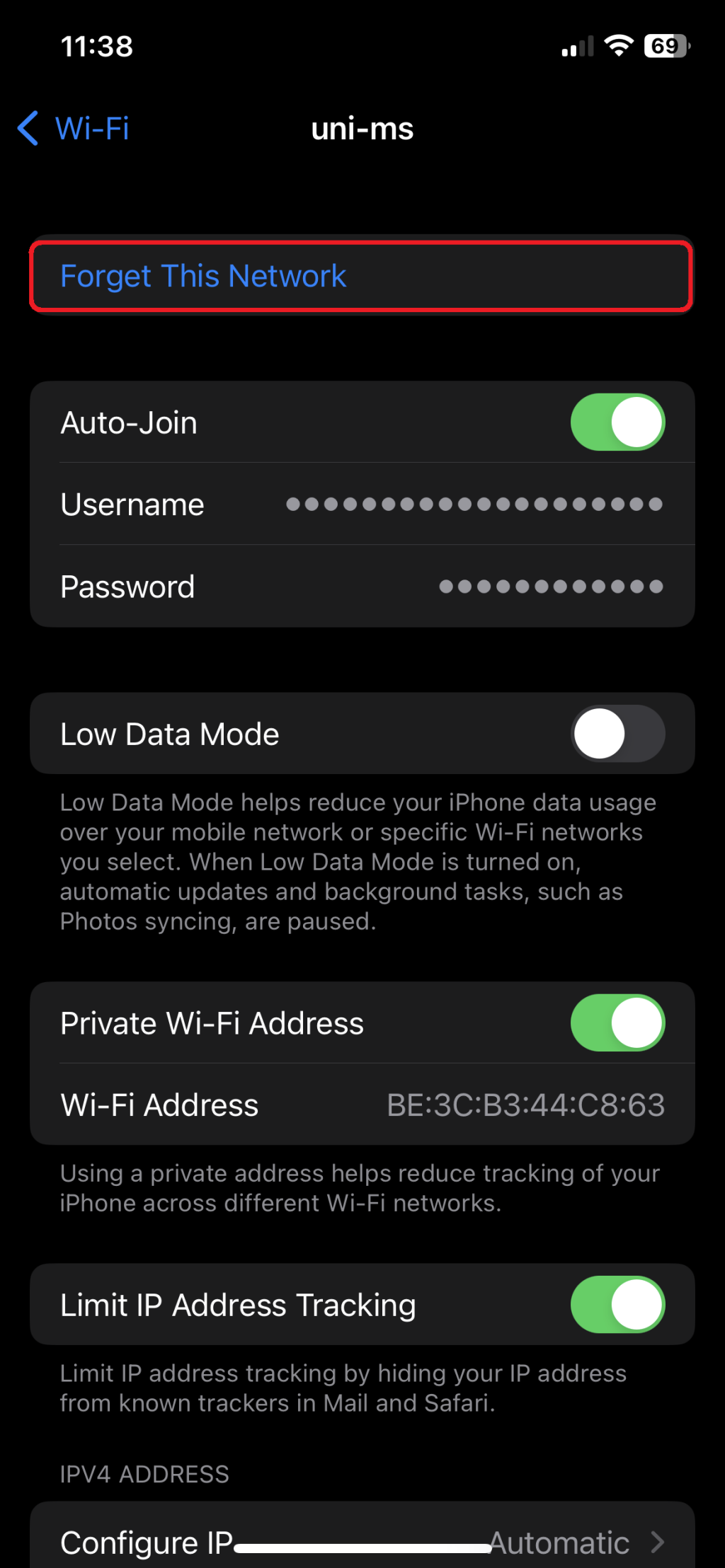
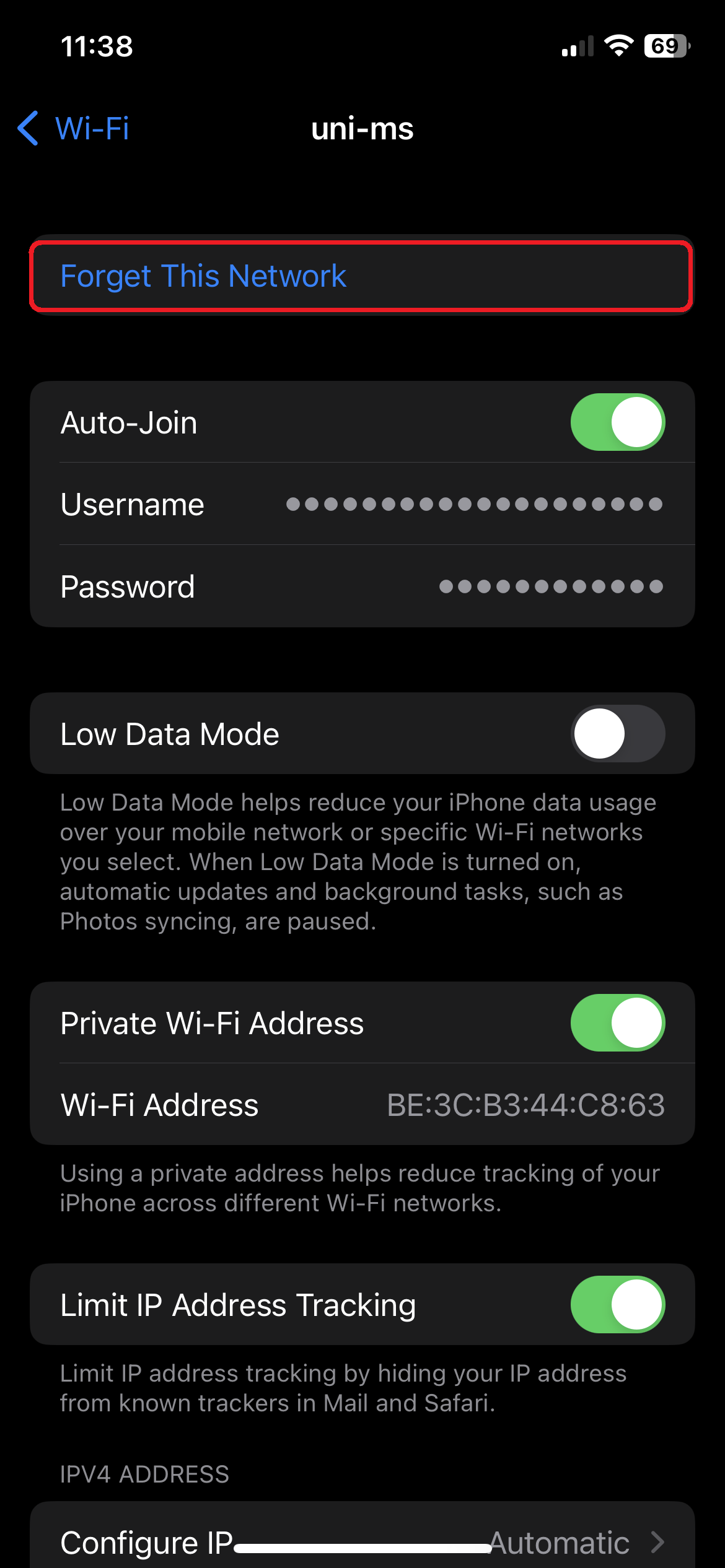
© CIT 3. Ignore the Network
Tap "Forget this network".
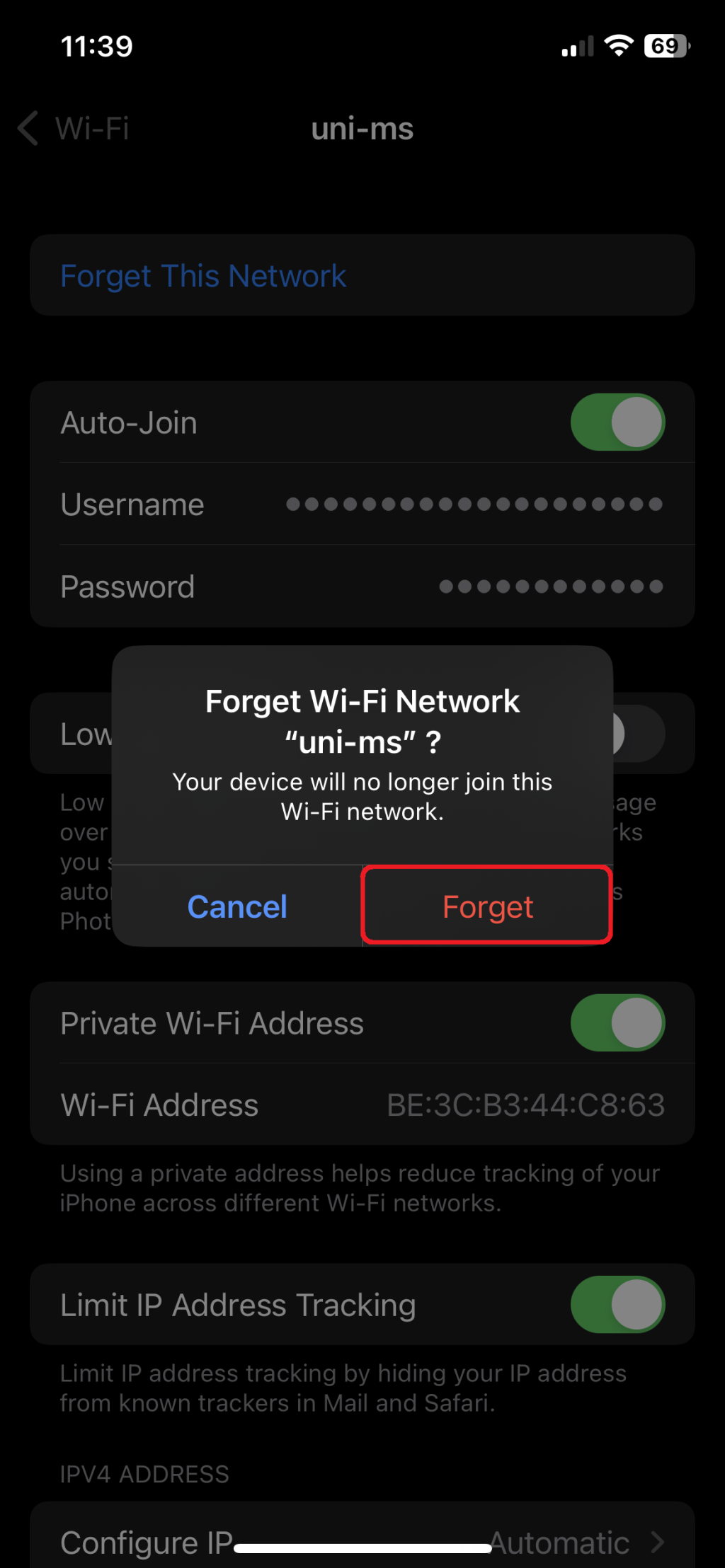
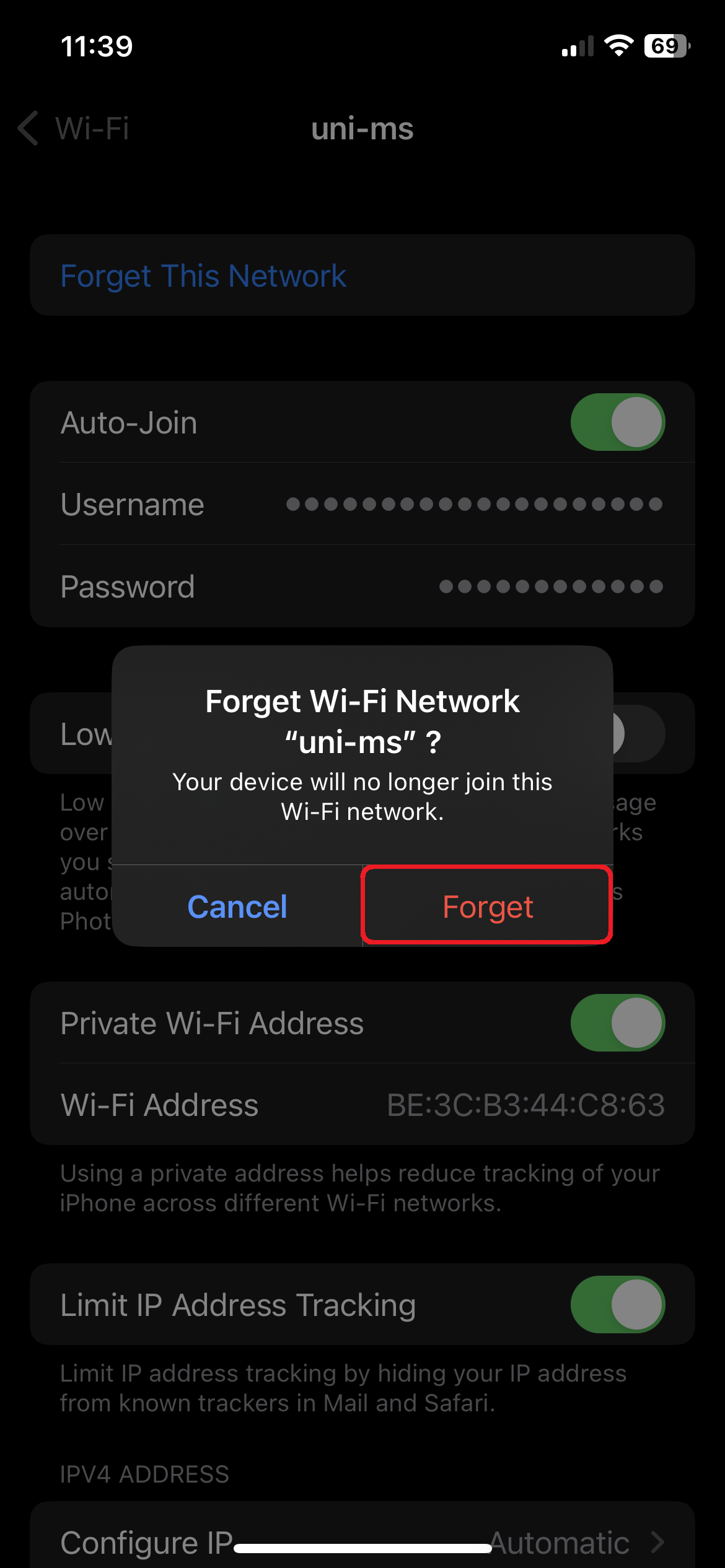
© CIT 4. Delete network
Touch "Forget". The network is now deleted
© CIT If Necessary: Remove Existing Profile
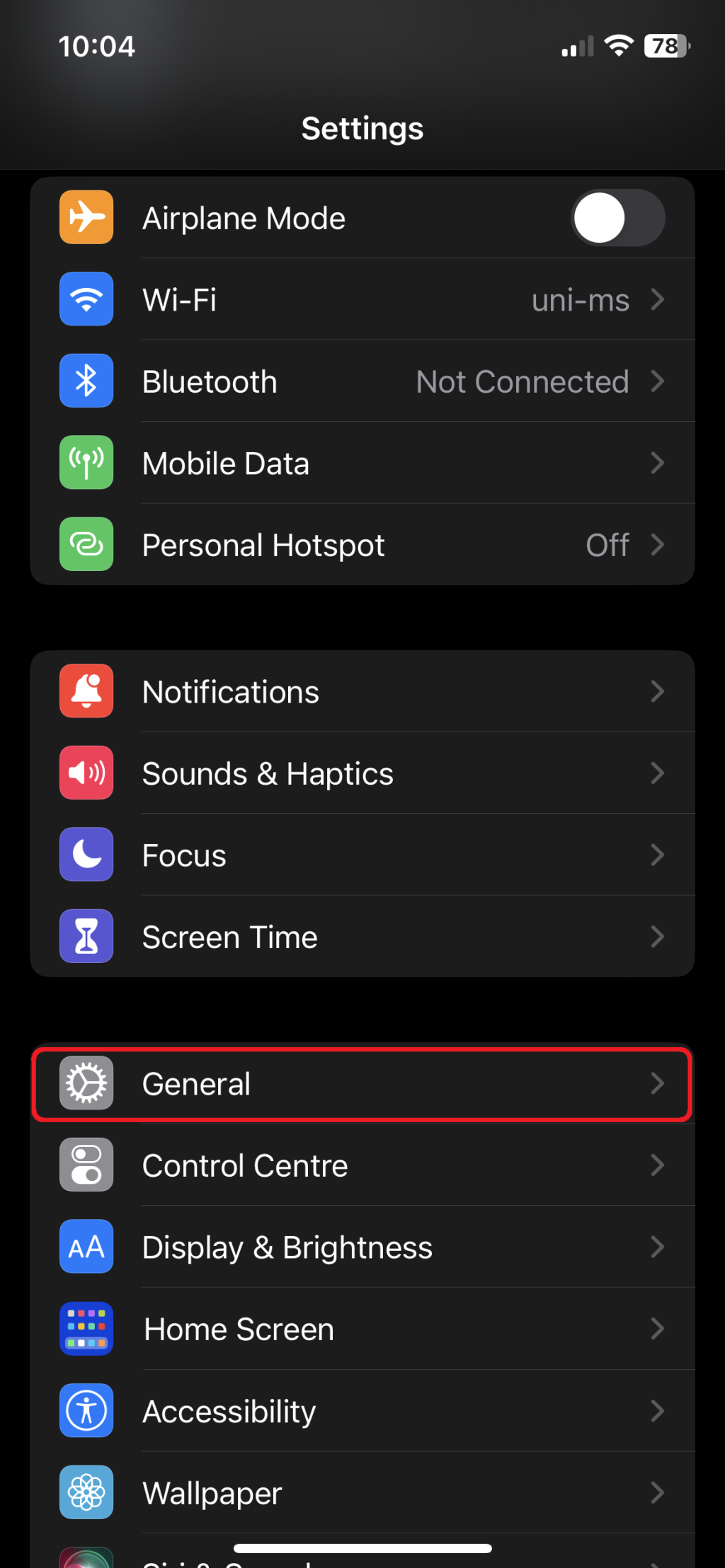
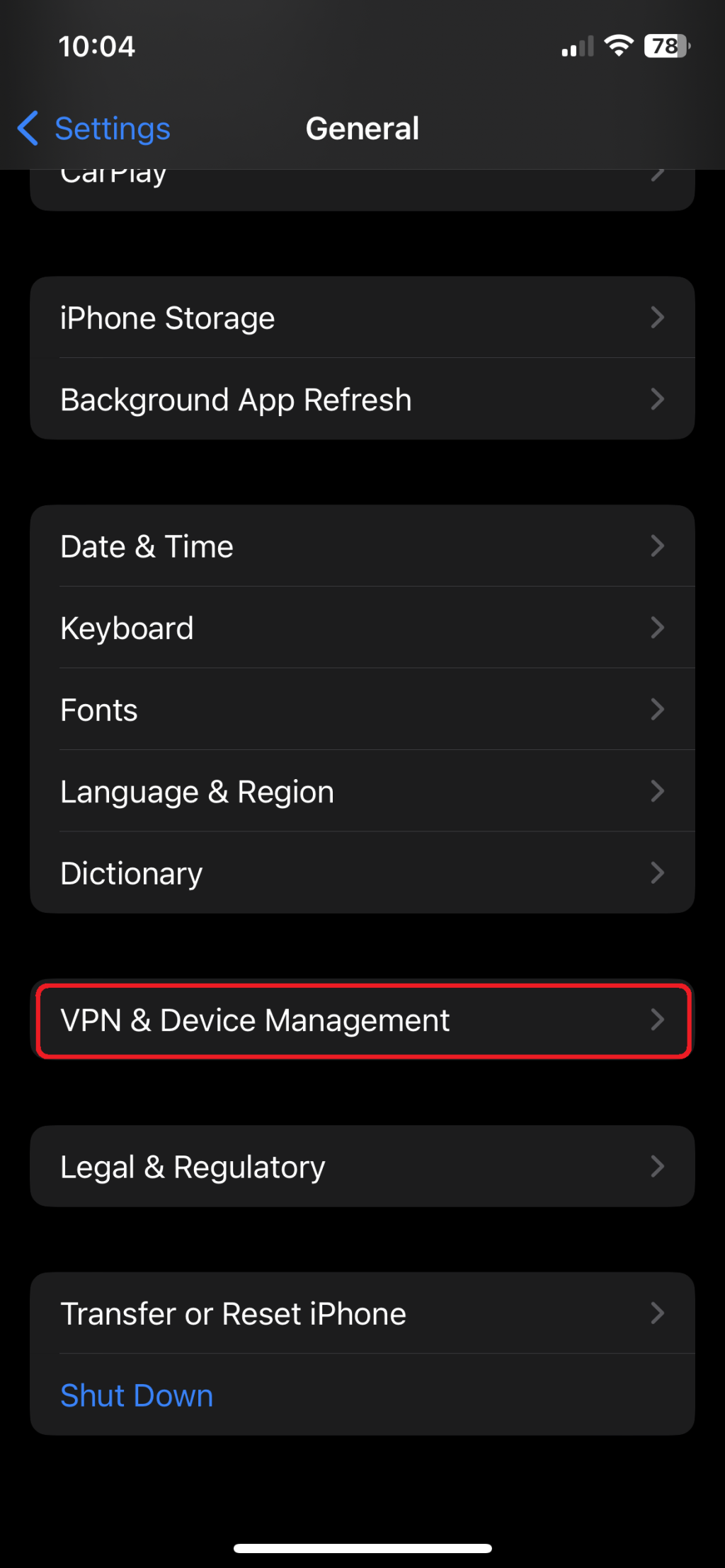
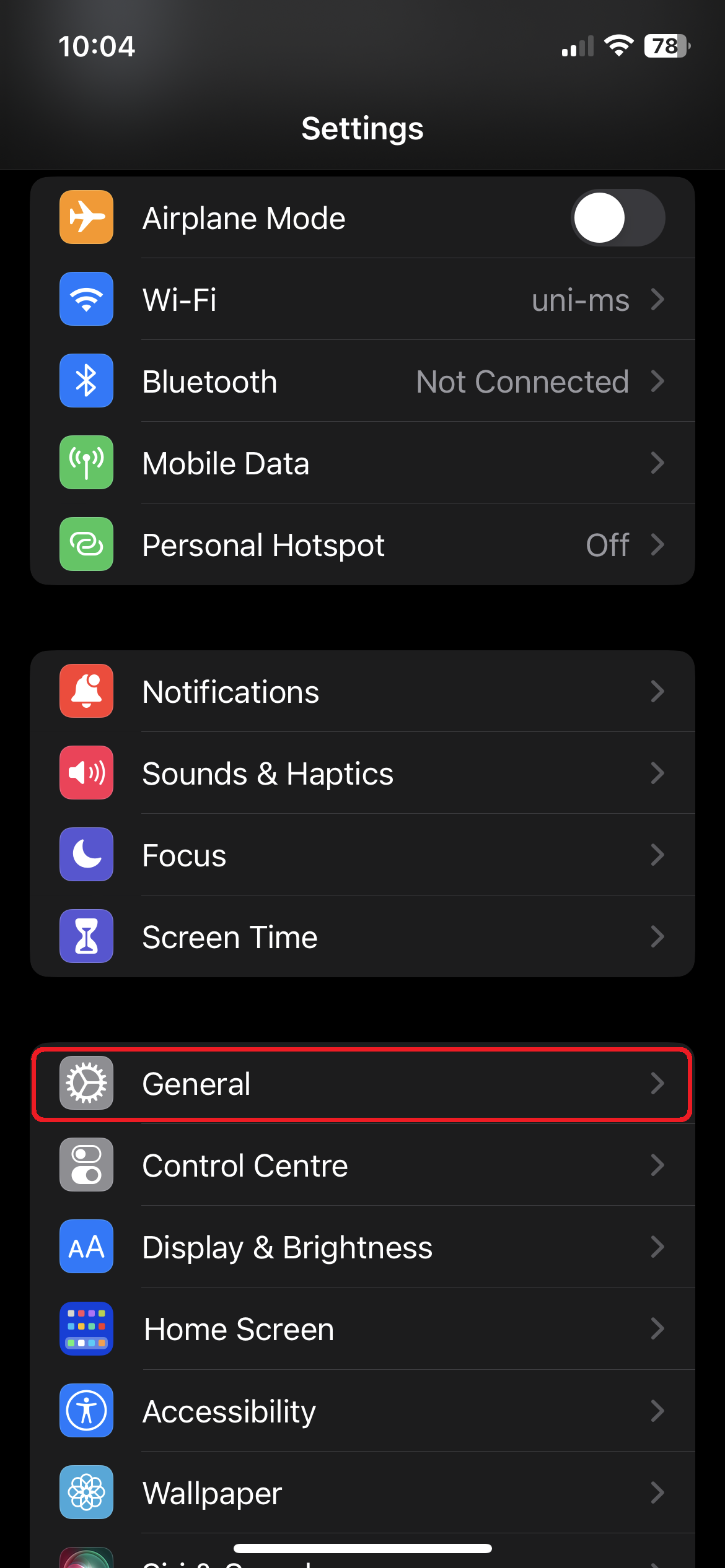
1. Open the Settings and Tap General
Open the Settings and tap "General".
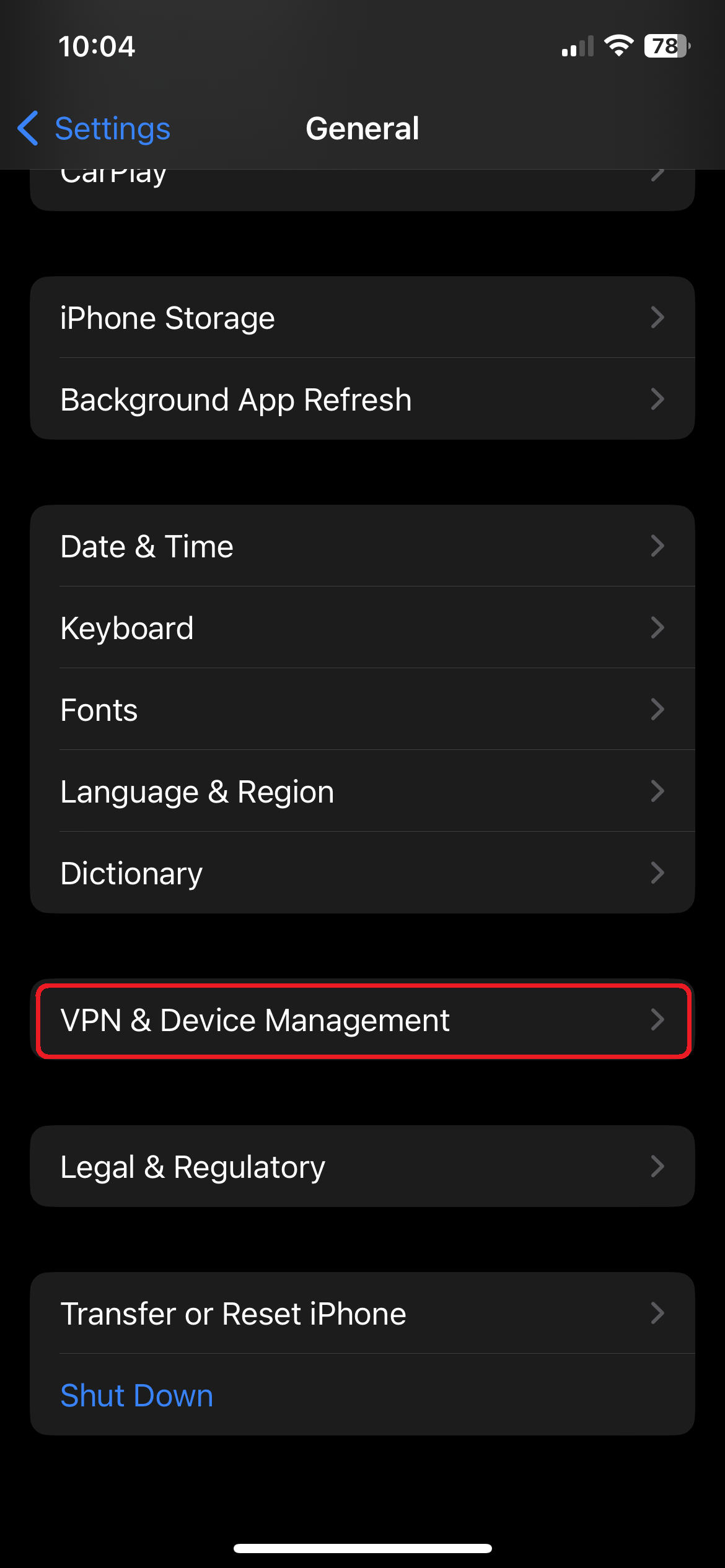
© CIT 2. Open Profiles
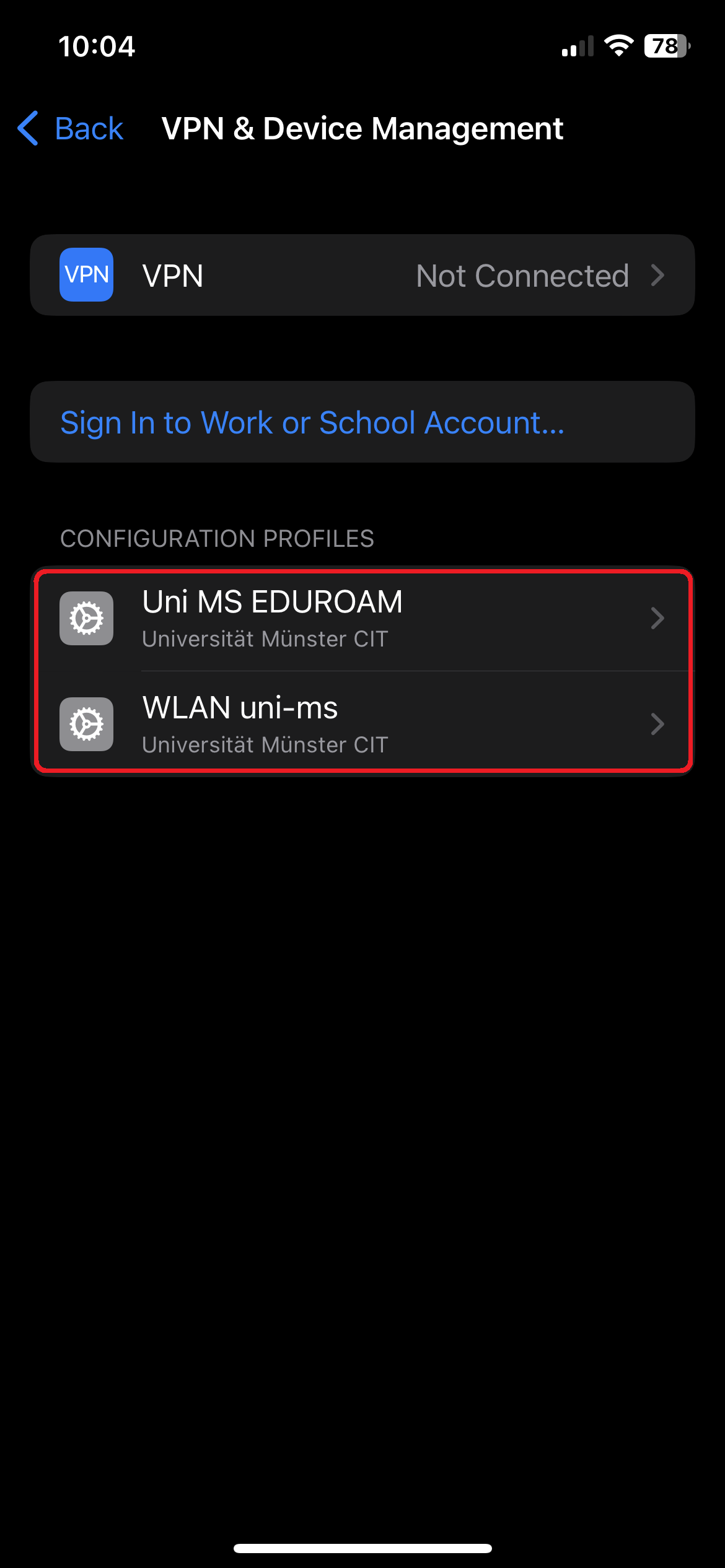
Select "VPN & Device Management".
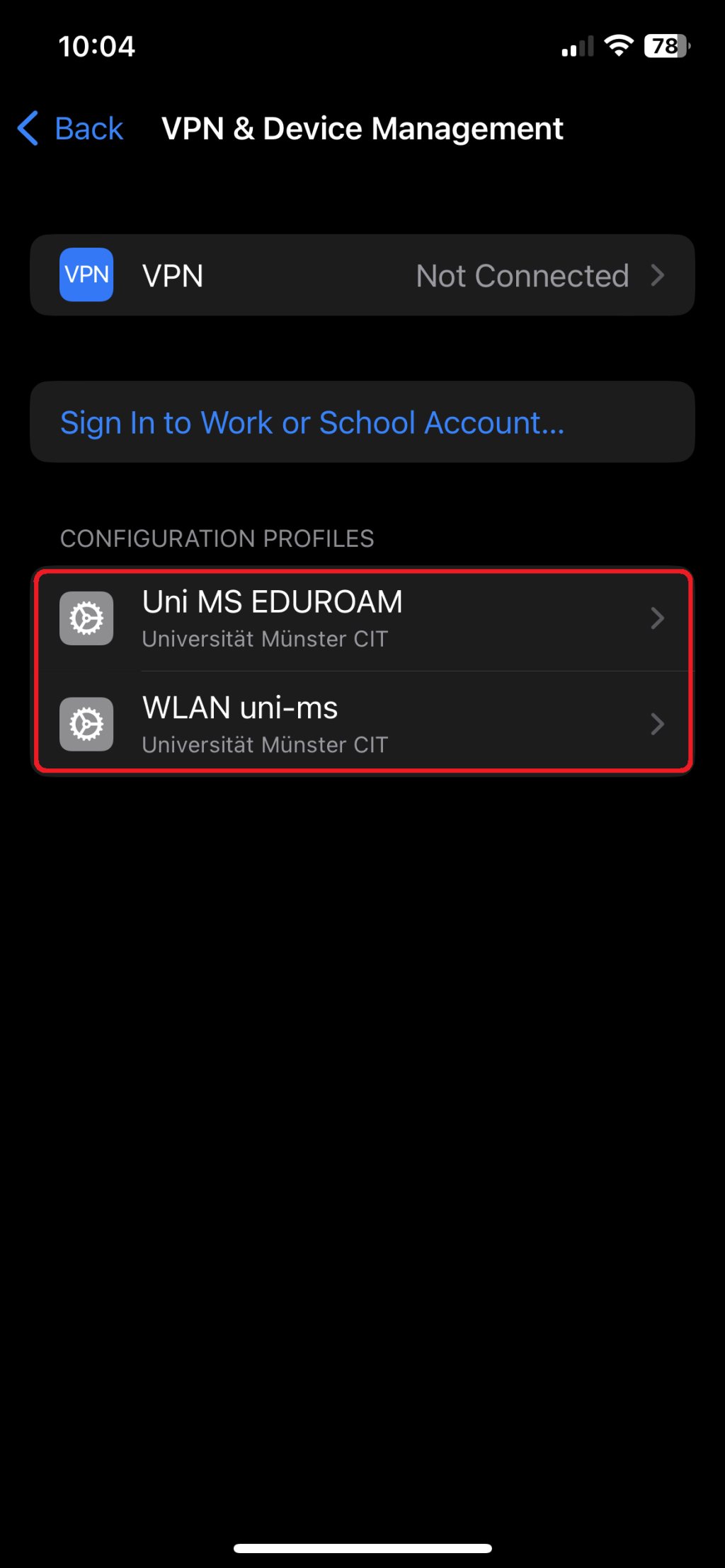
© CIT 3. Open uni-ms WiFi Profiles
Tap on the profile that connects you to the network "uni-ms" (or "eduroam"). The names may have been changed during setup.
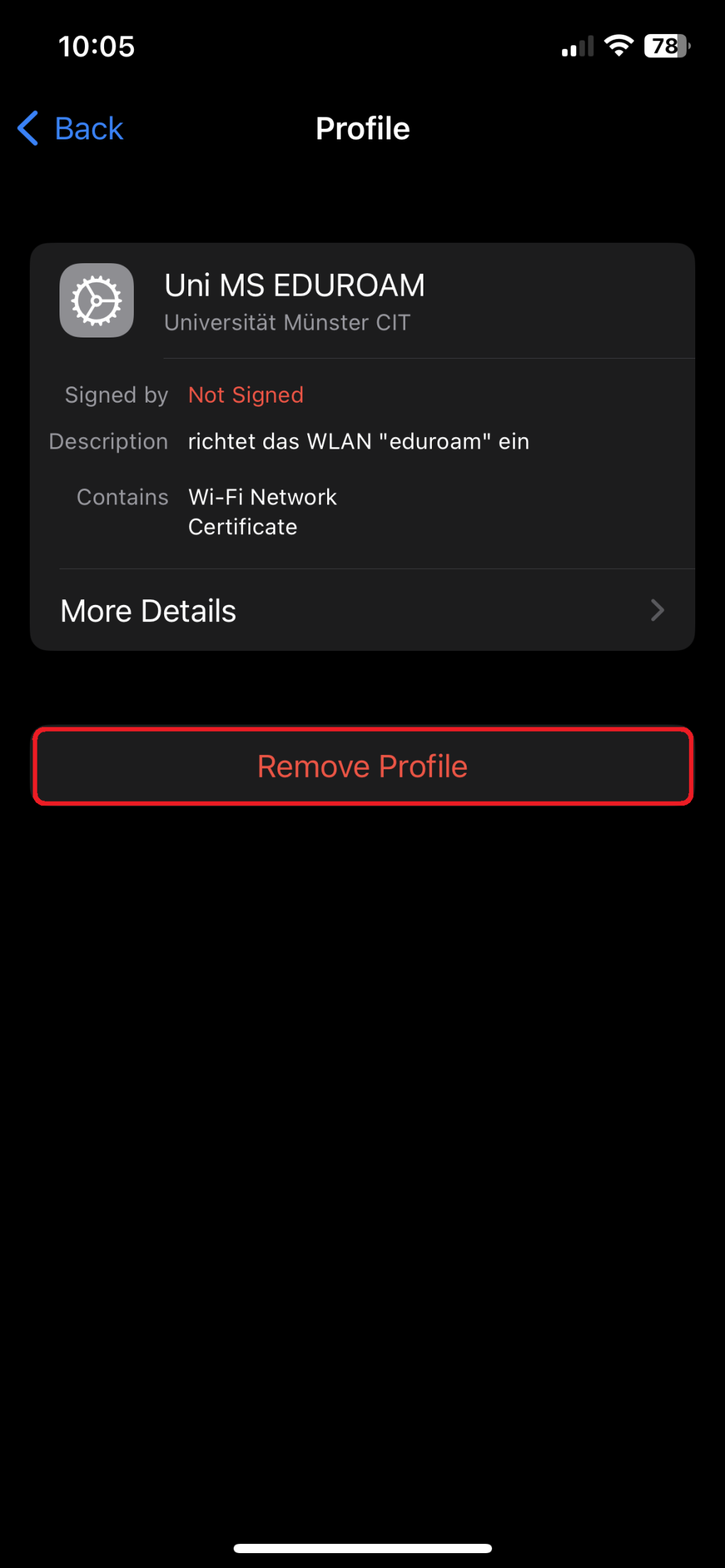
© CIT 4. Remove the Profile
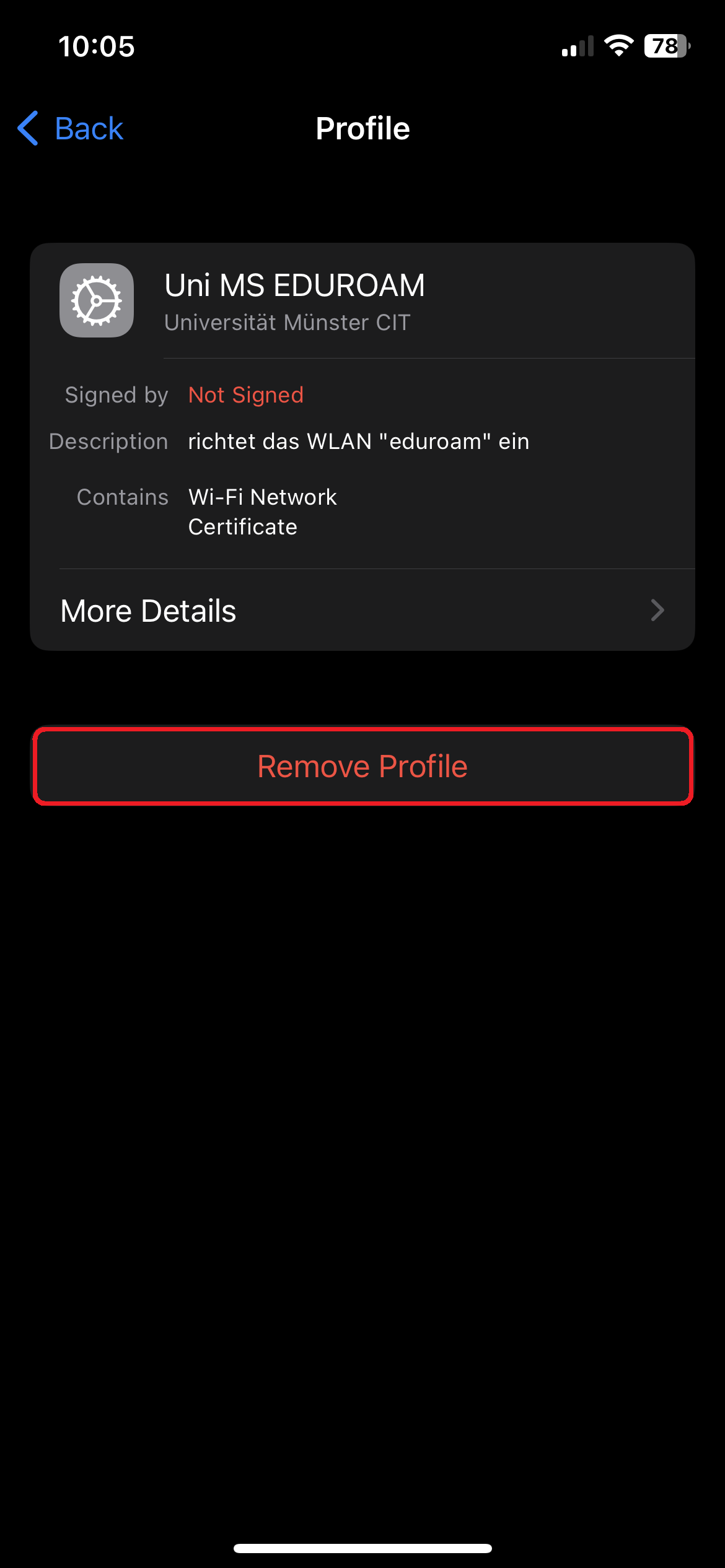
Select "Remove profile".
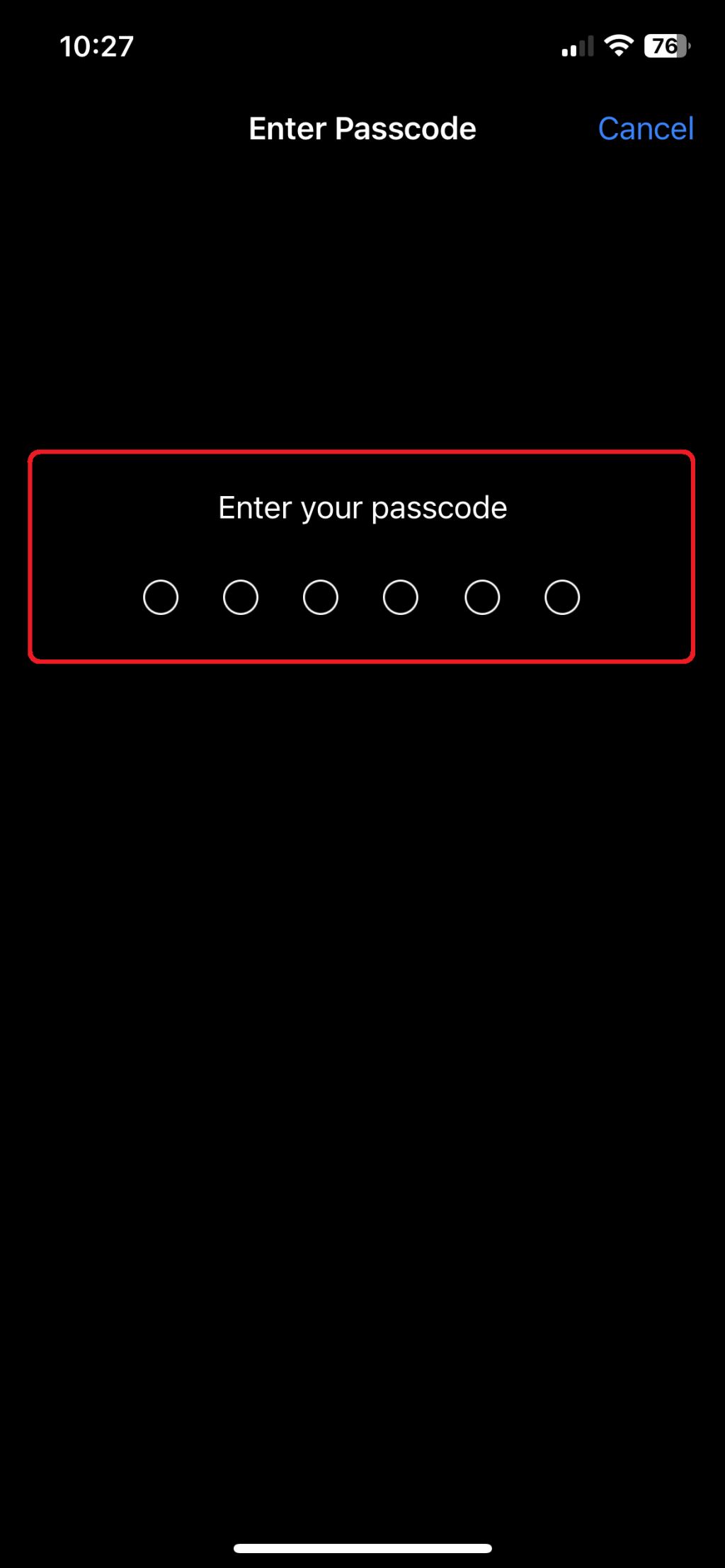
© CIT 5. Authentication
Enter the code you used to secure your iOS device.

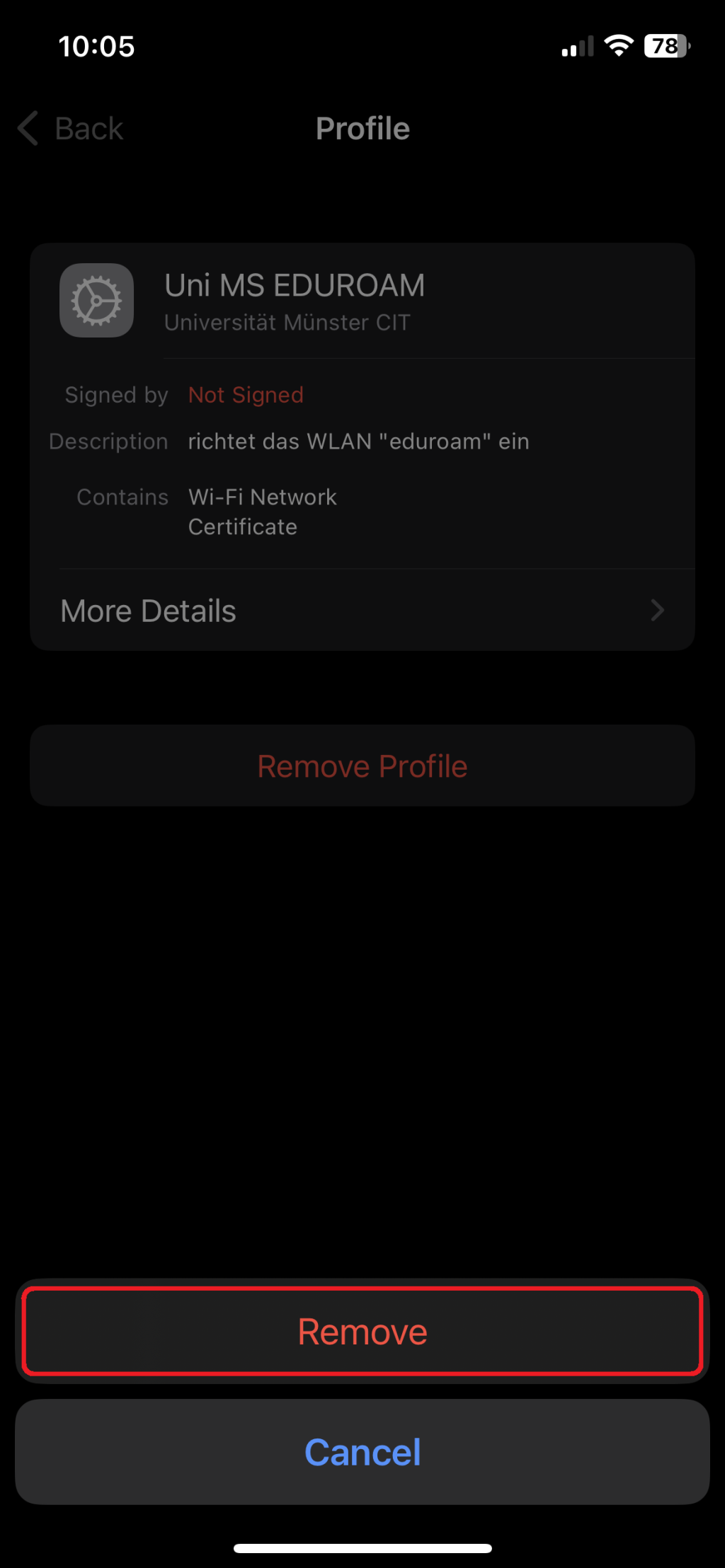
© CIT 6. Remove the profile
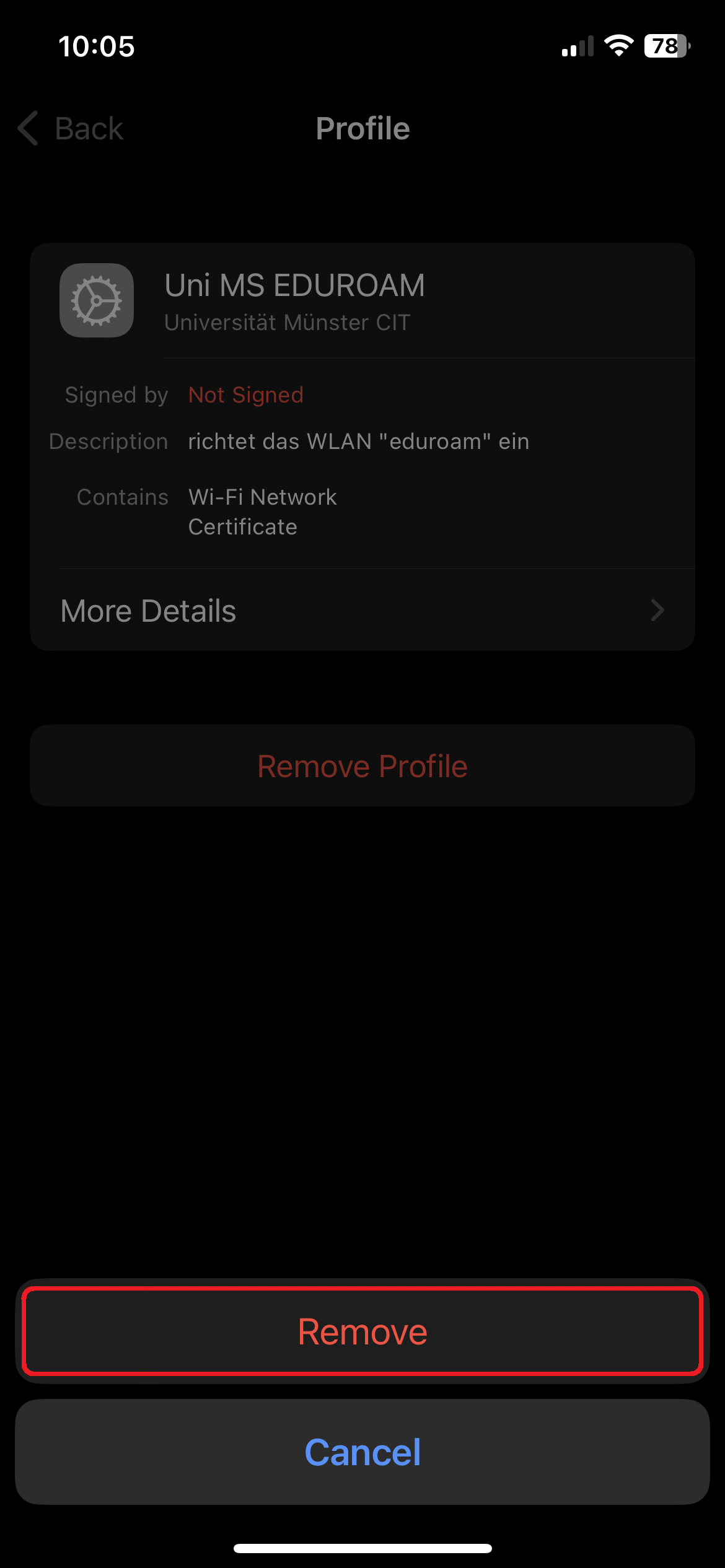
Click "Remove". The profile has been removed.
© CIT For Certificate Renewal: Trust Certificate
1. Trust Certificate
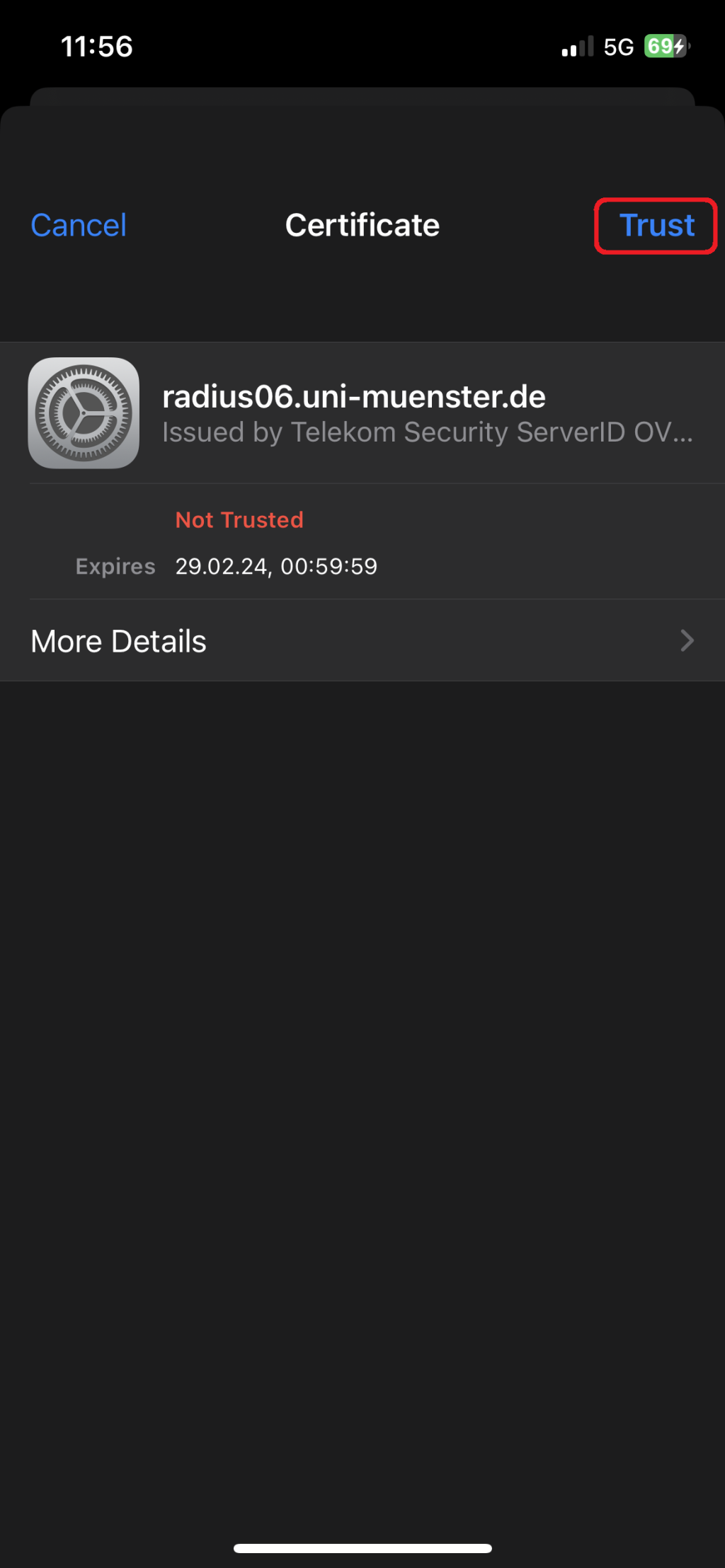
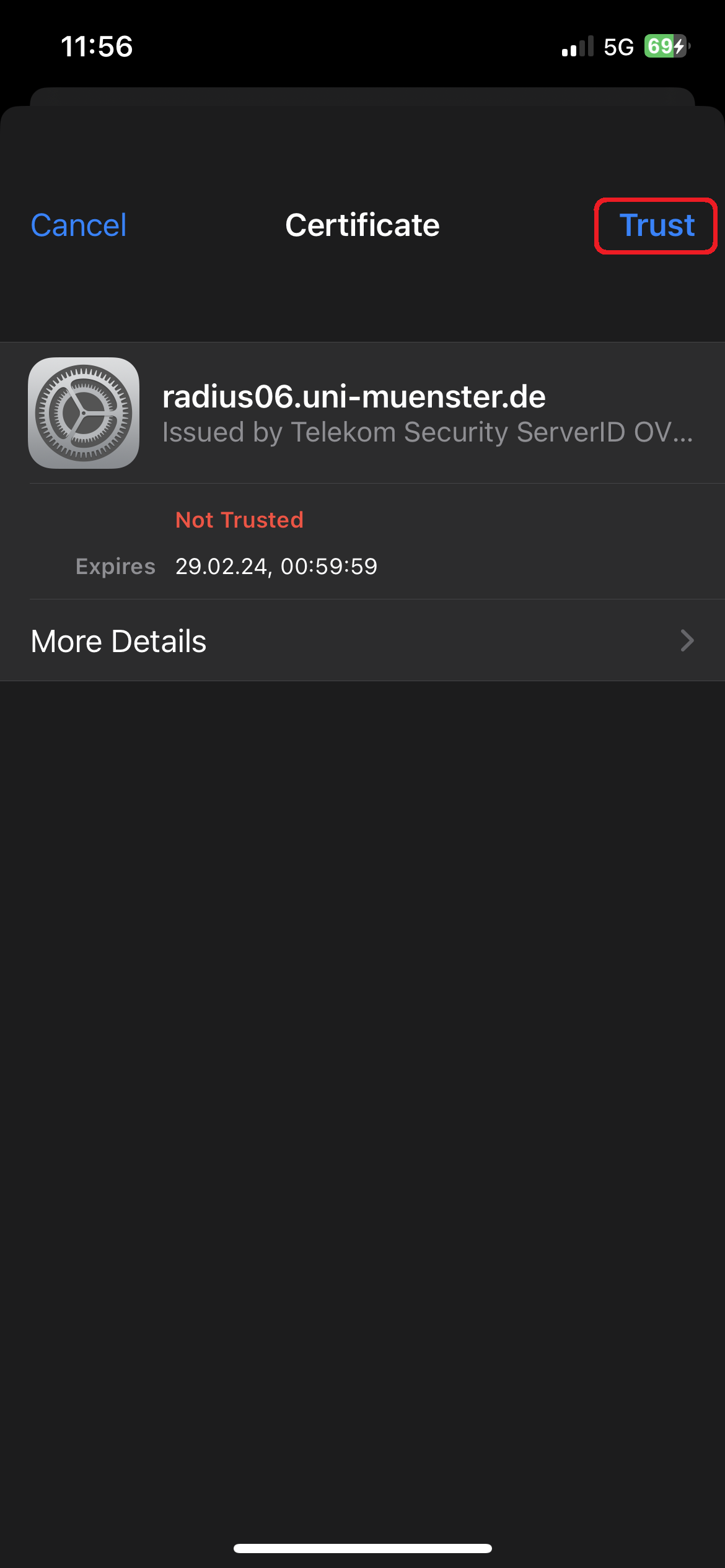
The certificate of the server radius06.uni-muenster.de for the WiFiconnection is renewed every few months for technical reasons. Thereby it will happen that you have to trust the certificate again as well. To do so, tap Trust in the upper right corner as shown in the screenshot.
© CIT