

Installation of the Cisco Secure Endpoint Connector (anti-virus protection)
For instructions on how to create an installation source specific to your environment, see the Guide Download the Cisco Endpoint Security Client.
For instructions on how to create an installation source specific to your environment, see the Guide Download the Cisco Endpoint Security Client.
Save the disk image (DMG file) to the Downloads folder on your Mac and open it from there.

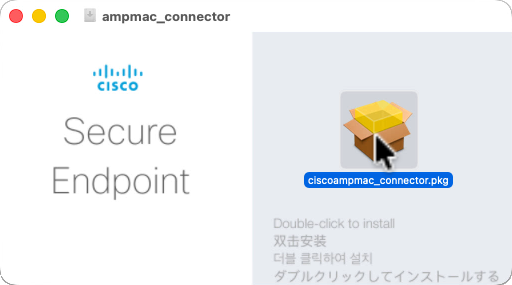
Once the disk image is open, double click the contained ciscoampmmac_connector.pkg to launch the installation.
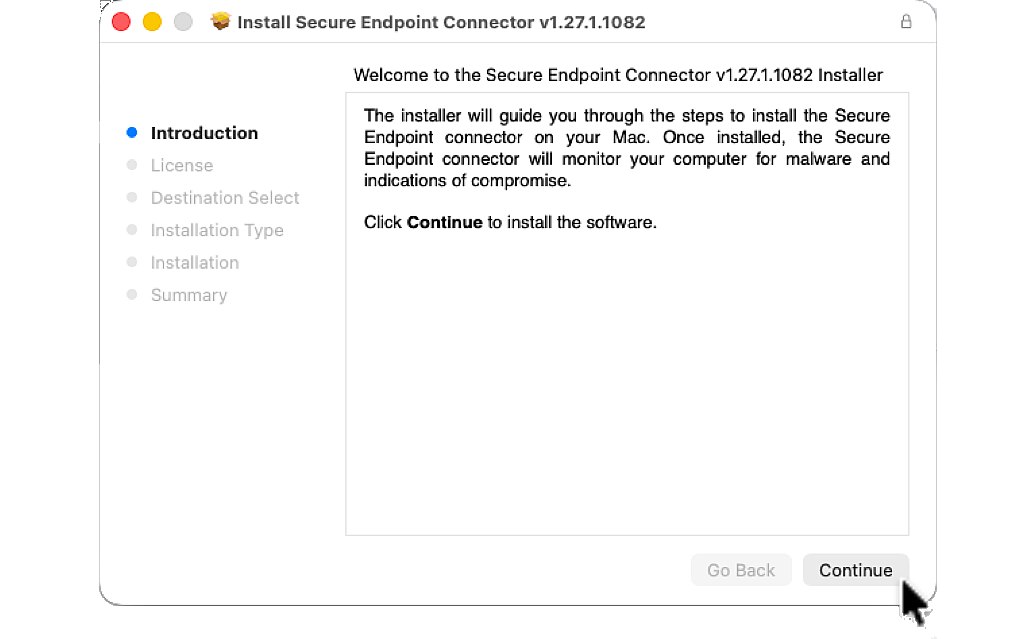
Click Continue to begin the installation.
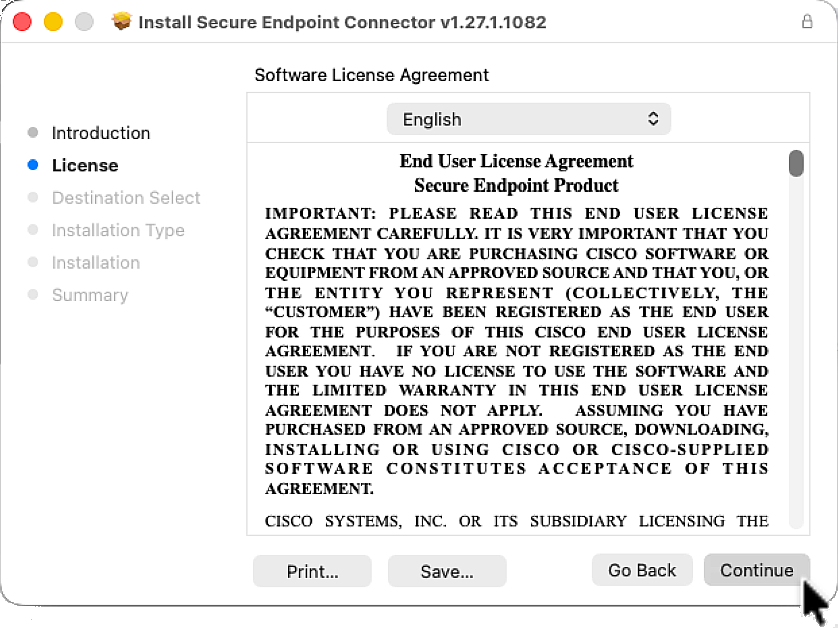
Click Continue to be able to accept the software license agreement.
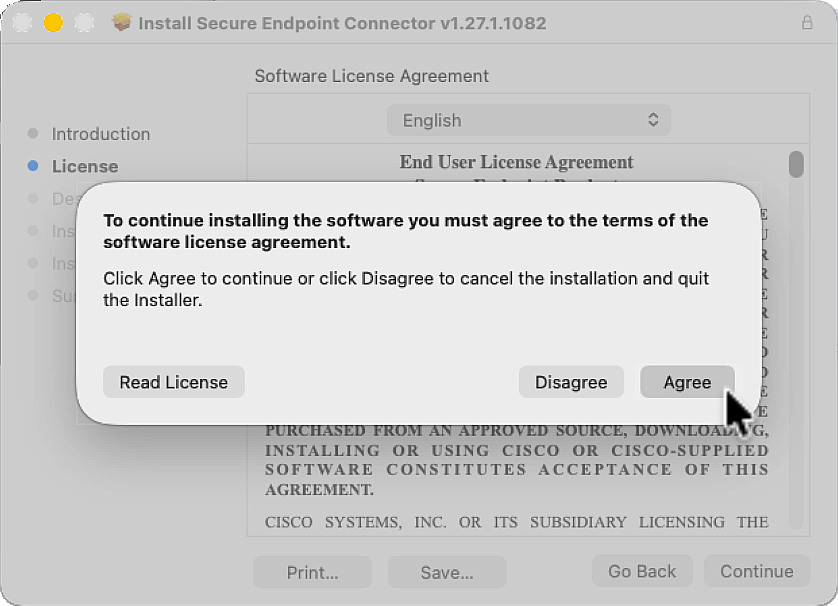
Click Agree to accept the terms of the software license agreement.
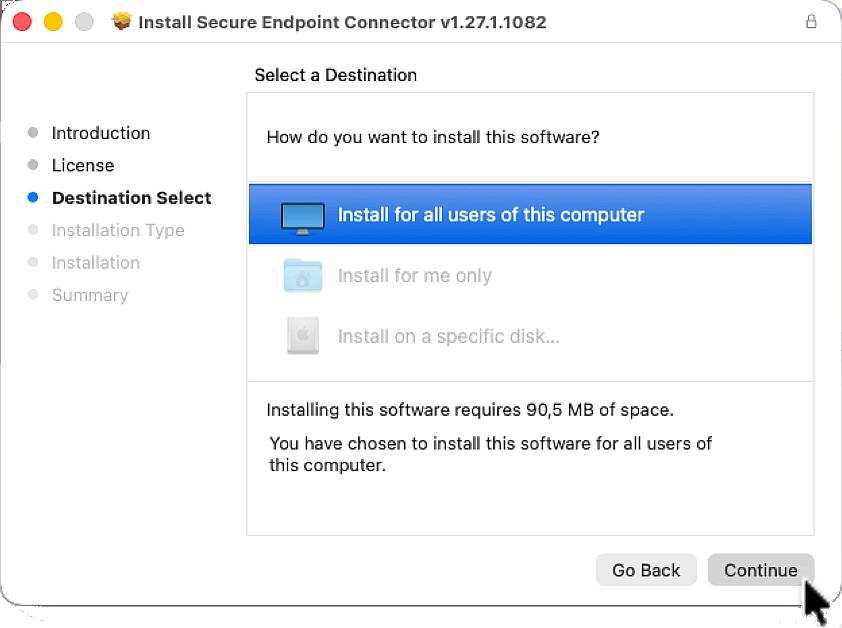
Click Continue to install Secure Endpoint Connector for all users of this computer.
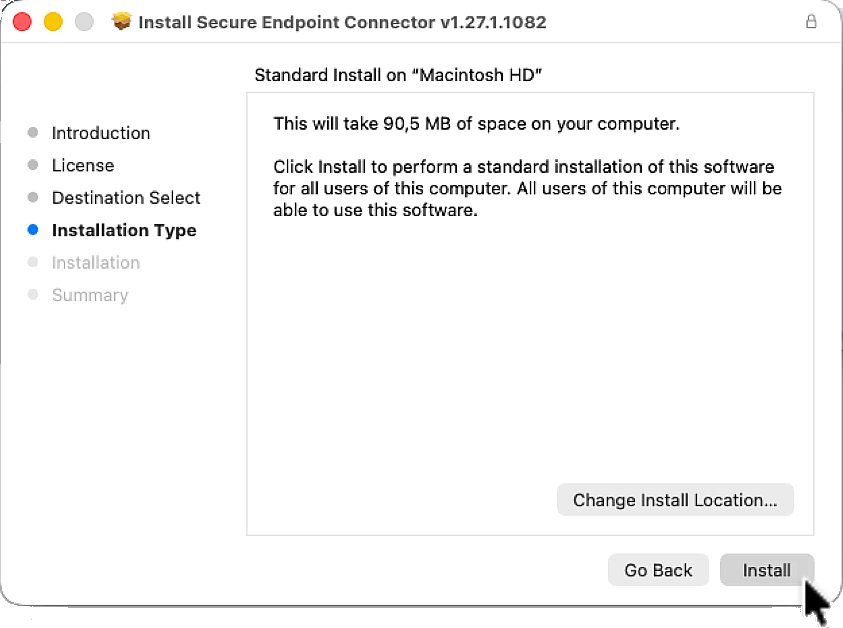
Click Install to begin the installation.
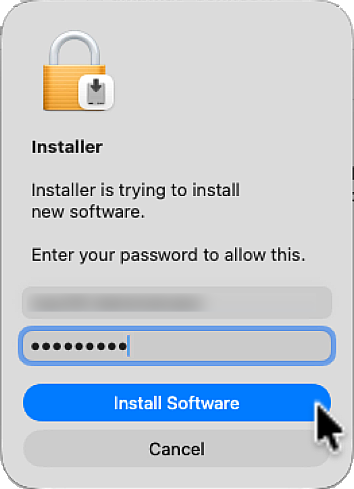
Enter the password for the administrative account on the Mac, then click Install Software.
The installation will proceed automatically in several steps.
Next, you'll need to adjust various settings in System Settings.
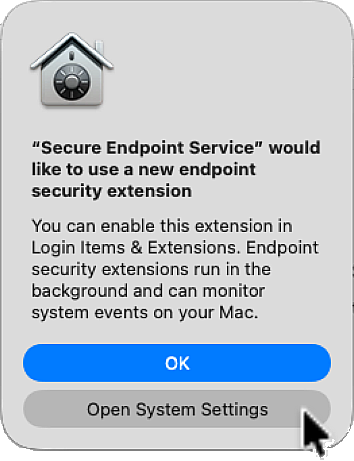
Click Open System Settings to enable the endpoint security extension for the Secure Endpoint Service.
While the system settings are loading, two messages will appear in the upper-right corner of the screen.
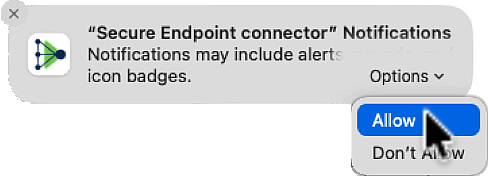
To allow notifications from “Secure Endpoint connector”, click Options and then Allow.
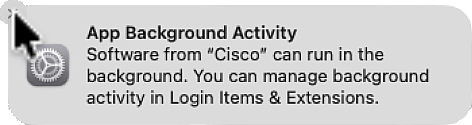
You can simply close the notification about Cisco's App Background Activitiy.
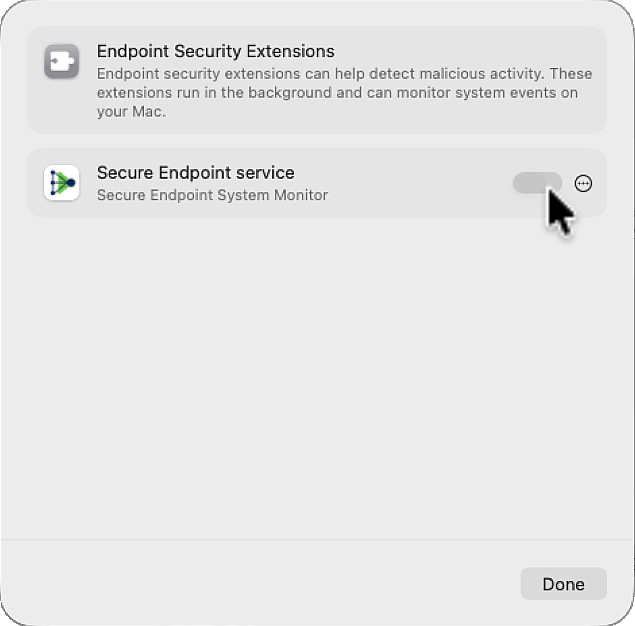
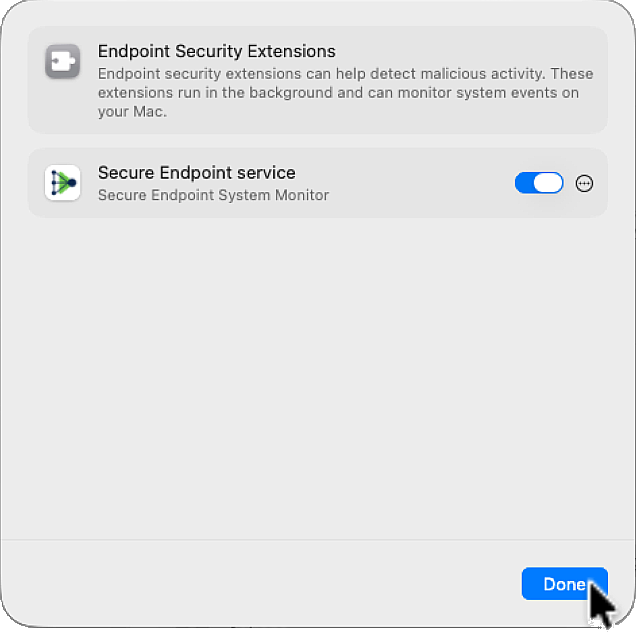
Click the toggle switch on the right to enable the Secure Endpoint service as an Endpoint Security Extension.
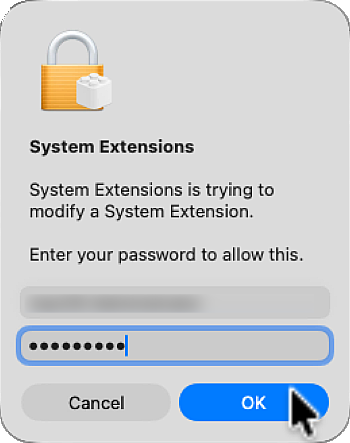
Enter the password for the administrative account on the Mac, then click OK to activate the extension.
The toggle switch is now activated (blue) and you may close the dialog by clicking Done.
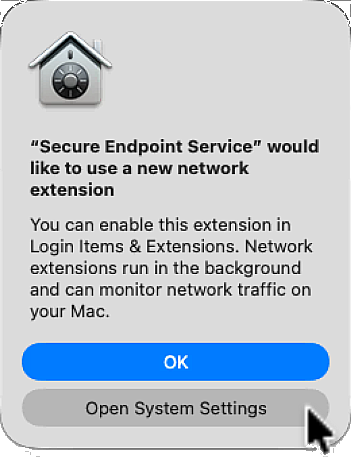
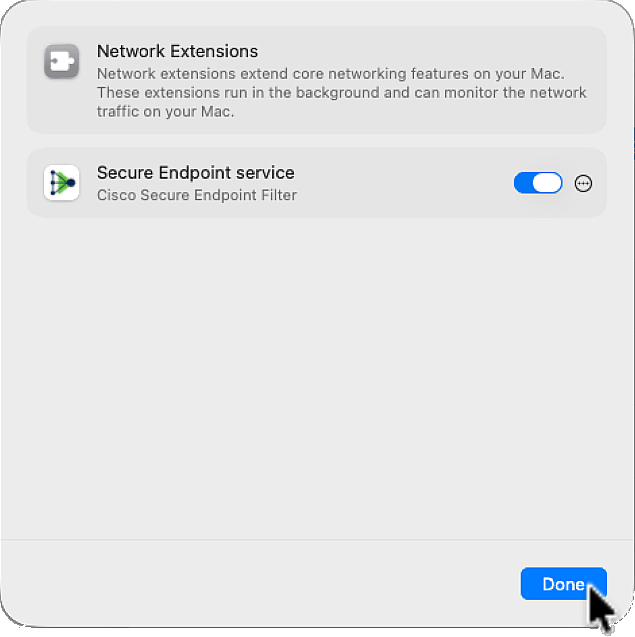
Click Open System Settings to enable the network extension for the Secure Endpoint Service.
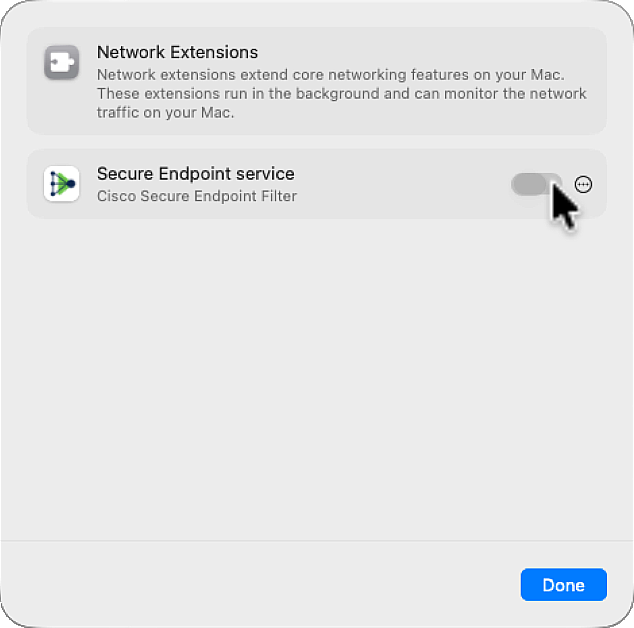
Click the toggle switch on the right to enable the Secure Endpoint service as an Network Extension.
Enter the password for the administrative account on the Mac, then click OK to activate the extension.
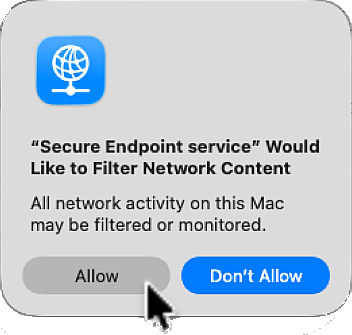
Click allow to permit the Secure Endpoint service network extension access to the content.
The toggle switch is now activated (blue) and you may close the dialog by clicking Done.
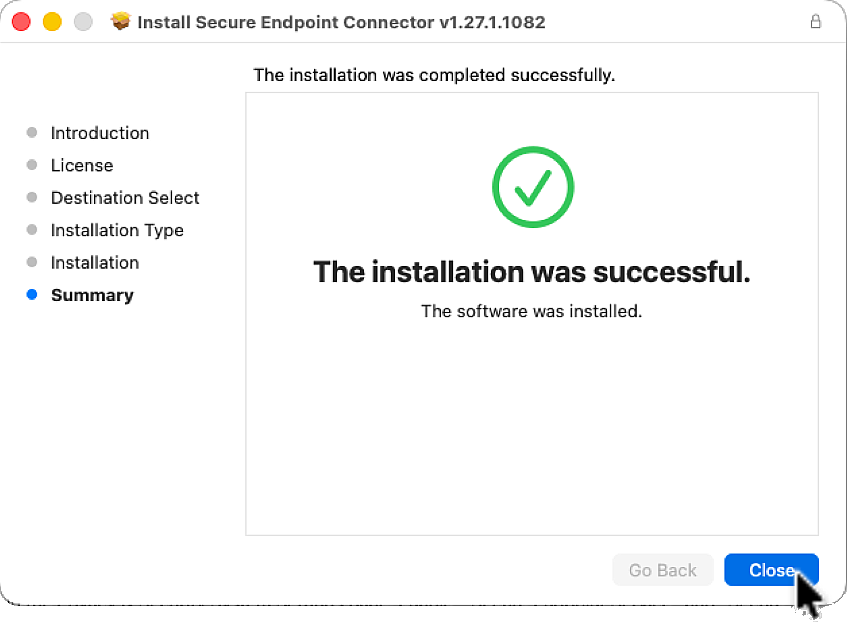
The Secure Endpoint Connector has been successfully installed. You can now Close the installer ...
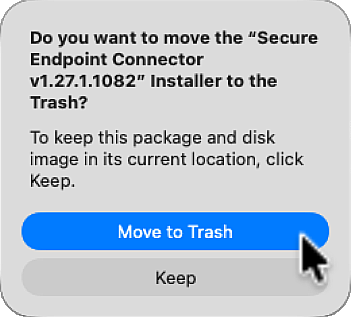
... and move it to Trash.
Next, you'll need to configure additional access.
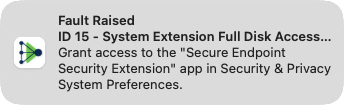
You have to give the Secure Endpoint Security Extension full access to the hard disk.
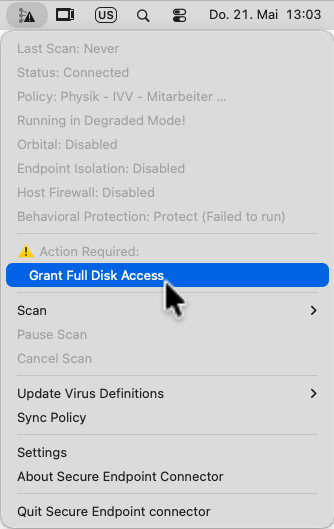
Click the Secure Endpoint Connector icon in the menu bar and select “Grant Full Disk Access” in the “Action Required” section of the menu.
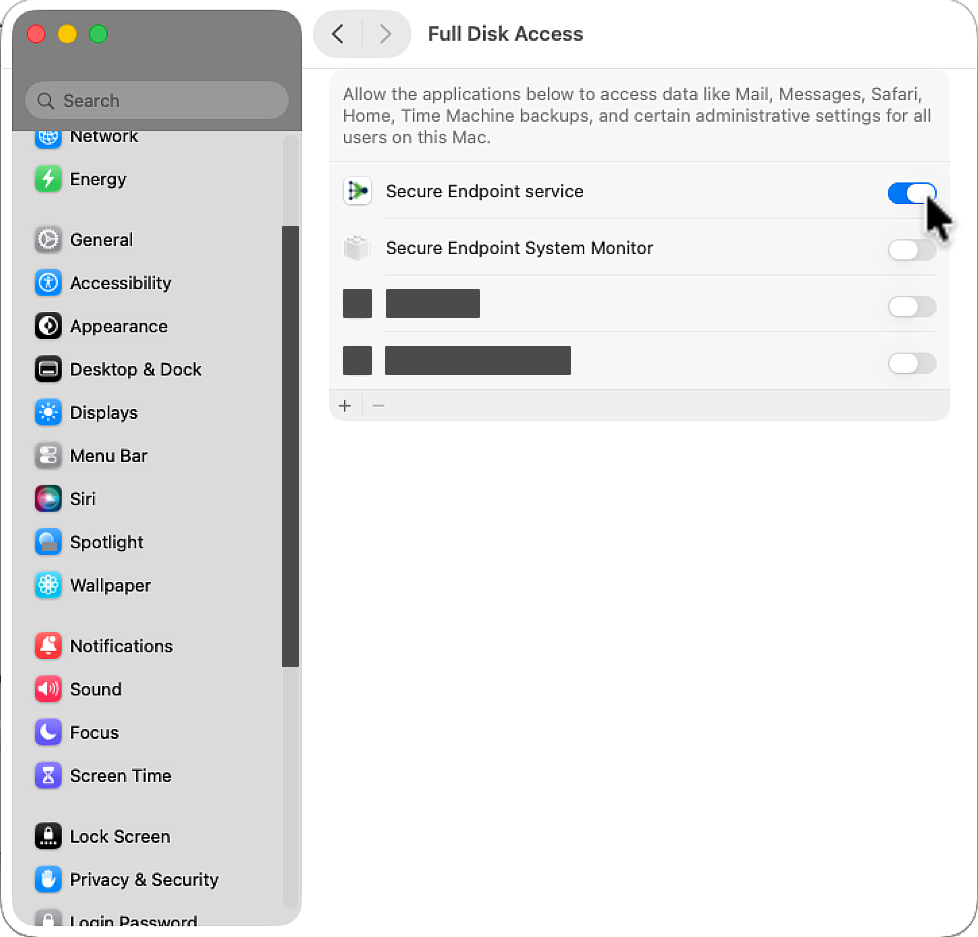
Click the toggle switch on the right to grant Full Disk Access for the Secure Endpoint service.
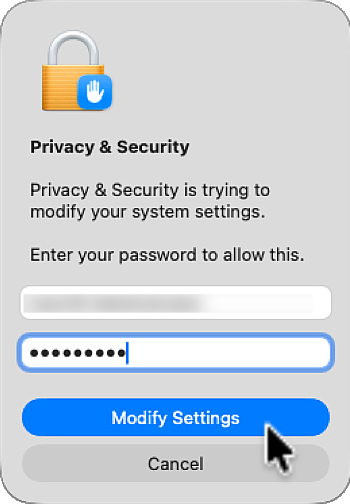
Enter the password for the administrative account on the Mac, then click Modify Settings.
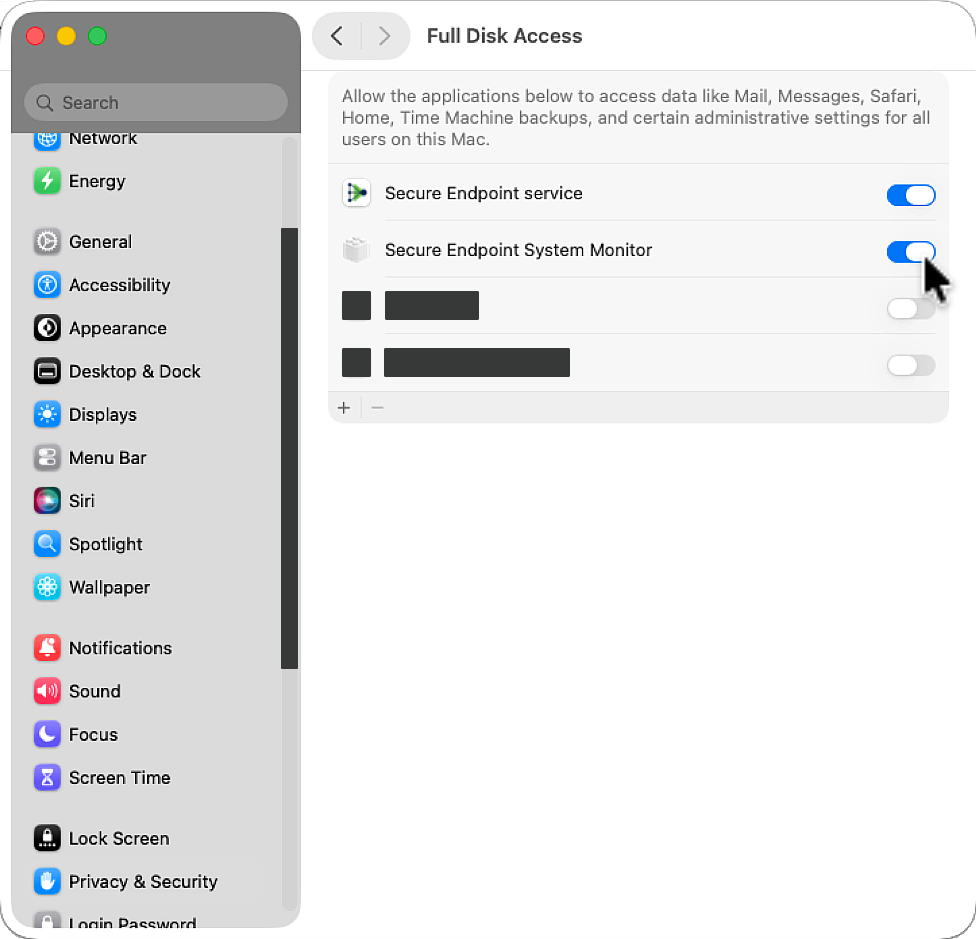
Click the toggle switch on the right to grant Full Disk Access for the Secure Endpoint System Monitor.
Since you have already unlocked the Privacy & Security system settings for the Secure Endpoint service, you will not be asked for your username and password again.
The configuration of Cisco Secure Endpoint Connector is now complete. You can additionally verify communication with the Cisco Security Cloud and policy delivery.
Click the Secure Endpoint Connector icon in the menu bar and select About Secure Endpoint Connector in the menu.
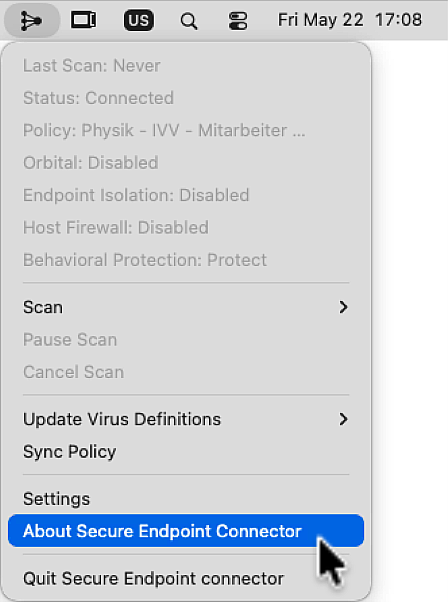
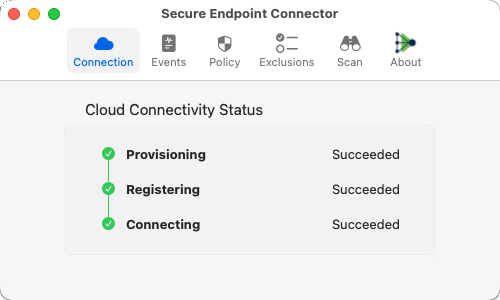
For Connections the status is green in all three sections.
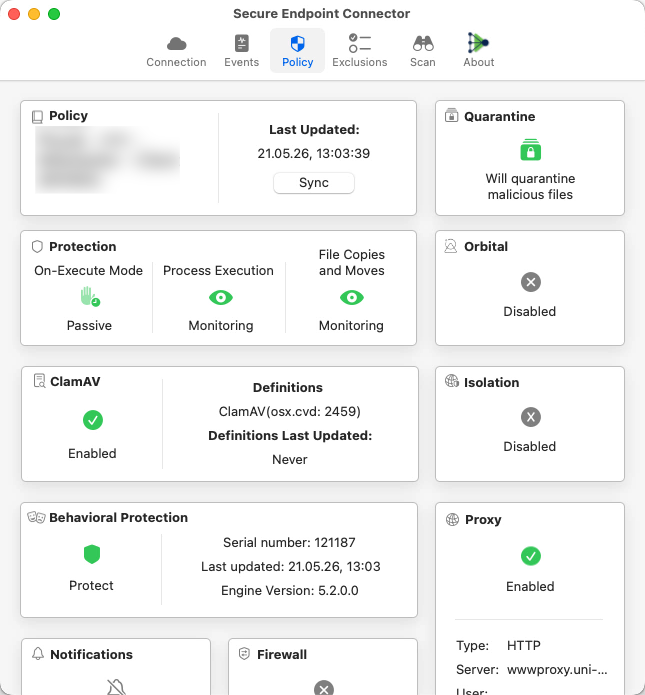
The policy associated with the installer is displayed, along with the date it was last applied. If the policy shown here is different from the one associated with your domain, you have used the wrong installer and must uninstall the software (see the notes at the bottom of this page) and install it from the right installer.
The status for Quarantine, Protection, ClamAV, and Behavioral Protection is displayed in green. Orbital, Isolation, and Firewall are not enabled in the configuration.
To uninstall the Secure Endpoint Mac connector, navigate to the installation folder Applications > Cisco Secure Endpoint and double-click the Uninstall Secure Endpoint connector.pkg file. Follow the steps in the wizard to uninstall the application.
If for any reason the uninstaller is not successful, the Secure Endpoint Mac connector will have to be manually removed. To do this, open a terminal window and follow the appropriate procedure. The procedure to follow depends on the version of the Mac connector being unisntalled and the macOS version.