Tipps zur Erstellung von PDF-Dateien
Allgemeine Hinweise zum PDF-Format
Das Portable Document Format (PDF) ist ein Dateiformat, das ermöglicht, Dateien aus zahlreichen Anwendungen (Textverarbeitung, Graphik etc.) auf verschiedenen Rechnern auch bei unterschiedlichen Betriebssystemen immer stets im gleichen Layout anzuzeigen, so wie das Original der Ursprungsdatei. Außerdem benötigt man zur Ansicht von PDF-Dateien, egal aus welchem Text- oder Desktop-Publishing-Programm sie erstellt wurden, nicht die Software, mit der die Datei erstellt wurde, sondern nur einen „Viewer“ wie den Adobe Reader. Daher ist PDF heute Standard für den Austausch digitaler Dokumente.
Vorbereitung des Dokuments zur PDF-Erstellung
Um aus der Textverarbeitungsdatei Ihres Werkes eine PDF-Datei zu generieren, ist es dringend empfehlenswert, dass die PDF-Datei nach Möglichkeit auf dem Rechner erstellt wird, auf dem die Arbeit geschrieben wurde. Auf anderen Rechnern bzw. Monitoren kann ggf. das Layout der Arbeit verändert dargestellt werden, Seitenumbrüche oder Grafiken und Tabellen „verrutschen“! Im schlechtesten Fall könnte dann auch hinterher das Inhalts-verzeichnis nicht mehr korrekt sein.
Richten Sie für die Erstellung der PDF-Datei also am besten auf Ihrem Rechner das PDF-Programm als Drucker ein. Gegebenenfalls – oder falls Sie einen anderen Rechner nutzen müssen – passt man das Layout des Dokuments vor Erstellung der PDF-Datei ggf. „hart“ an:
- Absatz- und Seitenumbrüche: Durch „erzwungene Seitenumbrüche“ können Sie das Layout anpassen; durch Einfügen von Leerzeilen kommt man im Allgemeinen nicht zum erwünschten Ergebnis.
- Farbmanagement für Abbildungen, Diagramme usw.: Grafiken sollten für den Buchdruck im CMYK-Modus und nicht im RGB-Modus vorliegen. Spätestens bei der Generierung der PDF-Datei lässt sich das ganze Dokument in CMYK konvertieren. Dazu gibt es entsprechende Einstellmöglichkeiten in den PDF-Programmen.
Programme zur PDF-Erstellung
Wenn Sie die Möglichkeit haben an der Universität das Programm Acrobat Professional zu nutzen, ist dies an erster Stelle zu empfehlen, da man dort die für die Schriftenreihe erforderlichen Voreinstellungen im Allgemeinen problemlos treffen kann (s.u.). Mitarbeiter*innen der Universität Münster können diese Software auch über die zuständige IVV des Fachbereichs erhalten: https://www.uni-muenster.de/IT/services/arbeitsplatz/software/adobe-acrobat-pro.html.
Es gibt mittlerweile auch diverse kostenfreie Programme, die man im Internet nutzen oder sich herunterladen kann. Gut geeignet für die Generierung von PDF-Dateien aus Textverarbeitungsprogrammen wie z.B. Microsoft Word sind z.B. FreePDF, PDF24 oder PDFCreator.
Bei einigen Textverarbeitungsprogrammen, z.B. der Software LaTex, ist ein komfortables PDF-Export-Modul bereits integriert, in dem ggf. die erforderlichen Einstellungen noch anzupassen sind.
Satzprogramme wie Adobe InDesign oder QuarkXpress verfügen grundsätzlich über einen PDF-Export.
Voreinstellungen zum PDF-Export
Damit ein Werk in eine für den Buchdruck geeignete hochwertige PDF-Datei konvertiert wird, sind bestimmte Vorgaben zu beachten und in dem von Ihnen benutzten Programm auszuwählen bzw. anzupassen.
- Qualitätsstandard einstellen: Wählen Sie für den PDF-Export in dem Programm, mit dem Sie die PDF-Datei erstellen wollen, die bestmögliche Qualität für Druckerzeugnisse, B. „qualitativ hochwertiger Druck“, „PrePress“ oder „High Quality“. Je nach Programm und Version sind diese Profile unterschiedlich benannt. Eine Auswahl ist je nach Drucker unter „Eigenschaften“ zu treffen.
Textverarbeitungssoftware wie etwa OpenOffice oder LibreOffice implementierte PDF-Export-Funktionen bieten meist nur wenige Anpassungsmöglichkeiten und sind nicht für hochwertige Print-Publikationen geeignet. Nutzen Sie dann bitte ein externes PDF-Programm.
- Schriften einbetten: Grundsätzlich müssen Schriften bei der PDF-Erstellung „eingebunden“ Damit ein Text in der Schrift des „Textverarbeitungs-Originals“ angezeigt und gedruckt wird, auch wenn der Leser diese Schrift nicht installiert hat. Die Schriften als solche müssen also mit in die PDF-Datei gespeichert werden. Wie Schriften eingebunden werden, hängt ebenfalls von dem Programm ab, aus dem die PDF-Datei generiert wird.
- Sicherheitseinstellungen und Passwörter: Damit PDF-Dateien auch bei Versionierungen der Adobe-Produkte (PDF-Reader) dauerhaft lesbar bleiben, sind sämtliche Sicherheitseinstellungen unzulässig. Dass alles „zulässig“ ist, sollten Sie unter „Datei/Eigenschaften“ prüfen.
Erstellen der PDF-Druckdatei
Nach Auswahl der obigen Voreinstellungen drucken Sie mit dem Befehl „Drucken“ die PDF-Datei, die Sie unter einem sprechenden Dateinamen nach Aufforderung durch die Software speichern. Der Vorgang der PDF-Generierung dauert ein Weilchen!
Ein Beispiel mit Screenshots zur Erstellung einer PDF-Datei aus dem Textverarbeitungsprogramm MS Word 2003 und aus MS Word 2007 mit der Software Adobe Acrobat Professional siehe Anlage.
Zusammenführen mehrerer PDF-Dateien zu einer Druckdatei
Falls mehrere PDF-Dateien erstellt wurden, z.B. bei Vorliegen von Dokumenteilen mit unterschiedlicher Seitenzählung oder ohne Paginierung, sollten diese mit dem Befehl „Dokument/Seiten einfügen“ zu einer Gesamtdatei vereint werden.
Danach muss eine neue PDF erzeugt werden. Nur dann bleiben alle Schriften eingebettet und das Farbmanagement erhalten, so dass eine hochwertige PDF-Datei für den Buchdruck vorliegt.
Service
Bei Fragen wenden Sie sich gern an den Servicepunkt Publizieren der ULB
- Telefon: +49 (0)251 83-25529
- E-Mail: schriften@uni-muenster.de
PDF-Druckdatei erzeugen aus Microsoft Word 2003 (und höher) mit Acrobat Pro
Allgemein
Diese Kurzanleitung beschreibt die Erstellung einer druckfähigen PDF-Datei nach den für den Druck der Schriftenreihe der Universität wünschenswerten Vorgaben aus Microsoft Word 2003 bzw. Microsoft Word 2007 mit Adobe Acrobat Professional 9.0. Die Anleitung ist auch für ältere Versionen von Word oder Acrobat Pro nutzbar.
Erstellen der PDF-Datei aus Microsoft Word
Die PDF-Datei muss über den Befehl „Drucken“ des Programms erzeugt werden, nicht mit dem Druckersymbol oder dem evtl. vorhandenen „Acrobat-Symbol“ in der Menüleiste. Nur dann kann man die Einstellungen für die Druckdatei anpassen.
- MS Word 2003: Wählen Sie den Menüpunkt „Datei / Drucken“
- MS Word 2007: Wählen Sie die Schaltfläche „Office“ ganz oben links und dann „Drucken“
- MS Word 2010: Wählen Sie den Menüpunkt „Datei / Drucken“
Es öffnet sich das Fenster des Druckermenüs. Hier wählt man als Druckertreiber zunächst „Adobe PDF“:
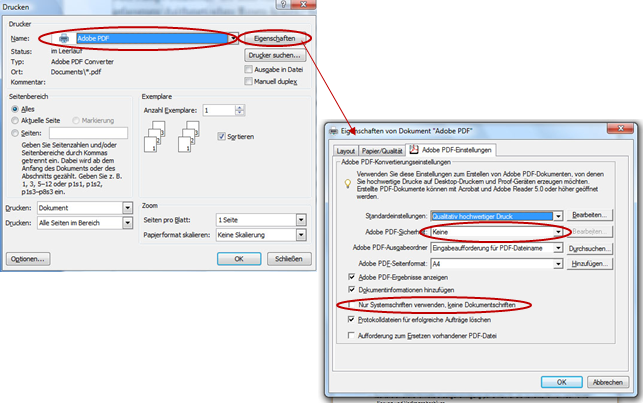
Als nächstes öffnet man das Menü „(Drucker-)Eigenschaften“. Dort wählen Sie
- unter „Standardeinstellungen“ im Aufklappmenü „Qualitativ hochwertiger Druck“
- und entfernen Sie den Haken bei “Nur Systemschriften verwenden, keine Dokumentschriften“
Mit Mausklick auf „ok“ bestätigen Sie diese Voreinstellungen 2x, danach erzeugen Sie die PDF-Datei mit dem Befehl „Drucken“ und speichern die Datei.