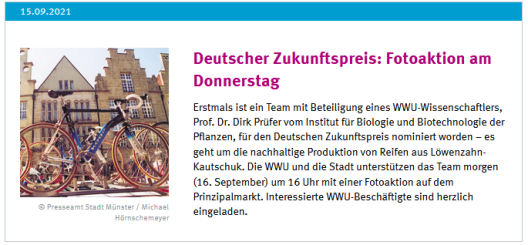
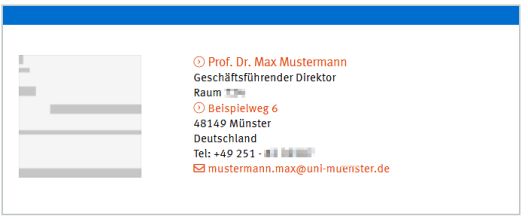
With the module “Abstracts Collector” you can create an overview page where abstracts are collected. Abstracts are articles with a headline, a short text and possibly an image, or summaries of contact details. A link in the abstract leads to the detailed article or the contact page.
For more detailed questions, please contact the support of the online editorial team.
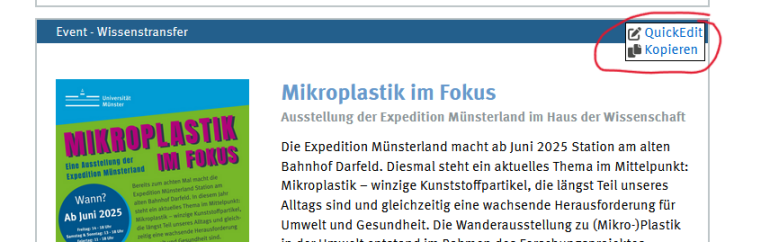
Example of an abstract article and a contact abstract:
If you want to integrate a collector on your site for the first time, you must first contact the web team. The web team sets the necessary parameters at the top level of your site, so that the collector can be used throughout the entire site.
Create a storage section where the documents of news articles (or personal pages) are created and stored. For news, it is advisable to create annual sections. Below you will find instructions on how to create a new annual section according to the old one.
Create new overview page (document with abstract collections)
Documents that are to collect abstracts (overview pages) must be designated with the extension ".shtml".
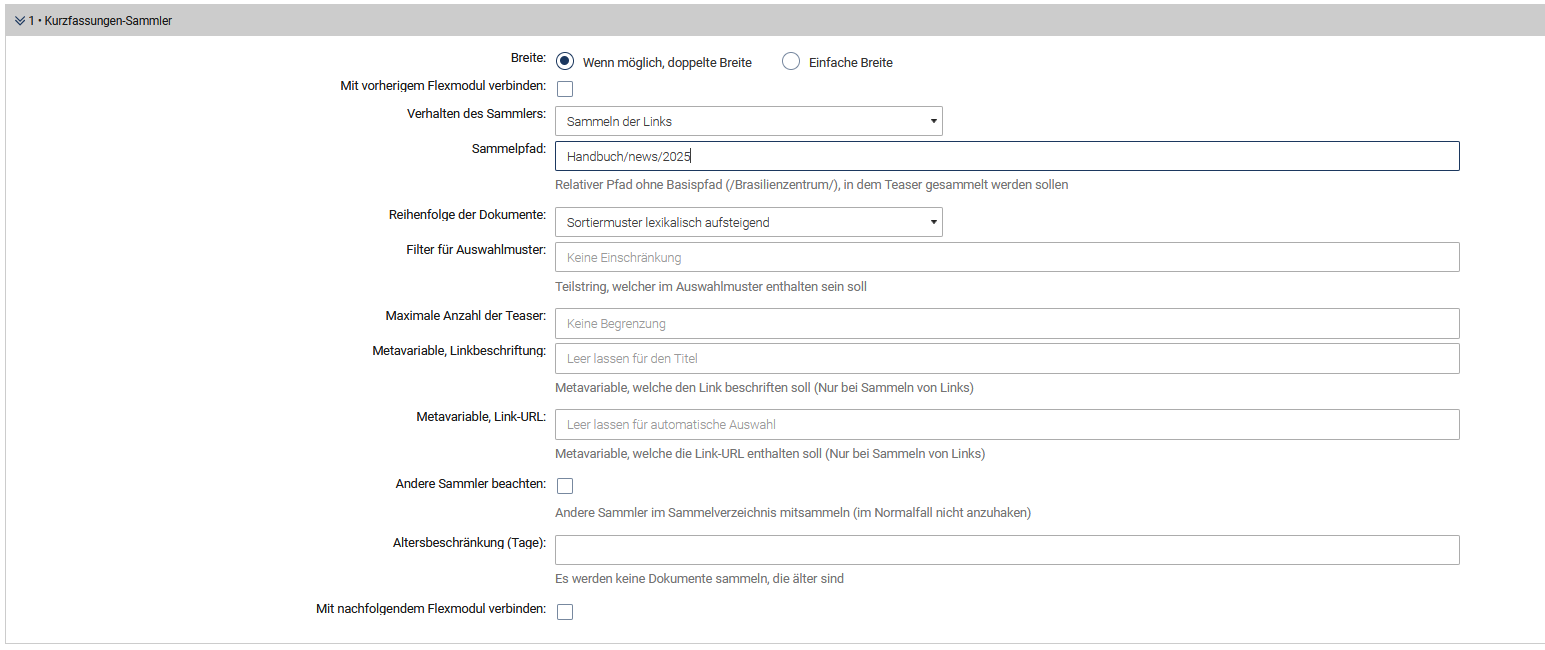
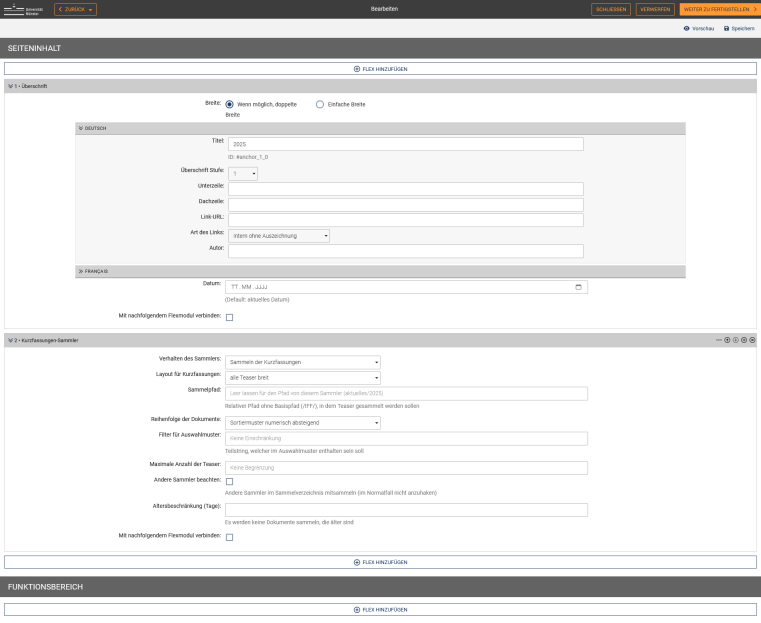
Insert the module "Kurzfassungen-Sammler" into the new document. In the "Sammelpfad" field, enter the storage section without the base path (i.e. the path in which the articles for the collector are created). Here "Handbuch/news/2025".
Verhalten des Sammlers: Should usually be left at "Collect abstracts"(„Sammeln der Kurzfassungen“). Alternatively, "Collect links only" („Nur Links sammeln“) can be used here to create simple link lists.
Reihenfolge der Dokumente: The criterion according to which the list is sorted. The basis is the sorting pattern in the documents (see below). Selectable options are lexical ascending/descending, numerical ascending/descending, creation and modification date as well as file name or document title. For news, it is generally helpful to fill in the sorting pattern field with the date in the news articles (e.g. "20251201"). Then it can be sorted by "numerically descending" and the most recent news is always at the top (see below).
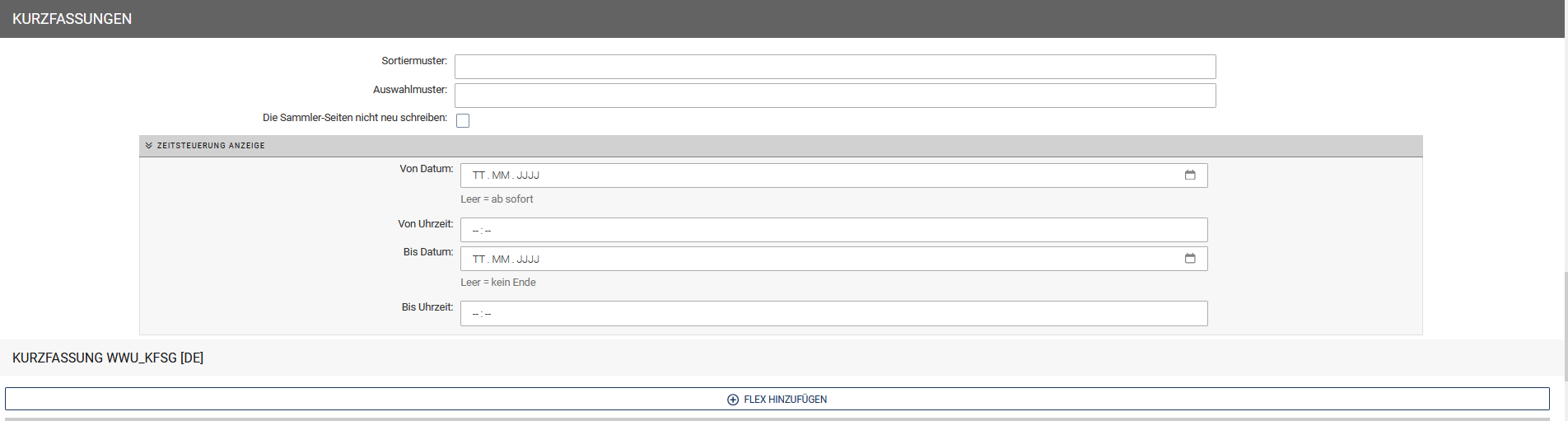
Filter für Auswahlmuster: If the collector should have a keyword system, one or more keywords should be entered here, according to which the collection is to be sorted out later. It is advisable to choose short keywords that are as catchy as possible and to record them in a documentation.
Maximale Anzahl der Teaser: If the collector is not to display any number of abstracts, but only a fixed number, a corresponding number can be entered here. (e.g. "4", if you want to display only the four most recent news items on the homepage.)
Andere Sammler beachten: Normally not to be ticked. If a collected document is edited but the abstract remains unchanged, e.g. because only a typo in the main text of the page is corrected, this checkbox is useful.
Altersbeschränkung: No documents older than the specified date are collected.
New article/contact page creation
To create a new article/contact page for the abstracts collector, create a new document with the extension ".html" in the storage section. When creating the document, the "contains abstracts" ("enthält Kurzfassungen") option must be checked. Attention: these documents must not be named index.html.
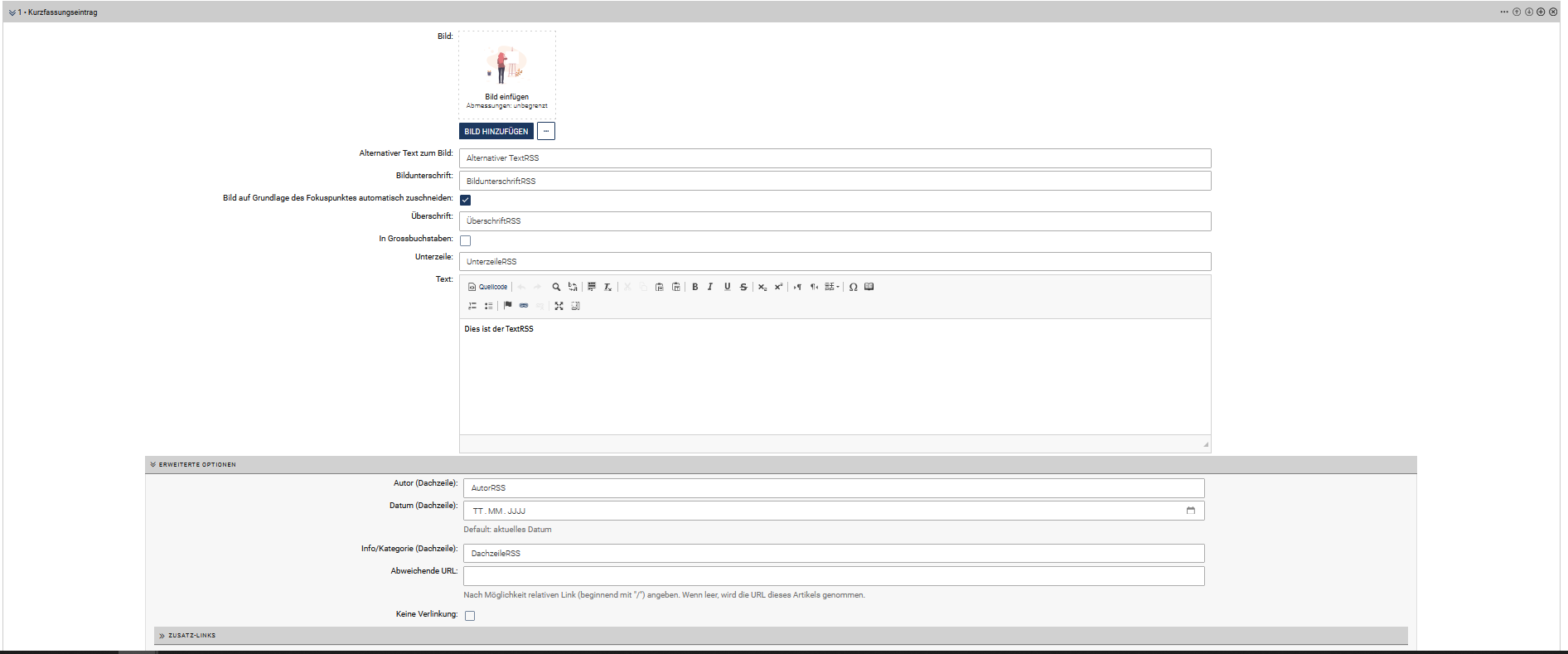
Next, in the abstracts section (at the very bottom) of this document, insert the module "abstract entry" ("Kurzfassungseintrag") or "contactdetails" ("Kontaktdaten"). Enter the information that should ultimately appear on the overview page.
The "abstract entry" module works analogously to the module Newsbox / Fieldset box. As a rule of thumb, the text part should not exceed three lines. The "contact details" module for the collector works analogously to the module contact details.
Input of the sorting pattern(Sortiermuster): How abstracts are sorted depends on the application. Generally, the following options are recommended:
For news: Use the date format for the sorting pattern (e.g. for 05.08.2012: "20120805"), and select "Numerically descending" ("Numerisch absteigend") in the collector. This way, the most recent news is always at the top. It only becomes problematic with multiple entries on the same day. In this case, an additional ascending number at the end could be used ("201208051").
For lists of people: Use the format or in case of name equality (e.g. Klaus Müller: mueller.klaus), and select "Lexically ascending" ("Lexikalisch aufsteigend") in the collector. This way, the list starts with the last name A and ends with Z.
Input of the selection pattern (Auswahlmuster): Here, keywords by which the document can be identified from the template are to be specified. It is important that the keywords correspond to those given in the pages with abstract entries (document accordingly if necessary).
Do not rewrite the collector pages ("Die Sammler-Seiten nicht neu schreiben"): Normally, this should not be checked.
Once you have completed and published the document, the overview page will be automatically updated and the abstract entry will be displayed there.
If you want to edit individual articles, the easiest way is to open the overview page on the development system. Instead of writing "https://www.uni-muenster.de/..." in the URL, write "https://imperia.uni-muenster.de/...". Here, each article can be accessed and edited via a Quick-Edit link.
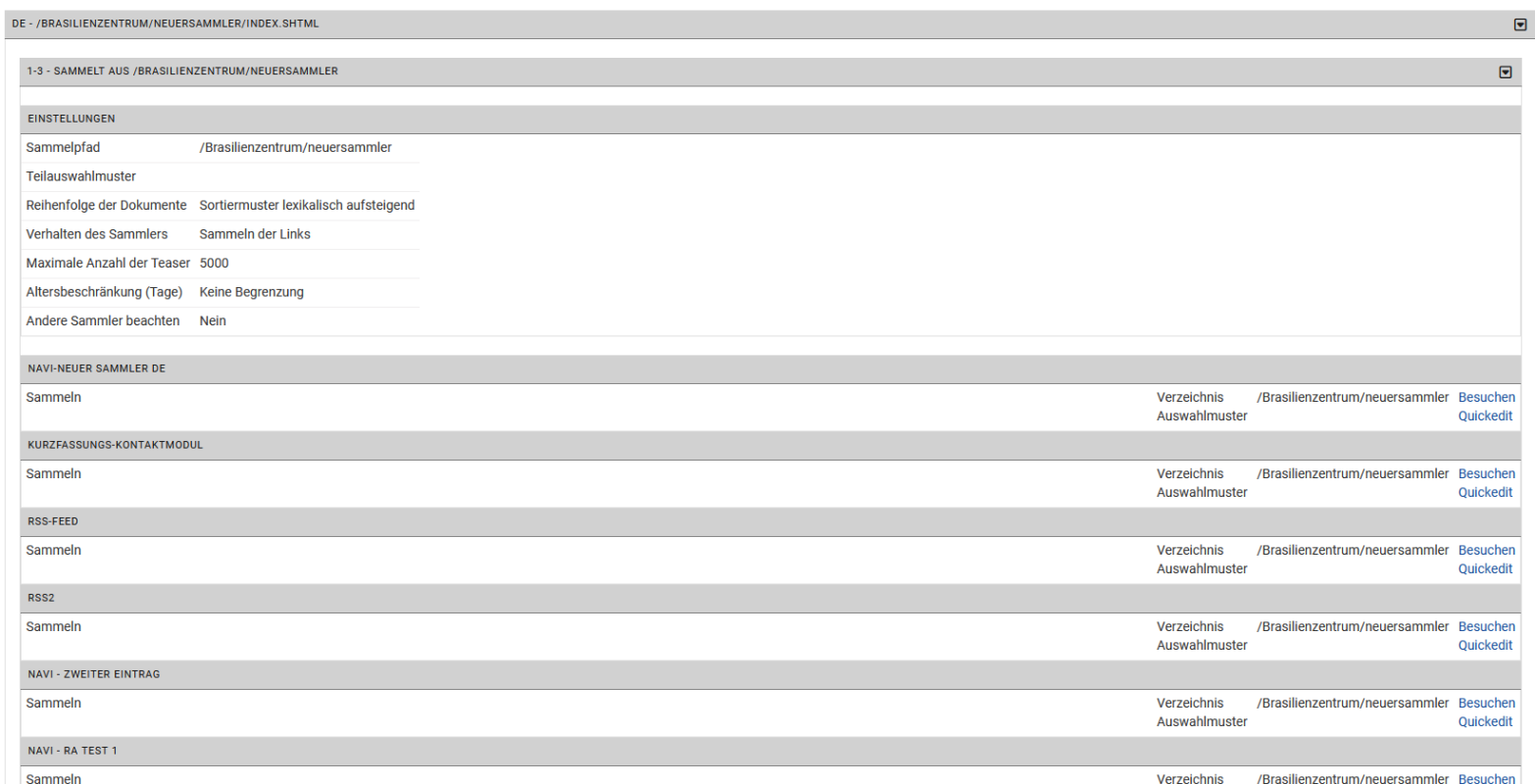
Here you can also access the analyser interface of the collector (see image). There you will receive more detailed information about the settings of the current collector and the individual abstracts.
It is advisable to file news articles by year, so that you have an overview page for each year. To create a new yearly folder, follow these steps:
Open the overview page of the previous year, so that you can practically rebuild it.
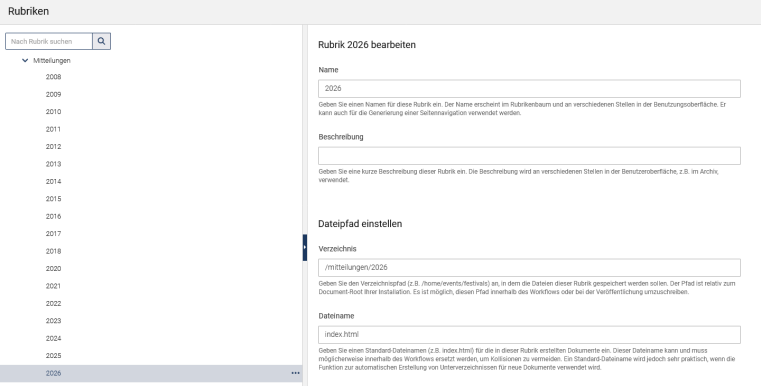
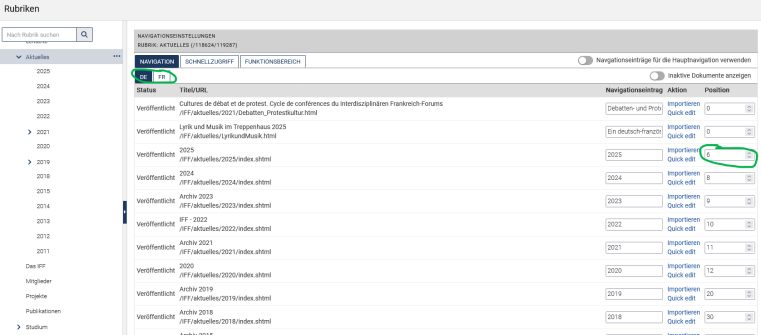
In the rubric browser: Create a new sub-section in your main news section, which you name after the year (e.g. "2026"). Also add "/2026" to the directory name.
In the document browser: create a new document in the section "2026", name it "index.shtml" and mark it as the Leitseite. You can choose a title such as "News 2026". You can simply orientate yourself on the title of the previous year's overview page (the name in the browser tab).
You now have your new page open in Quick-Edit. Open the previous year's overview page (e.g. "2025") in Quick-Edit and recreate the modules (usually a header module and the collector module) with their respective specifications exactly, replacing the date logically. Orientate yourself on the sorting pattern and the other settings of the previous year's collector.
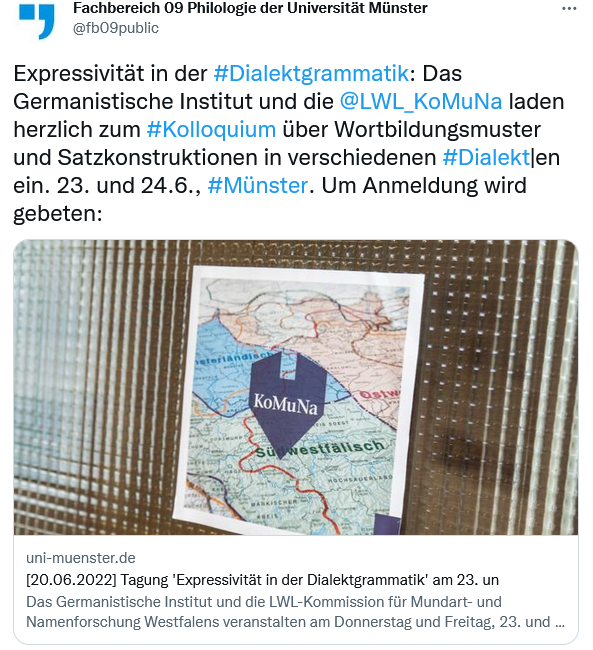
It is also possible to create a "Twitter card" via an abstract entry. If an Imperia page is linked on Twitter that has an abstract entry containing an image, a headline and a teaser text, this information is output on Twitter as a "Twitter card". The Twitter card replaces the link in the output.
Whether this abstract entry entry is also "collected" somewhere is not relevant. However, Imperia pages without an abstract entry entry do not generate a Twitter card.
In order for a Twitter card to be generated from an abstract entry, a rubric parameter must be set in the corresponding rubric: twittercard = 1.
You can optionally set the parameter input_twittercard_document = 1 (otherwise a Twitter card will be created for all documents with an abstract entry in the rubric). If the parameter is not set, you can decide in the meta edit step of an Imperia document whether a Twitter card should be created or not.
Documents already published before the parameter is set must be refreshed in order for a Twitter Card to be generated.
Attetion: by creating the rubrics (or sections), remember to name the subdirectories like the rubrics. To avoid mistakes try to just use low case by naming and don't use special characters.
Integrate RSS feed
You can also integrate RSS feeds. If the parameter “sammler_v2” is set, you can easily create a new document, name it like the source document, and add the file extension “.rss”.
For example: For a file “[...]/news.shtml”, the document “[...]/news.rss” should be created in the same section.
Further settings can then be made in the edit step of the RSS file, among other places.