Standard fields settings
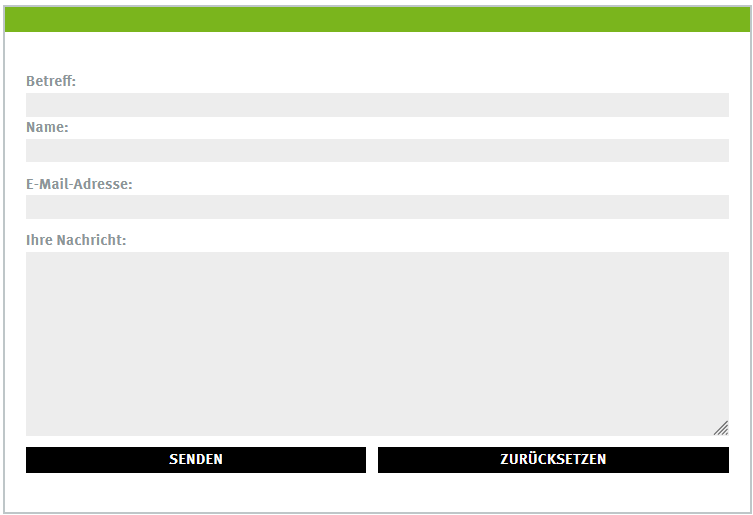
Recipient (required)
The recipient email address to which the form content is sent as a result email. Only local user IDs, alias names, or distribution list names with or without @uni-muenster.de are allowed.
This field must be filled with a user ID/email address for the form to be submitted. If this settings field remains empty, no email will be generated upon form submission and Mailback as the executing programme will display an error.
Examples: “user ID”, “user ID@uni-muenster.de”, “distribution list@uni-muenster.de”
Subject field title
Set a label for the subject input field in the form.
Examples: “Subject”, “Topic”, “Your request” etc. Default: "Subject".
Subject (optional)
Pre-set the content of the subject input field in the form.
The content of the subject input field becomes the email subject of the result email.
With the option “Hide subject field” contained under “Advanced settings”, the subject field including the subject field title can be hidden in the form, so that it is no longer visible and adjustable for users. This is useful for emails where users should not be able to change the subject.
If the subject field is not hidden, users can adjust or formulate the pre-set subject text themselves.
Example: “Registration for the newsletter of faculty XYZ”. Default: empty.
Title of the name field
Set a label for the name input field in the form.
This label is also used for the output of the name field content in the result email.
Example: “First and last name” etc. Default: "Name".
Title of the email field
Set a label for the email field in the form.
This label is also used for the output of the email field content in the result email.
Example: “Your email address”. Default: "Email address".
Title of the email text field
Set a label for the email text field in the form.
This label is not used for the output in the result email. The content of the email text field is output in the result email without a title as text below all other values.
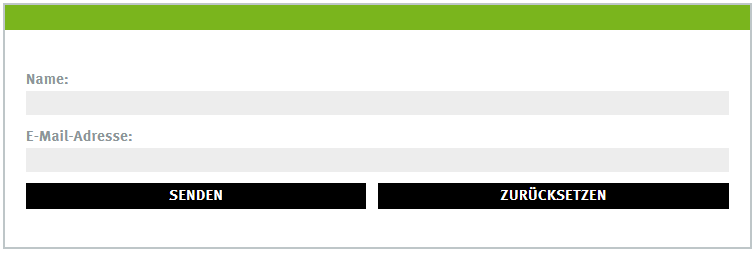
With the option “No input field email text” contained under “Advanced settings”, the email text field including the title can be hidden in the form, so that it is no longer visible and adjustable for users. This can be useful, for example, if the form should not contain more than a name, an email address, and a checkbox (e.g. for a newsletter registration). In this case, the word “End” is output in the result email (see Mailback description).
Example: "Your comment", "Your message". Default is "Text"
Submit button
Customise the label of the submit button.
Examples: “Register now”, “Submit reservation”. Default is “Send data”.
Reset button
Customise the label of the reset button.
Examples: “Reset”, “Reset form”. Default is "Reset fields".
Result display (optional)
URL of a page that is to serve as the result page. This result page is called up after a successful form submission and must contain the following HTML comment at the point where the result is to be inserted:
If no URL is specified, the page cannot be loaded or the above HTML comment is missing from the page, a pre-set primitive template will be used.
For more information on the result page, see the page on the CGI programme Mailback
additional fields settings
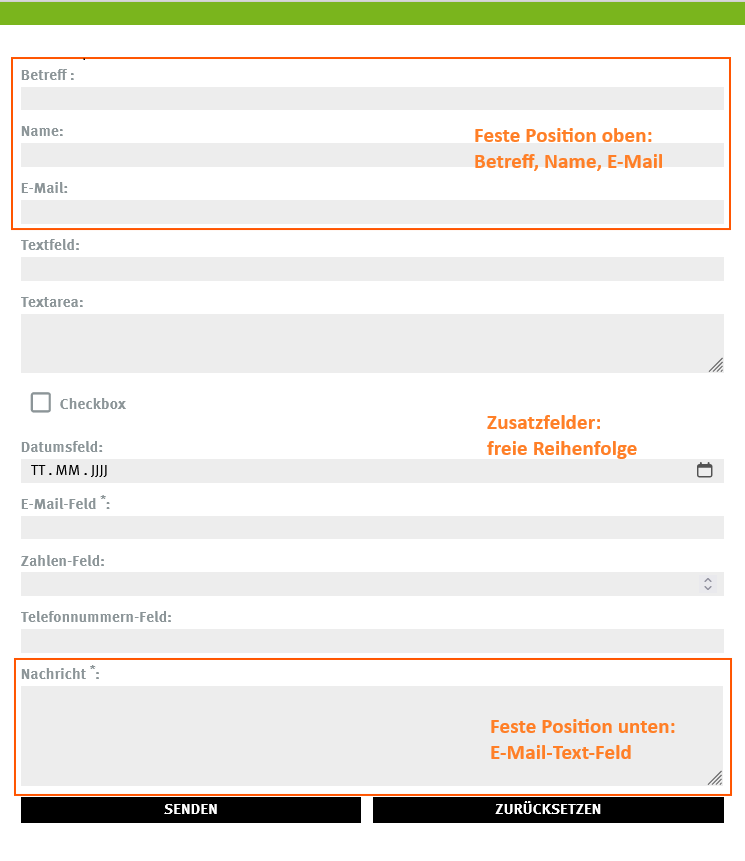
By default, an additional field block in the Flex module is already active. You can delete this block if you do not need any additional fields.
Via "Add Block" you can create additional form input fields and adjust their order with the known block functions and so on.
Field type (selection field)
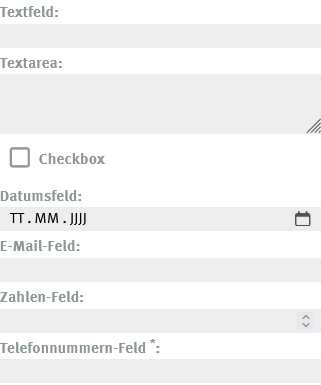
Here you can choose between 8 different field types:
- Text field: single-line input field for any text; typical use cases are address data such as street and place.
- Textarea: multi-line input area for any text; typical use cases are longer texts, comments.
- Checkbox: classic tick box; typical use cases are confirmations (Data Protection read) or selection of fixed properties.
- Date field: selection field for date; activates an internal browser calendar input and thus enables a uniform date format. The browser shows the user the date in local formatting (e.g. DD.MM.YYYY), but the internal result is ISO-formatted (YYYY-MM-DD). Incorrect inputs such as text are not possible.
- Email field: input field for email addresses. Comparable to a text field, but checks for typical formal properties of email addresses (e.g. an @ symbol or the top-level domain is present) before sending. Incorrect inputs are marked.
- Number field: input field for whole numbers. Use cases are e.g. number of persons. Text or decimal numbers are not allowed.
- Phone number field: input field for phone numbers. This field does not differ functionally from a text field, but especially on mobile devices, it has the advantage that a number input field is displayed.
- Hidden field: provides the possibility to integrate information into the form that does not have to be filled in by users, but is e.g. needed for automated further processing.
Required
If the checkbox is set, this additional field must be filled out by users in the form to successfully submit the form. In case of incorrect inputs, the corresponding fields are marked by the browser and the form is not sent.
The field is marked with an asterisk (*) at the title.
If at least one field in the form is set to "required", an explanatory text should be added below the form, e.g. * required field" or "* please fill out required fields"
Display name
Title or designation of the form field.
This designation is also used for the output of the content of the additional field in the result email.
Predefined value
Additional fields can be filled with a pre-entered value. If the selected field type expects a specific input format, this must also be observed with the predefined value:
- For the field type "Date" the ISO format "YYYY-MM-DD" must be observed for the pre-entered value to be correctly adopted in the output.
- For the field type "Number" only whole numbers can be used.
- For the field type "Email" a correct email address format should be observed.
- For the field types "Text field", "Textarea", "Phone number field", "Hidden field" and "Checkbox" there is no specific input format.
- Special feature: For the field type "Checkbox" any content in the pre-entered value always results in a already ticked checkbox in the output, but otherwise has no further effects or added value.
|
Special features of forms as SHTML files compared to HTML files:
If the form file ends with .shtml:
- the fields email address and surname are pre-filled with the login data of the users when called up in SSO (automatic function)
- a captcha can optionally be integrated at the bottom of the form via "Advanced Options" to increase security.
|
|
The form does not yet have a functioning send function in the preview. You must first publish the page to be able to test the functionality of the form.
|