Remote maintenance (RustDesk)

RustDesk is open-source software for secure remote access, remote control, and remote maintenance of computers
 

Download:

Client (Windows)
Client (MacOS)

  • Instruction Windows

    Step 1:

    • Click on the following download link to download RustDesk for Windows: RustDesk (Windows)
    • Note: If you're not sure which version you need, open Windows Settings, go to “System,” and select ‘About’ at the very bottom. Your system's architecture (e.g., 64-bit) is displayed under “System type.”

    Step 2:

    • Please download the EXE version of RustDesk that corresponds to the x86 architecture.

    Step 2:
    © IVV1

    Step 3:

    • The program can be run through your browser
    • You'll then find the program in the download list

    Step 3:
    © IVV1

    Step 4:

    • Click on the three-dot symbol next to the ID

    Step 4:
    © IVV1

    Step 5:

    • In the following window, open the "Netzwerk" section

    Step 5:
    © IVV1

    Step 6:

    • Select "Netzwerkeinstellungen entsperren"
    • Confirm that you want to unlock the network settings using administrator privileges

    Step 6:
    © IVV1

    Step 7:

    • Go to "ID/Relay-Server"

    Step 7:
    © IVV1

    Step 8:

    • Enter the server address in the “ID-Server” and “Relay-Server” fields
    • Enter the key in the “Key” field
    Server address - "ivv1rustdesk.uni-muenster.de"
    Key - "Dh7YnMvHBNbMm7Oy62IhudPUrx1FnMG4r4SPWfOvNAI="

    Step 8:
    © IVV1

    Step 9:

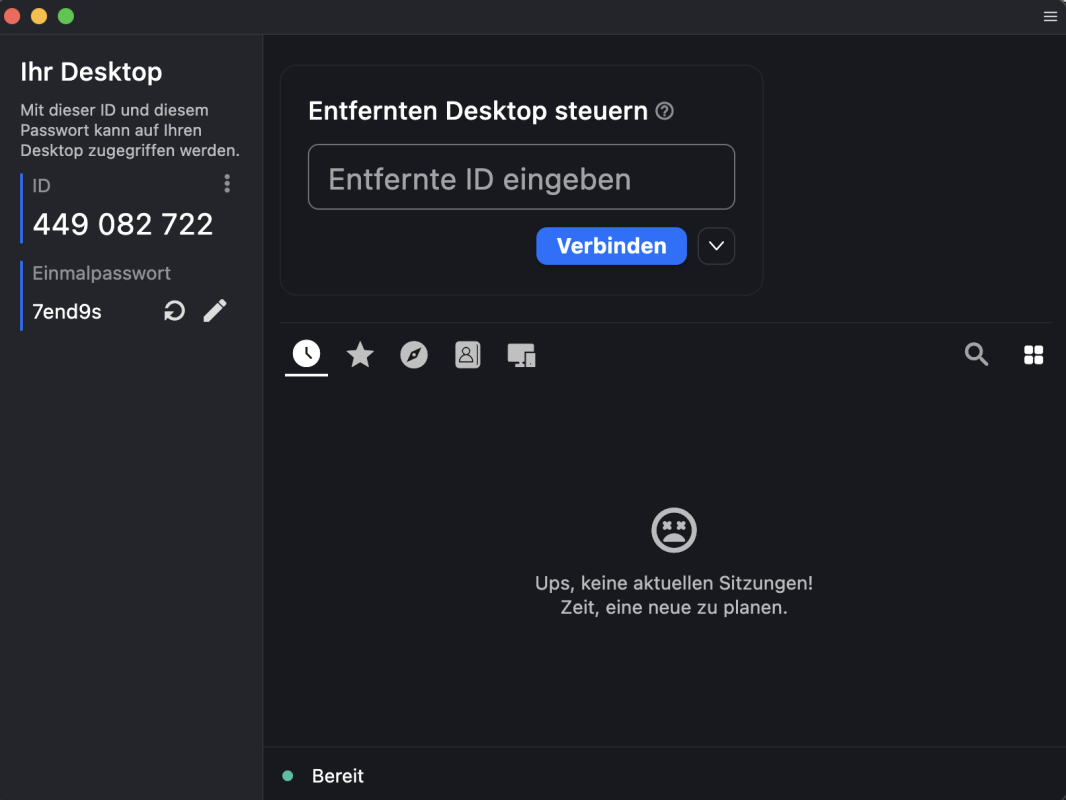
    • For the subsequent remote maintenance, you will need the RustDesk ID as well as the one-time password for the device

    Step 9:
    © IVV1
  • Instruction MacOS

    Step 1:

    • Click on the following download link to download RustDesk for MacOS: RustDesk (MacOS)

    Step 2:

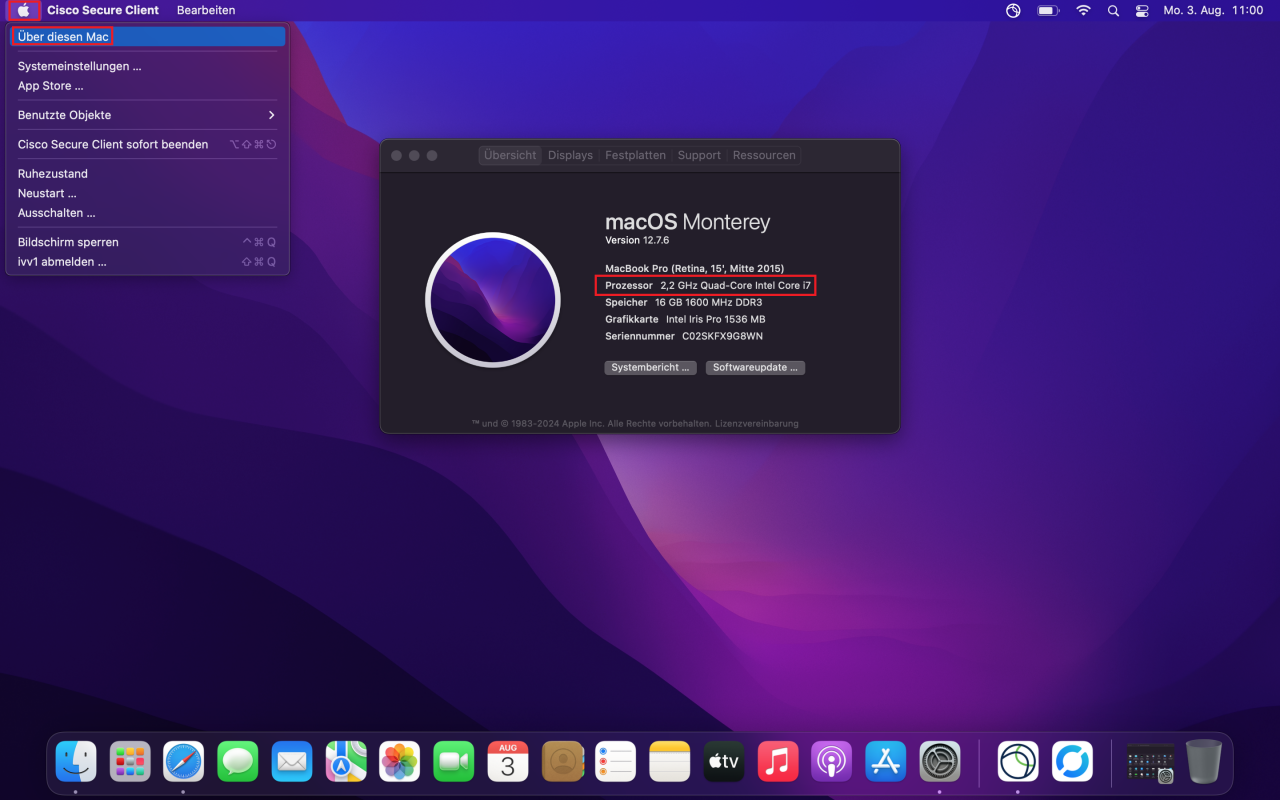
    • Check which processor is installed in your Mac:
      1. Click on the Apple menu in the top left corner.
      2. Select "About This Mac".
      3. The processor or chip designation will be displayed in the overview (e.g. Apple Silicon or Intel).

    Step 2:
    © IVV1

    Step 3:

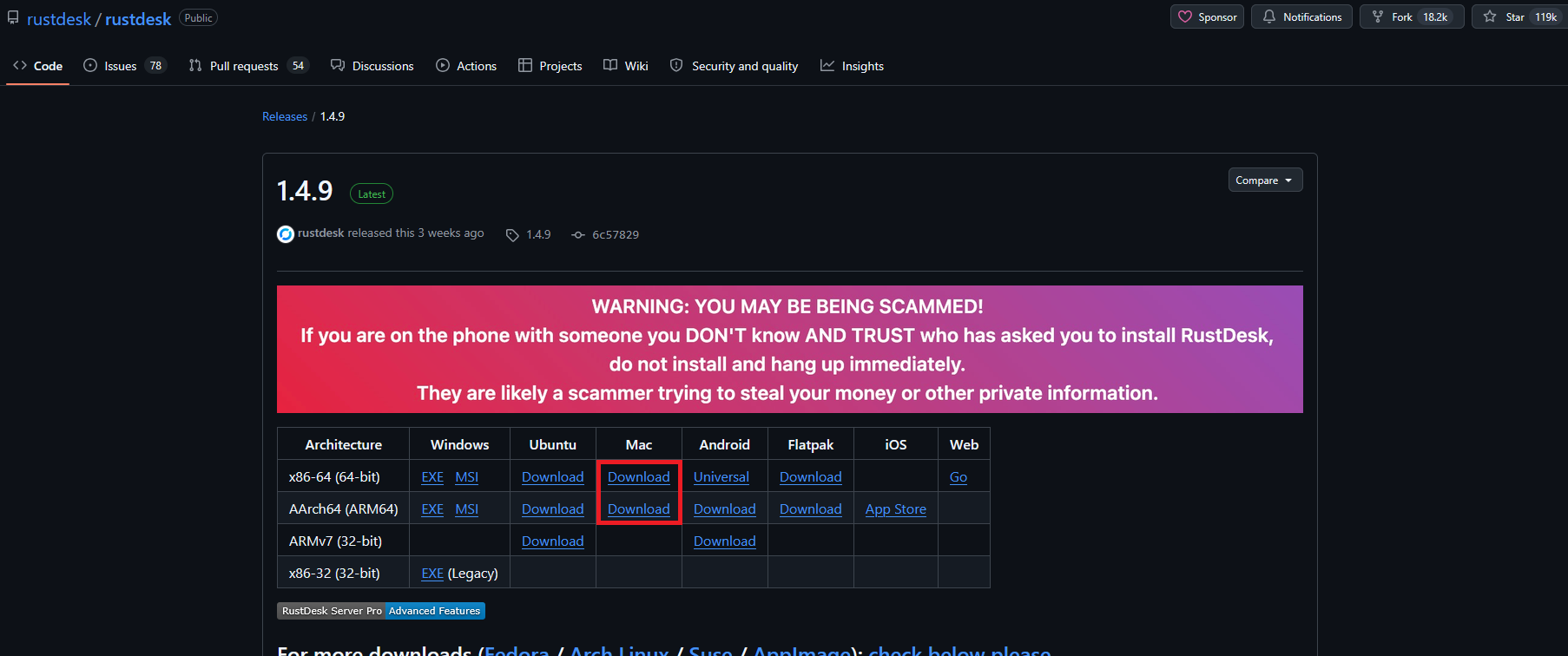
    • Download the correct RustDesk version for your Mac processor:
      • Intel Mac: Click on the upper download link in the "Mac" colomn.
      • Mac with Apple Silicon (M1, M2, M3, M4, etc.): Click on the lower download link in the "Mac" column.

    Step 3:
    © IVV1

    Step 4:

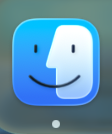
    • Open the Finder

    Step 4:
    © IVV1

    Step 5:

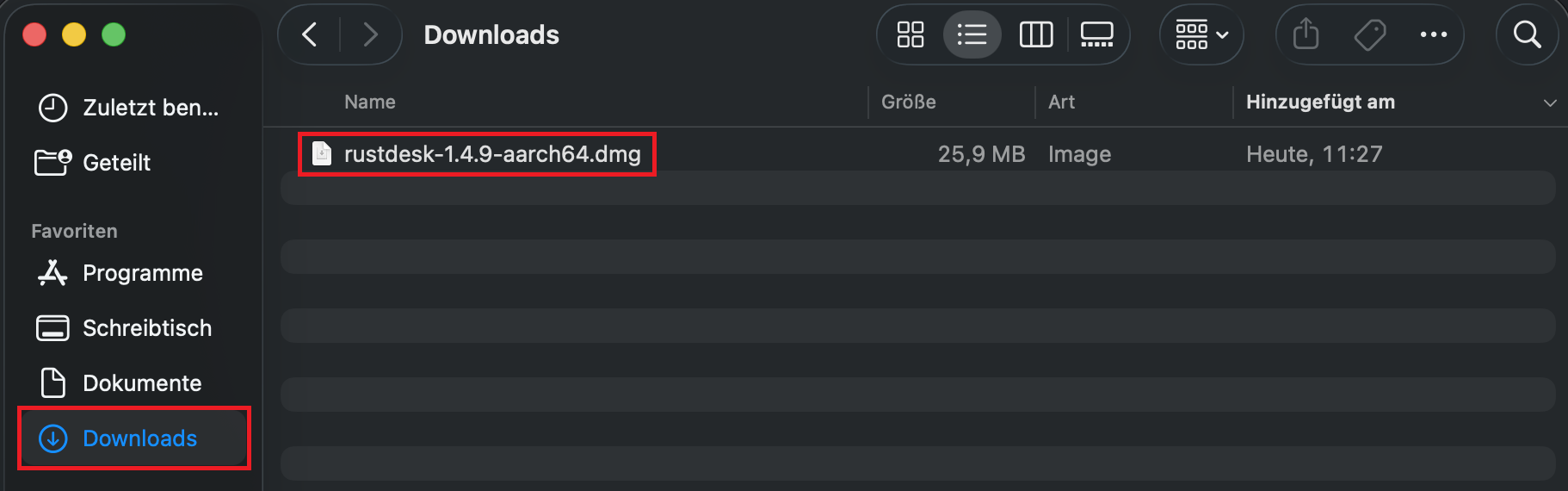
    • Switch to the "Downloads" folder
    • Double-click on the RustDesk file that you previously downloaded

    Step 5:
    © IVV1

    Step 6:

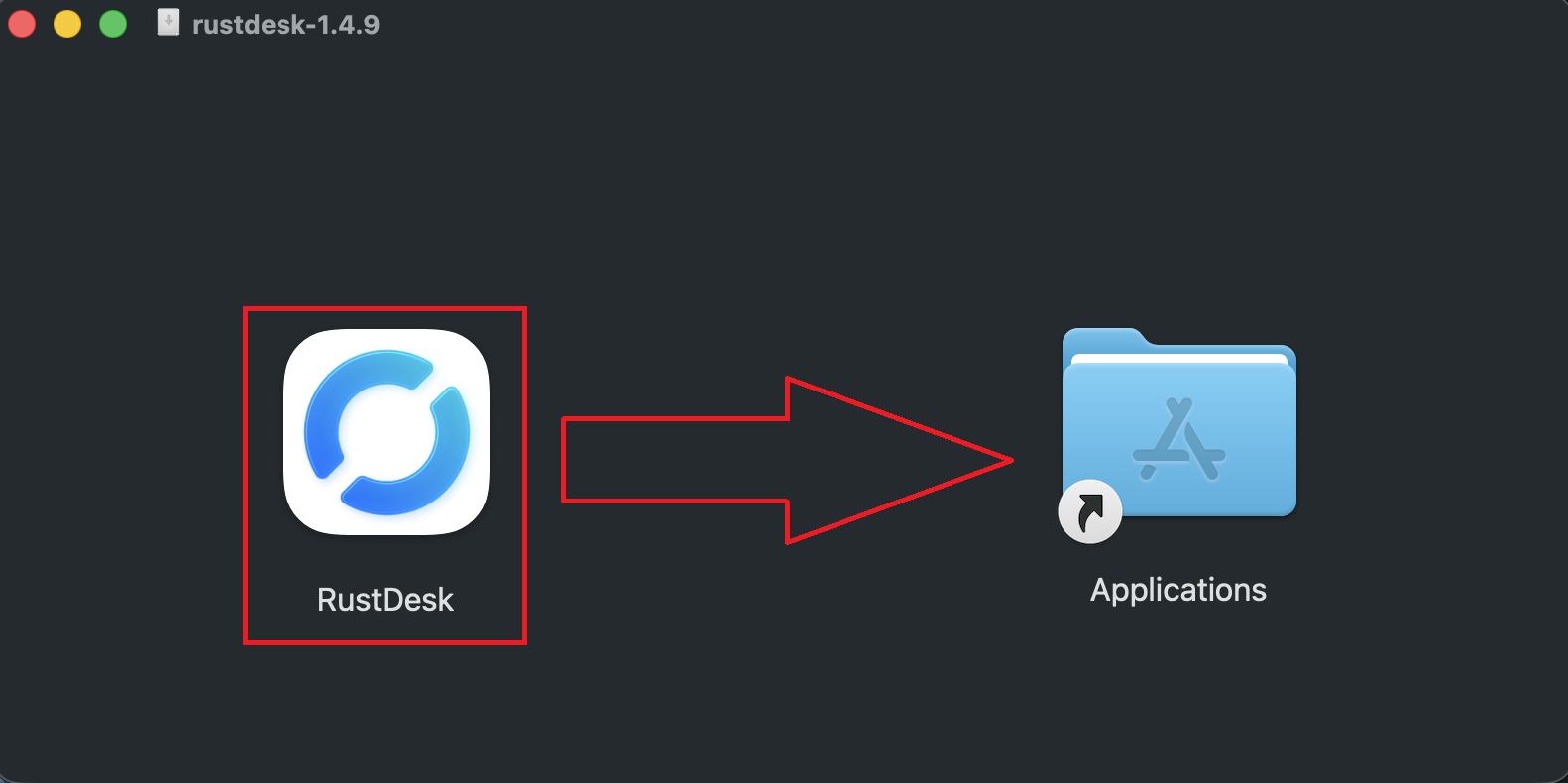
    • Drag and drop "RustDesk" into the "Applications" folder

    Step 6:
    © IVV1

    Step 7:

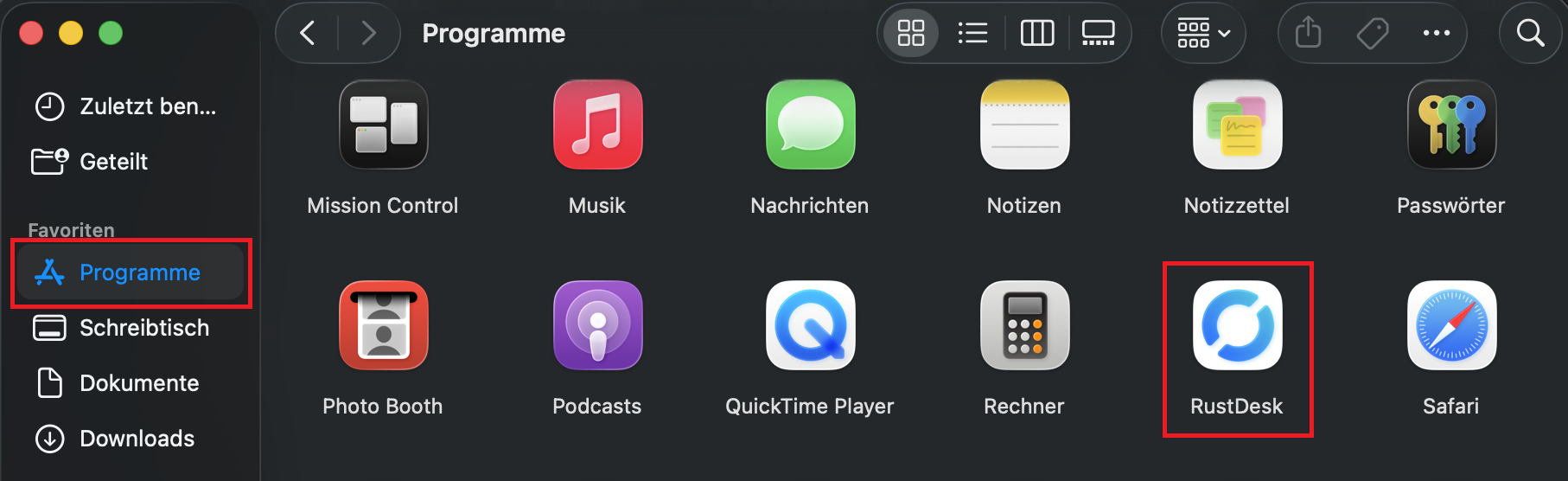
    • Open the "Applications" folder in Finder
    • Double-click "RustDesk" to start the application

    Step 7:
    © IVV1

    Step 8:

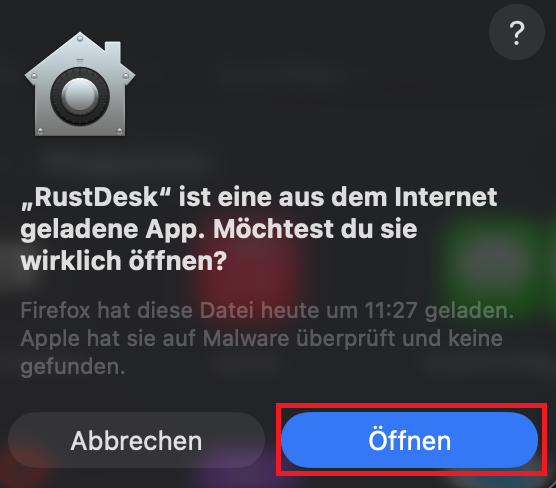
    • When the security message appears, click "Open" to start RustDesk

    Step 8:
    © IVV1

    Step 9:

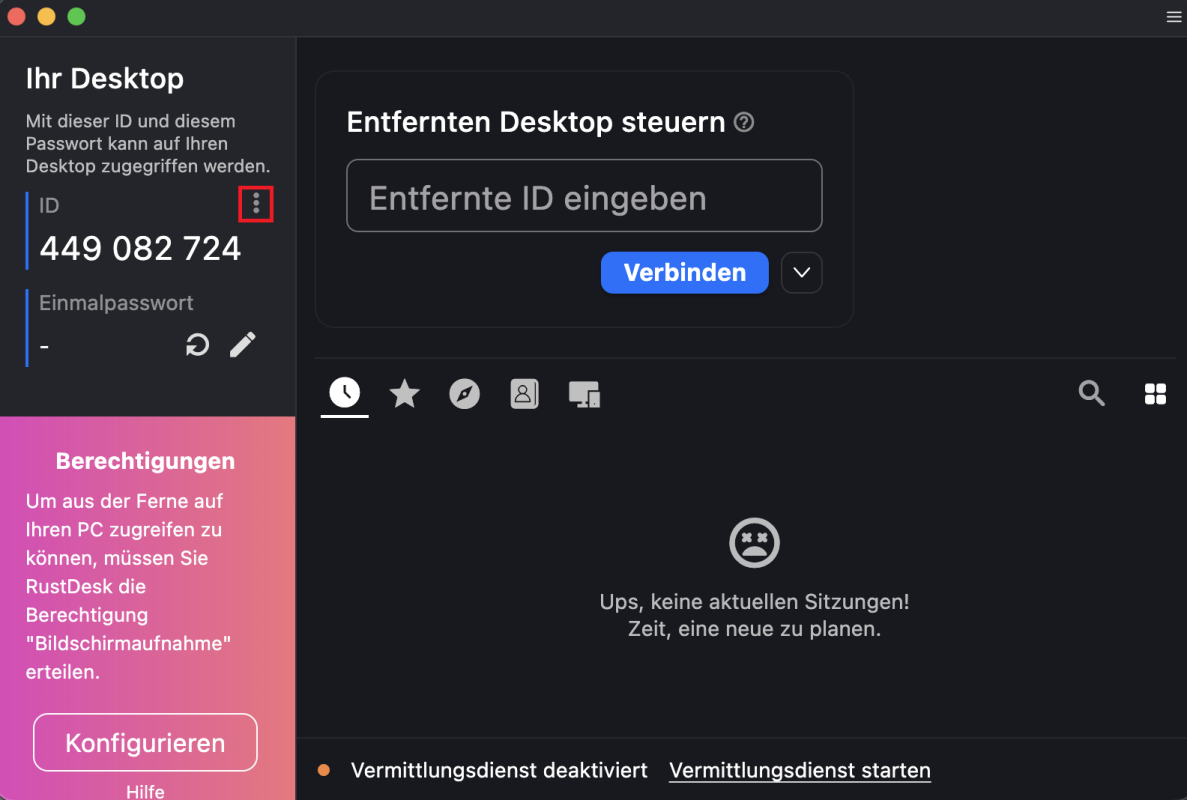
    • Click on the three-dot symbol next to the ID

    Step 9:
    © IVV1

    Step 10:

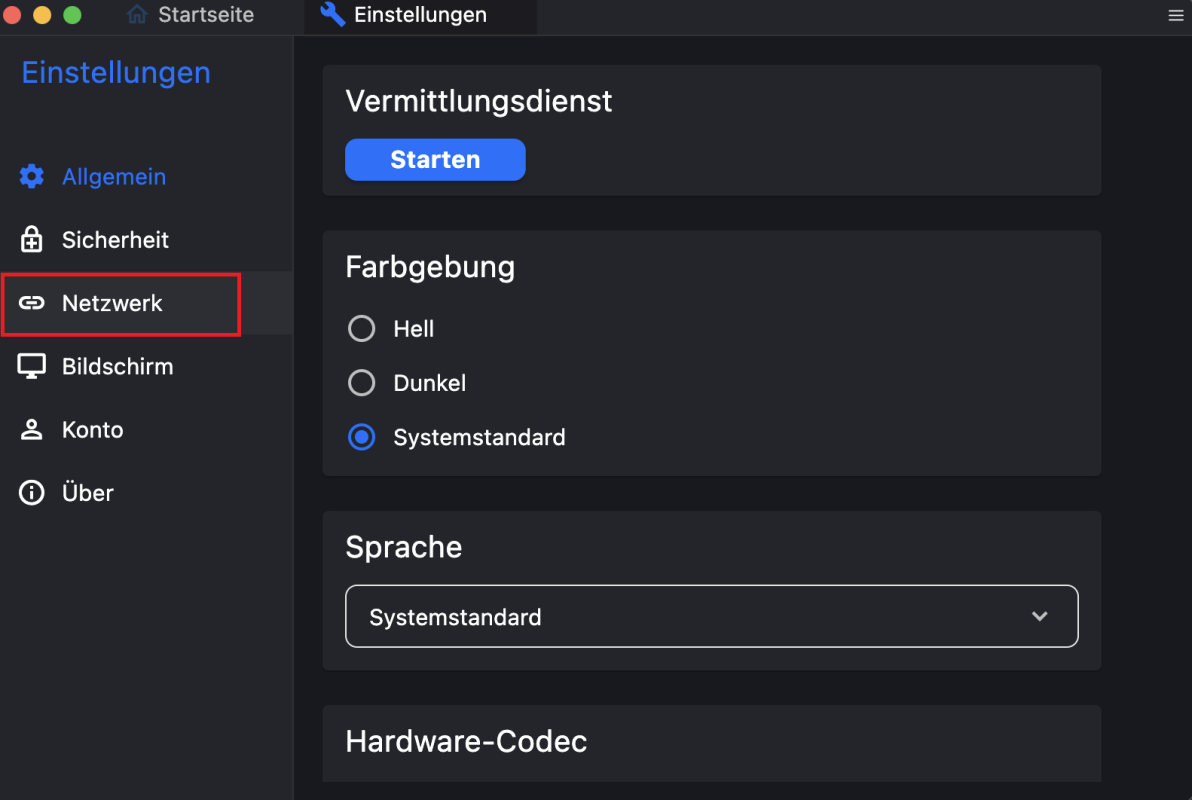
    • In the following window, open the "Network" section

    Step 10:
    © IVV1

    Step 11:

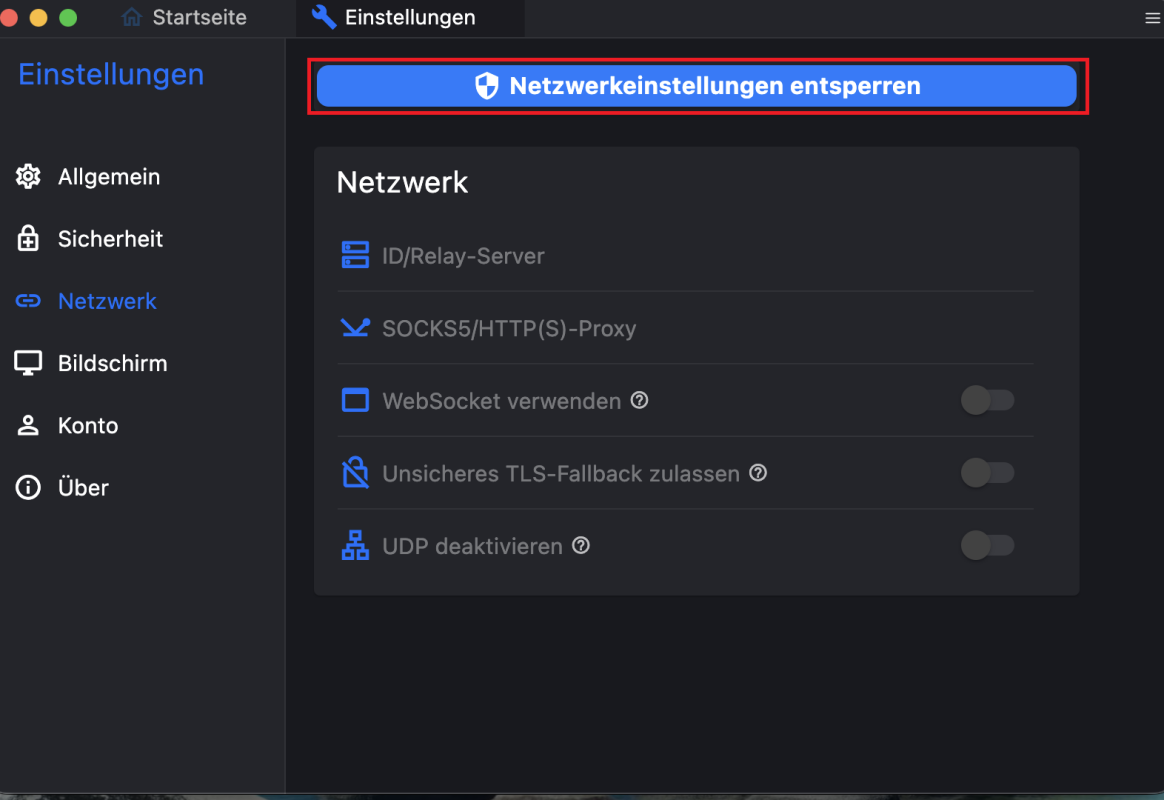
    • Select "Unlock network settings"
    • Enter the Mac's user password to unlock the network settings

    Step 11:
    © IVV1

    Step 12:

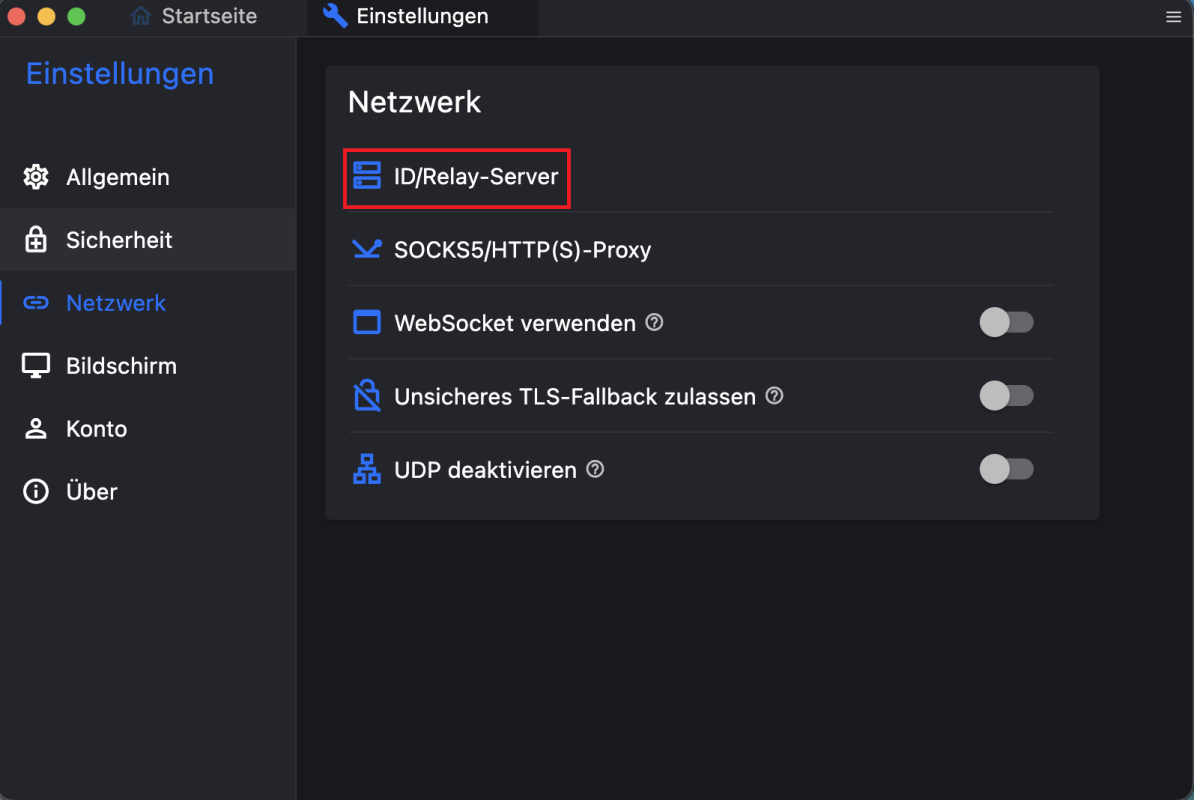
    • Go to "ID/Relay Server"

    Step 12:
    © IVV1

    Server configuration value:

    Click here to copy

    Step 13:

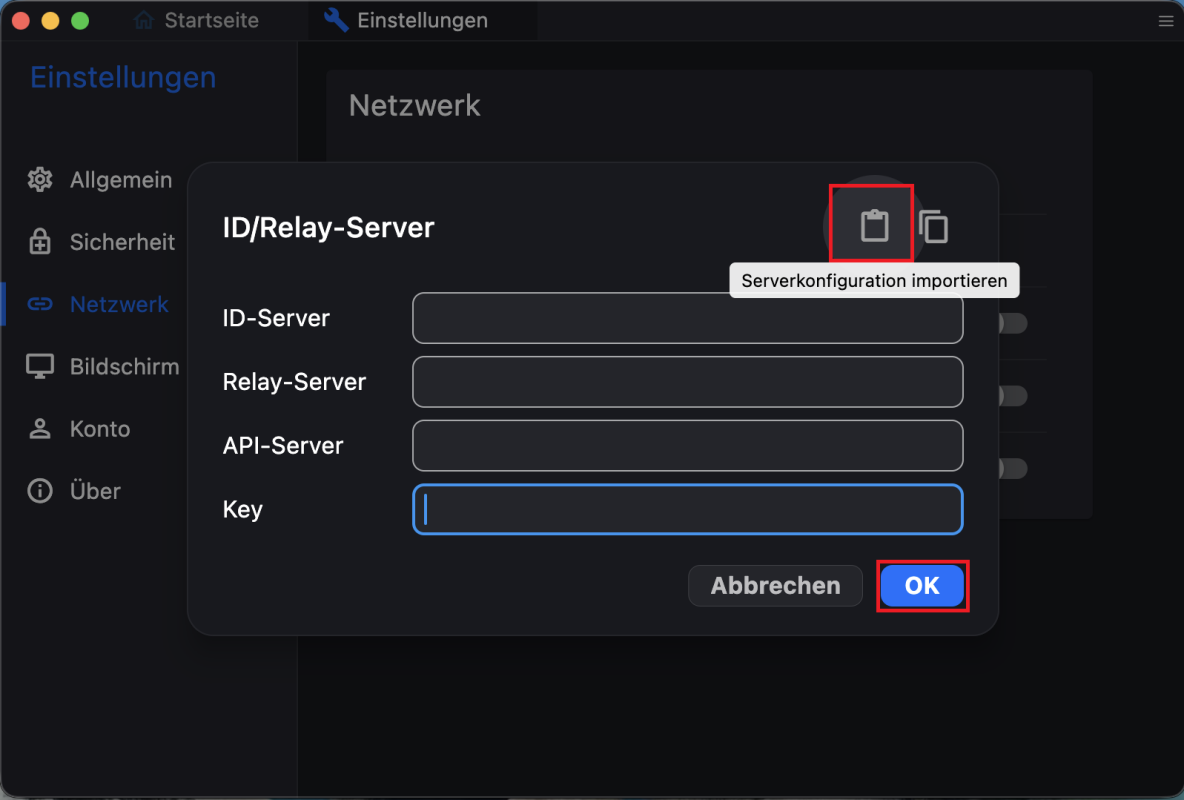
    • A new window will open
    • Copy the server configuration value provided (see above), then select "Import server configuration" and confirm with "OK"

    Step 13:
    © IVV1

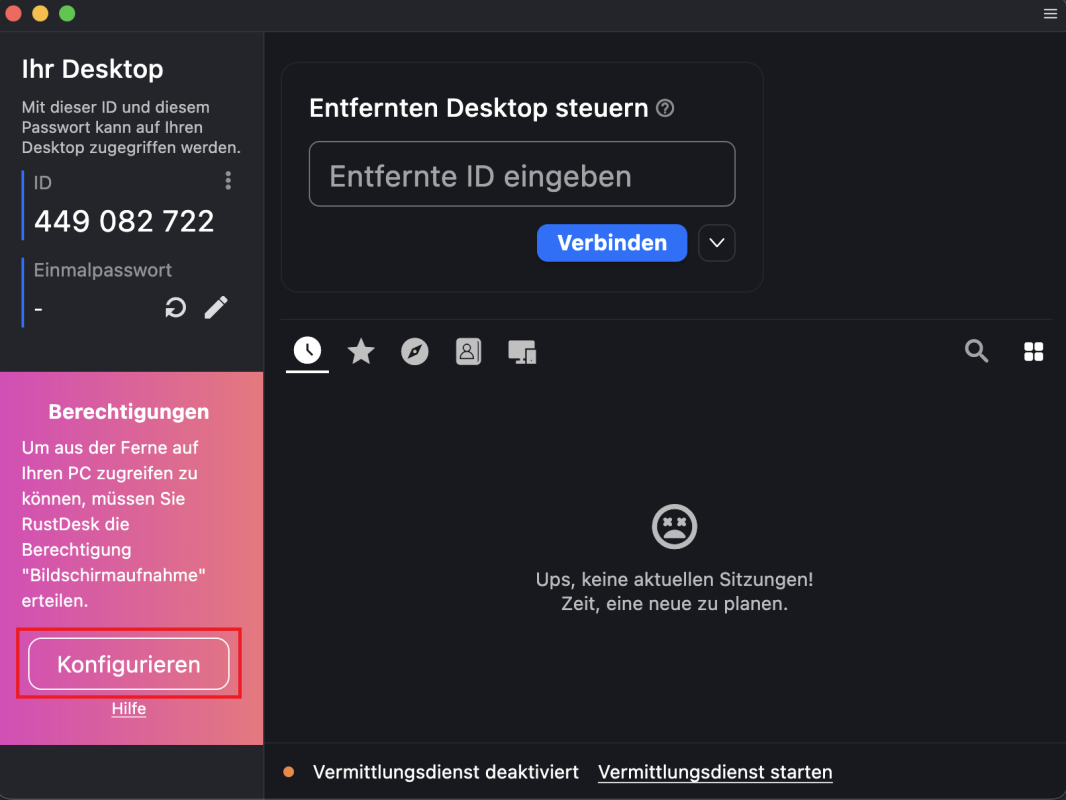
    Step 14:

    • To enable remote access to the PC, click on "Configure" on the left

    Step 14:
    © IVV1

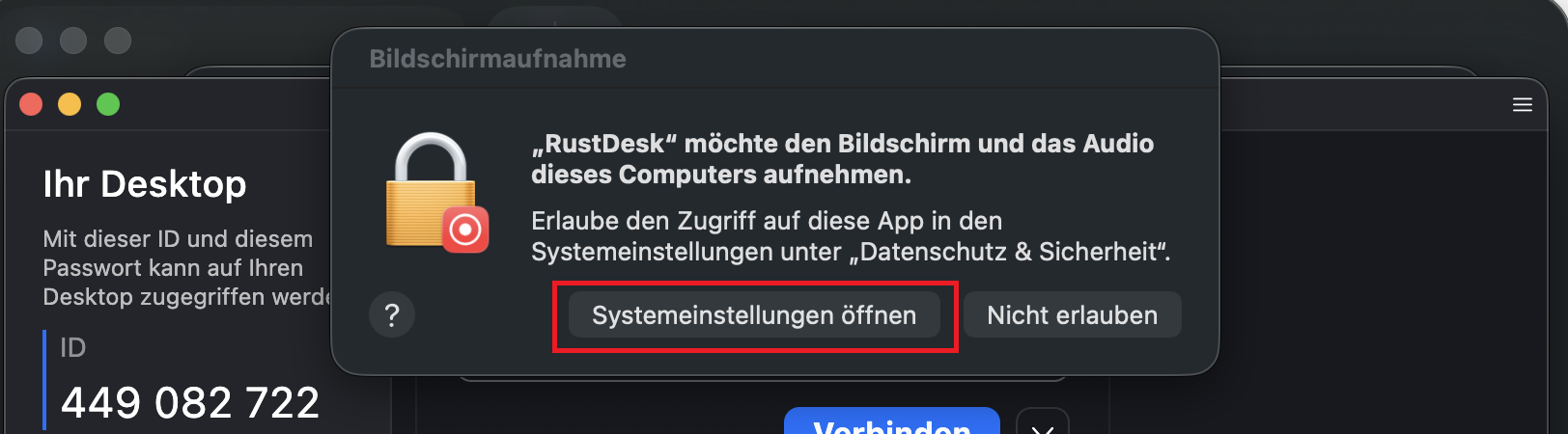
    Step 15:

    • Click on "Open System Settings" to adjust the required settings

    Step 15:
    © IVV1

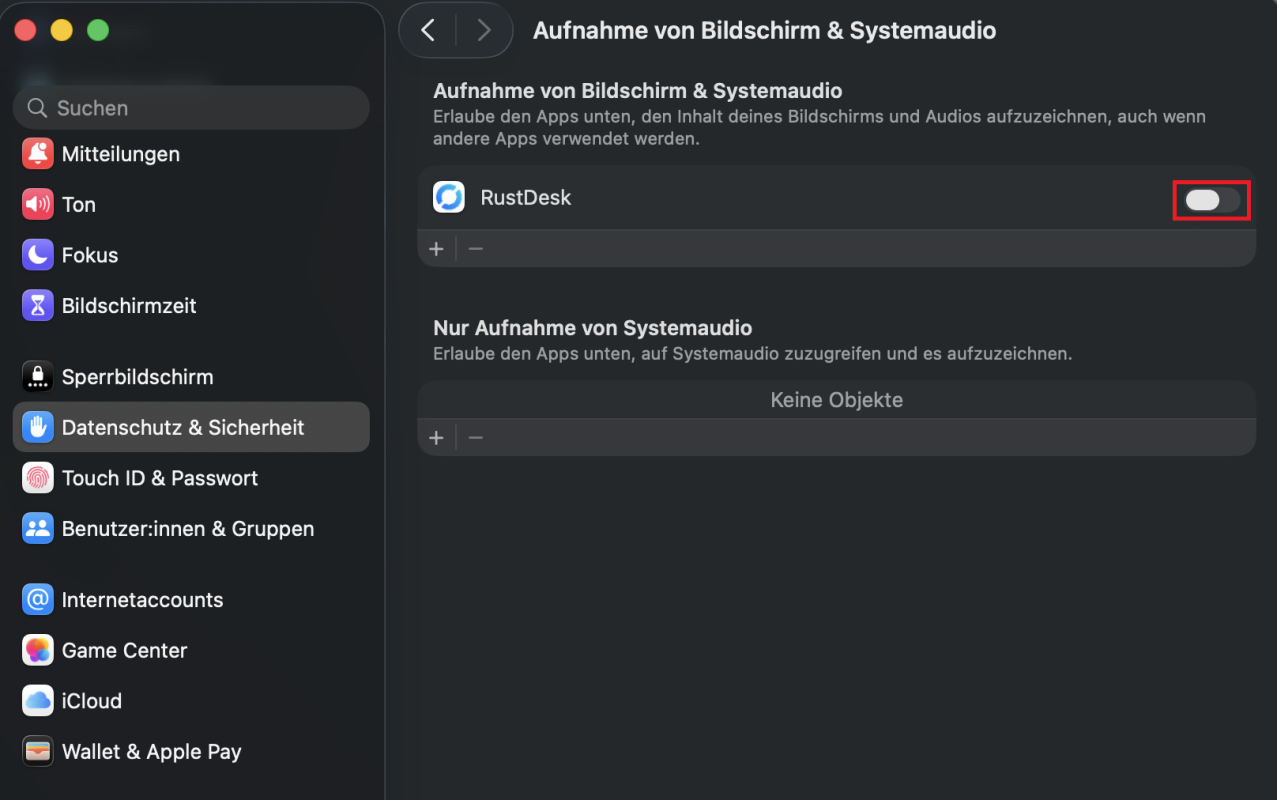
    Step 16:

    • Activate the slider next to "RustDesk" to grant the necessary permission
    • Confirm the change by entering the Mac user password

    Step 16:
    © IVV1

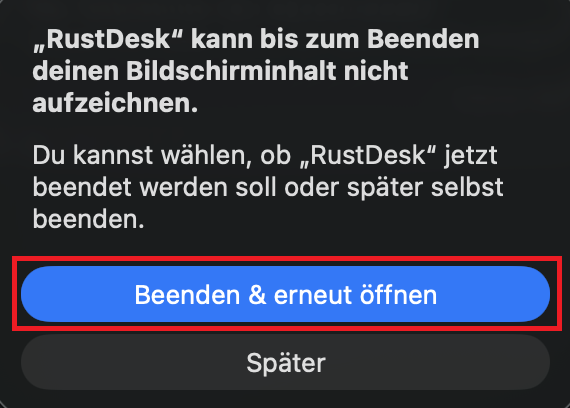
    Step 17:

    • To restart RustDesk with the new settings, select "Exit & Reopen"

    Step 17:
    © IVV1

    Step 18:

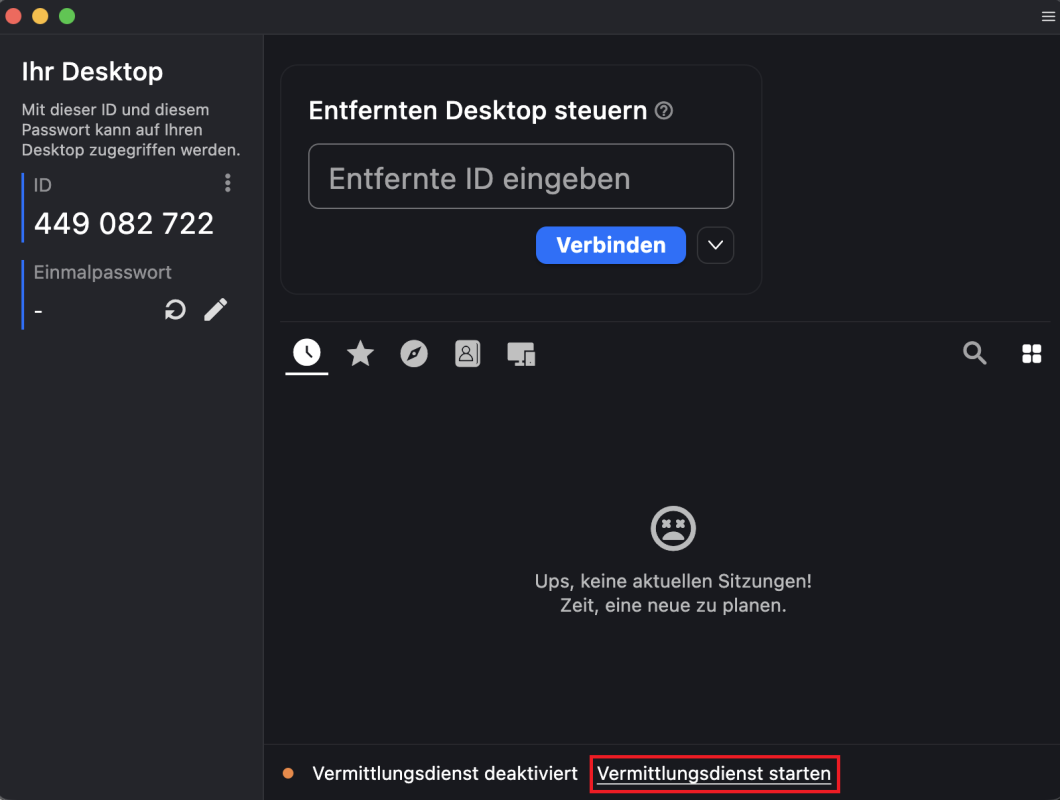
    • Click on "Start the mediation service" at the bottom
    • Confirm the process by entering the Mac user password

    Step 18:
    © IVV1

    Step 19:

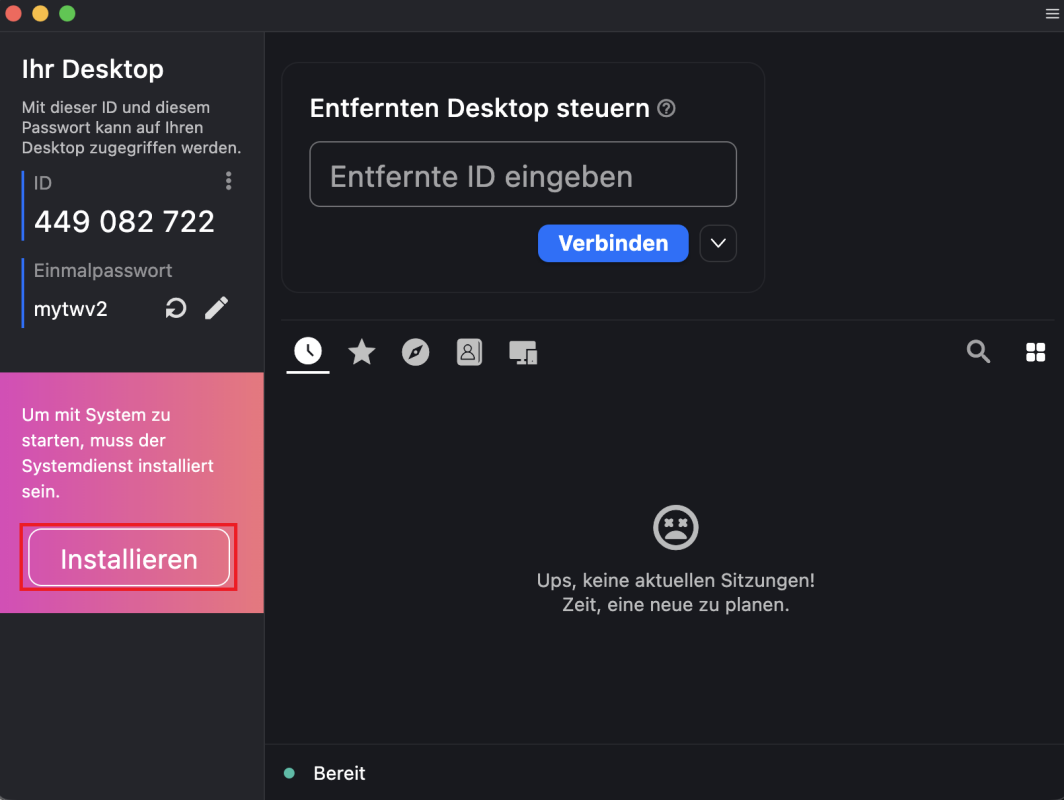
    • To start RustDesk with the system, the system service must be installed - to do this, select "Install on the right-hand side
    • Confirm the installation by entering the Mac user password

    Step 19:
    © IVV1

    Step 20:

    • For the subsequent remote maintenance, you will need the RustDesk ID as well as the one-time password for the device

    Step 20:
    © IVV1